Automate Graceful Shutdown for Proxmox with RPi and APC UPS
December 21, 2024
Table of Contents
Introduction
When I read the article from Brandon Lee about the top 10 automation scripts for every home lab and came across point 9 about a ‘UPS-triggered graceful shutdown script’, I thought what a great idea! Yet how about using apcupsd since I have an APC UPS.
And how about making the script fit an unlimited number of Proxmox hosts that would be spaced out based on the % of the remaining battery throughout the discharging process? And what if the power comes back on during the process, could we not automate the power-on too? Or is that overly ambitious? Let’s dive in and see 😇
What are the goals
This guide will walk you through a complete, end-to-end solution for automating your APC UPS with a Raspberry Pi. We'll go far beyond a simple shutdown script. You will learn how to build a robust system that:
- Monitors your UPS and triggers shutdowns at dynamic battery levels.
- Gracefully shuts down multiple Proxmox hosts in a staggered, controlled-chaos-free order.
- Sends rich, detailed HTML email alerts.
- Pushes the UPS status to Uptime Kuma for proactive monitoring.
- Automatically wakes your hosts with Wake-on-LAN when the power is restored.
- Manages all your custom scripts professionally using a GitOps workflow, the same method used by modern DevOps teams.
This is the ultimate "set-it-and-forget-it" power management solution for your homelab.
Pre-requisites
- 1 or more Proxmox hosts
- A Raspberry Pi (RPi) - ideally v4+ or any other Linux-based device (Debian / Ubuntu flavors). In my case, the RPi also serves as my Proxmox Backup Server (PBS), which does not get in the way and plays no role in this tutorial.
- APC UPS unit that you connect via USB to your RPI
- A free mailbox to use SMTP to send emails from
Install required software
- Firstly, once you have connected your UPS, check that the RPi can see it:
lsusb
- Install the APC driver
sudo apt update
sudo apt install apcupsd -y- Configure the APC configuration files - the values below may be spread out across the document. Ensure these lines are set correctly. If using nano, use
Ctrl+Winnanoto find them (or / in vim).
sudo nano /etc/apcupsd/apcupsd.conf

# For a USB-connected UPS
UPSCABLE usb
UPSTYPE usb

# Leave DEVICE blank for USB auto-detection
DEVICE

# Enable the network server so other devices can query the Pi
NETSERVER on
NISIP 0.0.0.0
NISPORT 3551

# It is also good to enable a self test every two weeks
SELFTEST 336- Change the readiness value from ‘no’ to ‘yes’ to indicate the config file is ready.
sudo sed -i 's/ISCONFIGURED=no/ISCONFIGURED=yes/' /etc/default/apcupsd- Start the service, ensure the config is accepted and enable it to start upon boot:
sudo systemctl start apcupsd
sudo systemctl status apcupsd
sudo systemctl enable apcupsd- Here is how it went in my case - you can see that the service is running but it is reporting communication lost every ca. 10 minutes. This is an indication that something is not quite right - without the communication working, the RPi would not know if UPS switched to battery mode and what is the status of the battery.

- In such cases, try rebooting your RPi and/or connecting it to another USB port.
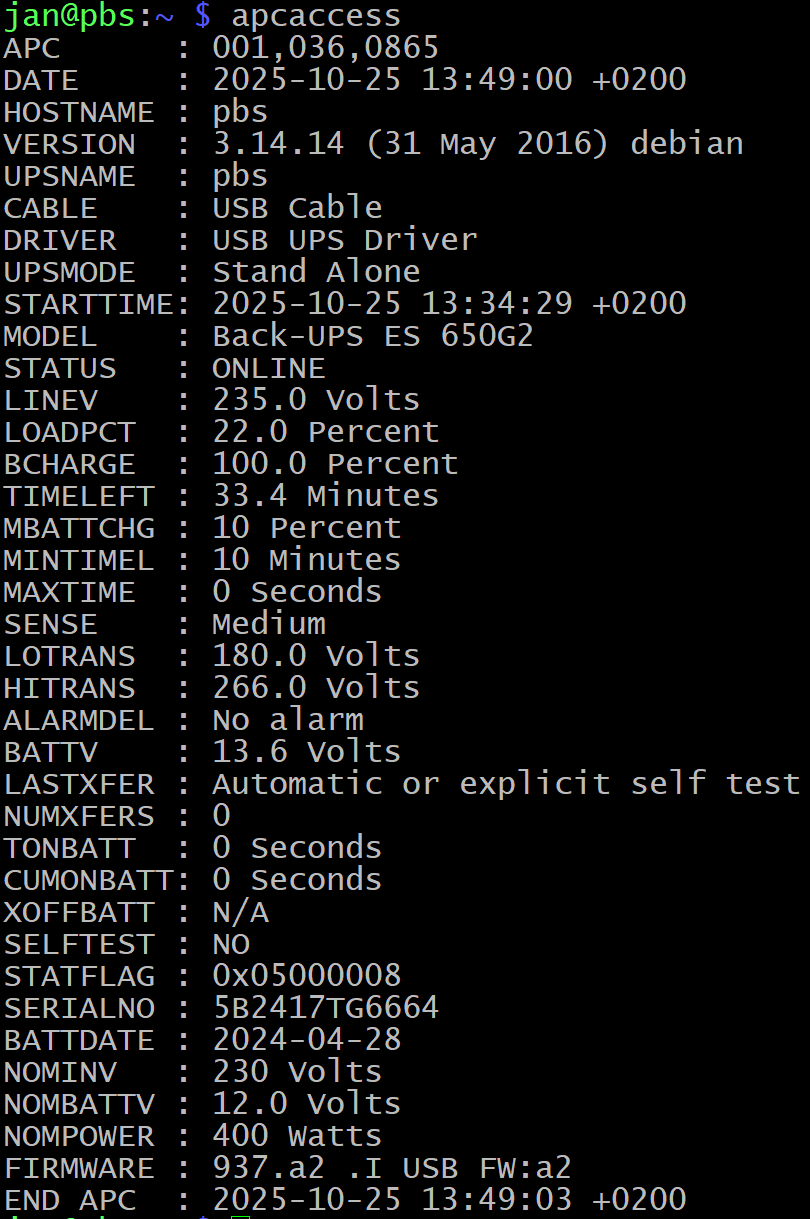
- To verify that communication is working, run
apcaccess. Check specifically for:STATUS-> Usually eitherONLINEorONBATTBCHARGE-> typically the % of the battery. Some models have it asBATTCHG- if that is your case, you will need to change that in the following scripts!
Create an SSH key for password-less access to each host
- Let’s create an SSH key and set it up to make each host reachable without needing a password.
# Switch to root
sudo -i
ssh-keygen -t rsa -b 4096
# Give the key a name and a path, such as '/root/.ssh/upsmanage_rsa' .
# This is to recognize it from other keys.

# Copy the public key to the authorized_keys of each host you want to manage.
# Replace your IPs with each host, such as your Proxmox hosts.
ssh-copy-id -i /root/.ssh/upsmanage_rsa.pub [email protected]
ssh-copy-id -i /root/.ssh/upsmanage_rsa.pub [email protected]
- Then test the connection. You should NOT be asked for a password.
# Test the connection
ssh -i /root/.ssh/upsmanage_rsa [email protected] 'hostname'  # Should return 'proxmox1'
ssh -i /root/.ssh/upsmanage_rsa [email protected] 'hostname'  # Should return 'proxmox2'

# Exit root
exit
Configure your SMTP service
- In this case, I’m using
mutt- feel free to use whichever you are comfortable with. - Let’s install it and configure it:
sudo apt install mutt -y

# Configure it (/etc/Muttrc is the global config, ~/.muttrc is for user config)
sudo nano /etc/Muttrc

# At the end the end of the file, enter your SMTP details - an example is below:

set smtp_url = "smtps://[email protected]:465/"
set smtp_pass = some_password # Use application passwords when using Gmail
set ssl_force_tls = yes
set realname = "RPI Monitoring"
set from = "[email protected]"
set use_from = yes- Run a test from the terminal:
echo "This is the message body" | mutt -s "subject" -- [email protected]What do we have so far
- We know the status of our battery and can check for it periodically if we script it.
- We can reach each Proxmox host to remotely shut it down as root.
- We can send out alerts via email (later we can configure another way with a pull script with UpTime Kuma).
The next thing on the list is to create that script that can then be added as a cron job to run every minute. Let's dive in!
Prepare a ‘Script of scripts’ to manage n amount of hosts to shutdown gracefully
- Originally I prepared a script to manage 1 or 2 hosts to gracefully shutdown when a battery reaches a certain level that you would define in a variable. Then I realized - what if you have more? The script below accounts for that:
sudo nano /usr/local/sbin/ups_manager.sh

#!/bin/bash

#================================================
#             UPS SHUTDOWN MANAGER              #
#================================================

# --- User Configuration ---
EMAIL_TO="[email protected]"
PROXMOX_HOSTS=(
    "1.2.3.4"  # Proxmox2 (secondary to shut down first)
    "4.3.2.1"  # Proxmox1 (primary to shut down last)
)
START_PERCENT=80
END_PERCENT=30
PI_SHUTDOWN_PERCENT=12

# --- System Configuration ---
LOG_FILE="/var/log/ups_manager.log"
FLAG_DIR="/tmp/ups_shutdown_flags"
PI_FLAG_FILE="${FLAG_DIR}/pi_shutdown.flag"
SSH_KEY_FILE="/root/.ssh/upsmanage_rsa"

# --- Cron-safe paths ---
APCACCESS_CMD="/usr/sbin/apcaccess"
GREP_CMD="/usr/bin/grep"
AWK_CMD="/usr/bin/awk"
BC_CMD="/usr/bin/bc"
SSH_CMD="/usr/bin/ssh"

#================================================
#                  FUNCTIONS                    #
#================================================

log_message() {
    echo "$(date '+%Y-%m-%d %H:%M:%S') - $1" | tee -a "$LOG_FILE"
}

send_email() {
    local subject="$1"
    local body="$2"
    echo "$body" | mutt -s "$subject" "$EMAIL_TO"
    log_message "Email sent to $EMAIL_TO: $subject"
}

graceful_shutdown_host() {
    local HOST_IP=$1
    log_message "Attempting graceful (non-blocking) shutdown of $HOST_IP..."

    # This command runs remotely on the Proxmox host
    $SSH_CMD -i $SSH_KEY_FILE -o ConnectTimeout=10 root@$HOST_IP '
        log_msg() { echo "$(date): $1"; }

        log_msg "Received shutdown signal from UPS manager."

        # 1. Gracefully shut down all running VMs
        log_msg "Sending shutdown signal to all QEMU VMs..."
        for vmid in $(qm list | grep running | awk "{print \$1}"); do
            qm shutdown $vmid
        done

        # 2. Wait 5 minutes (300 seconds) for VMs to shut down
        log_msg "Waiting 300 seconds for graceful VM shutdown..."
        sleep 300

        # 3. Forcefully stop any VMs still running (like stuck Windows VMs)
        log_msg "Forcing shutdown of any remaining VMs..."
        for vmid in $(qm list | grep running | awk "{print \$1}"); do
            log_msg "VM $vmid is stuck. Forcing stop."
            qm stop $vmid
        done

        # 4. Gracefully shut down all running containers
        log_msg "Sending shutdown signal to all LXC Containers..."
        for ctid in $(pct list | grep running | awk "{print \$1}"); do
            pct shutdown $ctid
        done

        # 5. Wait 2 minutes (120 seconds) for containers
        log_msg "Waiting 120 seconds for containers to stop..."
        sleep 120

        # 6. Forcefully stop any containers still running
        log_msg "Forcing shutdown of any remaining containers..."
        for ctid in $(pct list | grep running | awk "{print \$1}"); do
            log_msg "Container $ctid is stuck. Forcing stop."
            pct stop $ctid
        done
        sleep 60

        # 7. Shut down the Proxmox host
        log_msg "All guests stopped. Shutting down Proxmox host now."
        shutdown -h now
    '
}

#================================================
#                SCRIPT LOGIC                   #
#================================================

mkdir -p "$FLAG_DIR"
log_message "Script started. Checking UPS status..."

# --- Get UPS Status (using full paths) ---
APC_OUTPUT=$($APCACCESS_CMD)
if [ $? -ne 0 ]; then
    log_message "FATAL: 'apcaccess' command failed. Is apcupsd running?"
    exit 1
fi

UPS_STATUS=$(echo "$APC_OUTPUT" | $GREP_CMD "STATUS" | $AWK_CMD '{print $3}')
# Use BCHARGE per your discovery
BATT_PERCENT=$(echo "$APC_OUTPUT" | $GREP_CMD "BCHARGE" | $AWK_CMD '{print $3}' | cut -d'.' -f1)

if [ "$UPS_STATUS" != "ONBATT" ]; then
    log_message "UPS is on line power ($UPS_STATUS). No action needed."
    exit 0
fi

log_message "WARNING: UPS is on battery! Current level: ${BATT_PERCENT}%"

# --- Dynamic Threshold Calculation ---
declare -a THRESHOLDS
HOST_COUNT=${#PROXMOX_HOSTS[@]}

if [ "$HOST_COUNT" -eq 1 ]; then
    THRESHOLDS=($START_PERCENT)
else
    RANGE=$(($START_PERCENT - $END_PERCENT))
    INTERVALS=$(($HOST_COUNT - 1))
    STEP=$(echo "scale=4; $RANGE / $INTERVALS" | $BC_CMD)

    for (( i=0; i<$HOST_COUNT; i++ )); do
        THRESH=$(echo "scale=4; $START_PERCENT - ($i * $STEP)" | $BC_CMD)
        THRESHOLDS[$i]=$(printf "%.0f" "$THRESH")
    done
fi

log_message "Calculated shutdown thresholds: ${THRESHOLDS[*]}"

# --- Check Proxmox Hosts ---
for (( i=0; i<${#PROXMOX_HOSTS[@]}; i++ )); do
    HOST_IP=${PROXMOX_HOSTS[$i]}
    HOST_THRESHOLD=${THRESHOLDS[$i]}
    FLAG_FILE="${FLAG_DIR}/host_${HOST_IP}.flag"

    if [ "$BATT_PERCENT" -le "$HOST_THRESHOLD" ] && [ ! -f "$FLAG_FILE" ]; then
        log_message "TRIGGER: Battery at ${BATT_PERCENT}%. Threshold of ${HOST_THRESHOLD}% met for ${HOST_IP}."
        touch "$FLAG_FILE"

        SUBJECT="UPS ALERT: Shutting down Proxmox Host ${HOST_IP}"
        BODY="UPS battery level reached ${BATT_PERCENT}%.

Triggering graceful (non-blocking) shutdown for Proxmox host at ${HOST_IP} (Threshold: ${HOST_THRESHOLD}%)."
        send_email "$SUBJECT" "$BODY"

        # Call shutdown function in the background
        graceful_shutdown_host "$HOST_IP" &

    elif [ -f "$FLAG_FILE" ]; then
        log_message "INFO: Shutdown command for ${HOST_IP} already sent."
    fi
done

# --- Check Raspberry Pi Self-Shutdown ---
if [ "$BATT_PERCENT" -le "$PI_SHUTDOWN_PERCENT" ] && [ ! -f "$PI_FLAG_FILE" ]; then
    log_message "CRITICAL: Battery at ${BATT_PERCENT}%. Shutting down myself."
    touch "$PI_FLAG_FILE"
    sudo shutdown -h now
fi

log_message "The script has finished."
- Feel free to execute it by running bash
/usr/local/sbin/ups_manager.sh. - When connected to power, you will simply get a message that
UPS is on line power (ONLINE). No action needed.
Script Explained - in words
It's designed to be run by cron every minute on your Raspberry Pi. Its sole job is to check the UPS status and decide if any action is needed.
Here is a step-by-step breakdown of its logic:
- Check Power Status: The script first checks if the UPS is
ONBATT(on battery). If the status isONLINE(on mains power), it logs a simple ‘all good’ message and immediately exits. No further action is taken. - Calculate Dynamic Thresholds: If the UPS is on battery, the script's first action is to calculate a unique shutdown threshold for every host in your
PROXMOX_HOSTSarray.- It takes your
START_PERCENT(e.g., 80) andEND_PERCENT(e.g., 30). - It "spreads" the shutdowns evenly across this range. For example, with two hosts, the thresholds are
[80, 30]. If you added a third host, the script would automatically calculate[80, 55, 30]. This ensures all your servers don't try to shut down at once.
- It takes your
- Check Each Host: The script loops through your
PROXMOX_HOSTSarray, checking each host one by one. For each host, it asks two questions:- Question 1: Is the current battery level (
BCHARGE) at or below this host's unique threshold? - Question 2: Has a "shutdown flag" file already been created for this host? (This prevents sending the shutdown command many times).
- Question 1: Is the current battery level (
- Trigger the Shutdown: If the answer is "Yes" to Q1 (battery is low) and "No" to Q2 (no flag exists), the script triggers the shutdown:
- It creates the flag file (e.g.,
/tmp/ups_shutdown_flags/host_1.2.3.4.flag) to "lock" this host. - It sends you a detailed email alert.
- It calls the
graceful_shutdown_hostfunction in the background (using&). This is important: the Pi sends the command but does not wait for it to finish. This allows the script to finish quickly so it can check on other hosts or the Pi itself.
- It creates the flag file (e.g.,
- Final Failsafe (Pi Shutdown): After checking all Proxmox hosts, the script does one last check for itself. If the battery is at or below the
PI_SHUTDOWN_PERCENT(e.g., 12%), it shuts itself down.
Script Explained - in a flow chart
- You can access it on this link.
- Alternatively, see the attached Mermaid file, you can simply copy paste it in there.
Configure the on and off battery scripts
- In case you did not know, when power goes down and the UPS switches to battery power, the
apcupsdservice automatically triggers a shell script under/etc/apcupsd/onbattery. We will need to modify it to use our mail service and email the right email address.
nano /etc/apcupsd/onbattery

#!/bin/bash

# Variables
MAIL_TO="[email protected]"
LOG_FILE="/var/log/ups_manager.log"
MAIL_BODY="/tmp/power_lost.html"
SUBJ="Power LOST for `hostname`"

# Create HTML email body
cat > $MAIL_BODY << EOF
<html>
    <body>
        <h2>Power was lost!</h2>
        <p><strong>Current APC status:</strong>
        <pre>`/usr/sbin/apcaccess status`</pre>
        <p><strong>Recent log file output:</strong>
        <pre>`tail -n 20 /var/log/ups_manager.log`</pre>
        <p>Your RPi script :)</p>
    </body>
</html>
EOF

mutt -e 'set content_type="text/html"' \
     -s "$SUBJ" \
     "$MAIL_TO" \
     -a "$LOG_FILE" < "$MAIL_BODY"

rm -f "$MAIL_BODY"  # Remove our temporary file
exit 0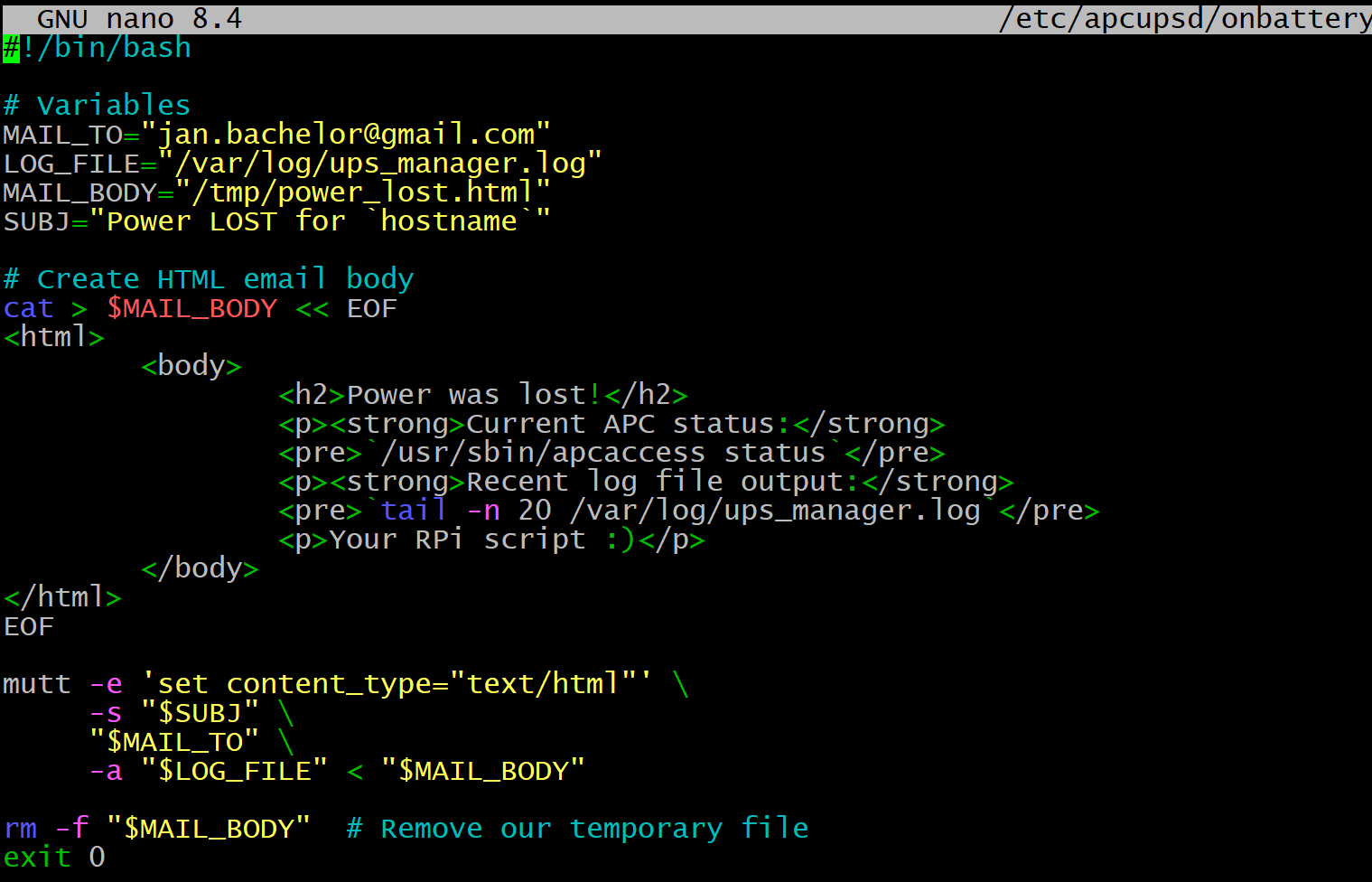
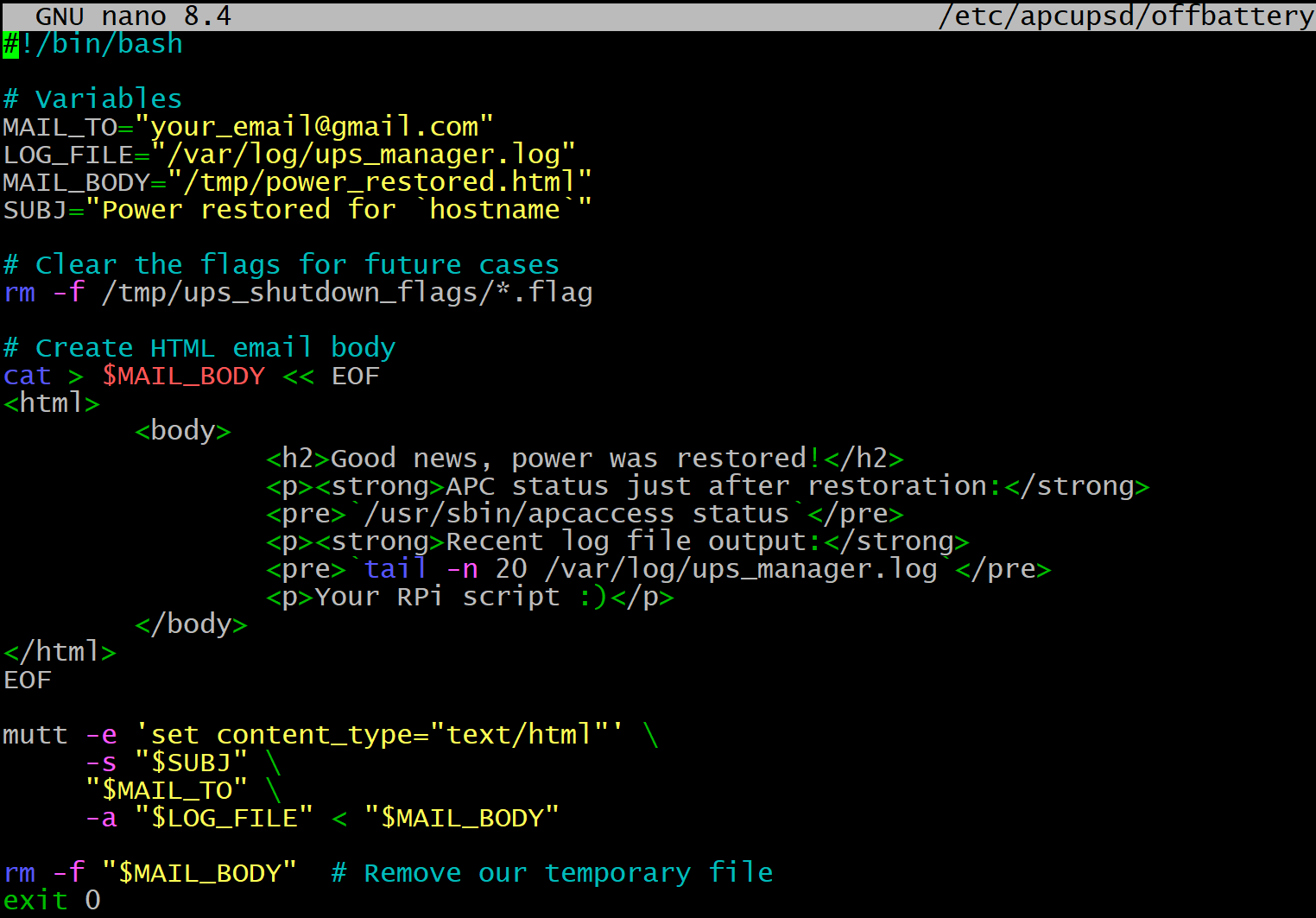
- Once power is back on, another script under
/etc/apcupsd/offbatteryis executed. Locate it and, at the end of it, add the following lines to clear the flag for our script. - Kudos to https://pieterbakker.com/using-mutt-to-send-html-emails-with-attachments/ for the suggestions on how to use HTML format with mutt.
nano /etc/apcupsd/offbattery

#!/bin/bash

# Variables
MAIL_TO="[email protected]"
LOG_FILE="/var/log/ups_manager.log"
MAIL_BODY="/tmp/power_restored.html"
SUBJ="Power restored for `hostname`"

# Clear the flags for future cases
rm -f /tmp/ups_shutdown_flags/*.flag

# Create HTML email body
cat > $MAIL_BODY << EOF
<html>
    <body>
        <h2>Good news, power was restored!</h2>
        <p><strong>APC status just after restoration:</strong>
        <pre>`/usr/sbin/apcaccess status`</pre>
        <p><strong>Recent log file output:</strong>
        <pre>`tail -n 20 /var/log/ups_manager.log`</pre>
        <p>Your RPi script :)</p>
    </body>
</html>
EOF

mutt -e 'set content_type="text/html"' \
     -s "$SUBJ" \
     "$MAIL_TO" \
     -a "$LOG_FILE" < "$MAIL_BODY"

rm -f "$MAIL_BODY"  # Remove our temporary file
exit 0
- Make the scripts executable and test them:
sudo chmod +x /usr/local/sbin/ups_manager.sh
sudo chmod +x /etc/apcupsd/onbattery
sudo chmod +x /etc/apcupsd/offbattery

# Calling these two should result in an email being sent.
bash /etc/apcupsd/onbattery
bash /etc/apcupsd/offbattery
# Should show you that the UPS is connected to power and no further action is needed.
bash /usr/local/sbin/ups_manager.sh- Schedule it to run every two minutes:
sudo crontab -e

# Add this line:
*/2 * * * * /usr/local/sbin/ups_manager.sh-
Note that logs will be saved under
/var/log/ups_manager.login addition to the email alerts. At this point, if the power goes down, you will receive an email and the script will trigger further to eventually start gracefully shutting down your Proxmox hosts. -
One more thing, we need to ensure that the log gets rotated, as it will be getting updates every two minutes and will clog up quickly. Let’s use
logrotatefor that.
sudo nano /etc/logrotate.d/ups_manager

/var/log/ups_manager.log {
    weekly
    rotate 4
    compress
    delaycompress
    missingok
    notifempty
    create 644 root root
}

# Test it
sudo logrotate -d /etc/logrotate.conf
Bonus: Add UPS monitoring to UptimeKuma
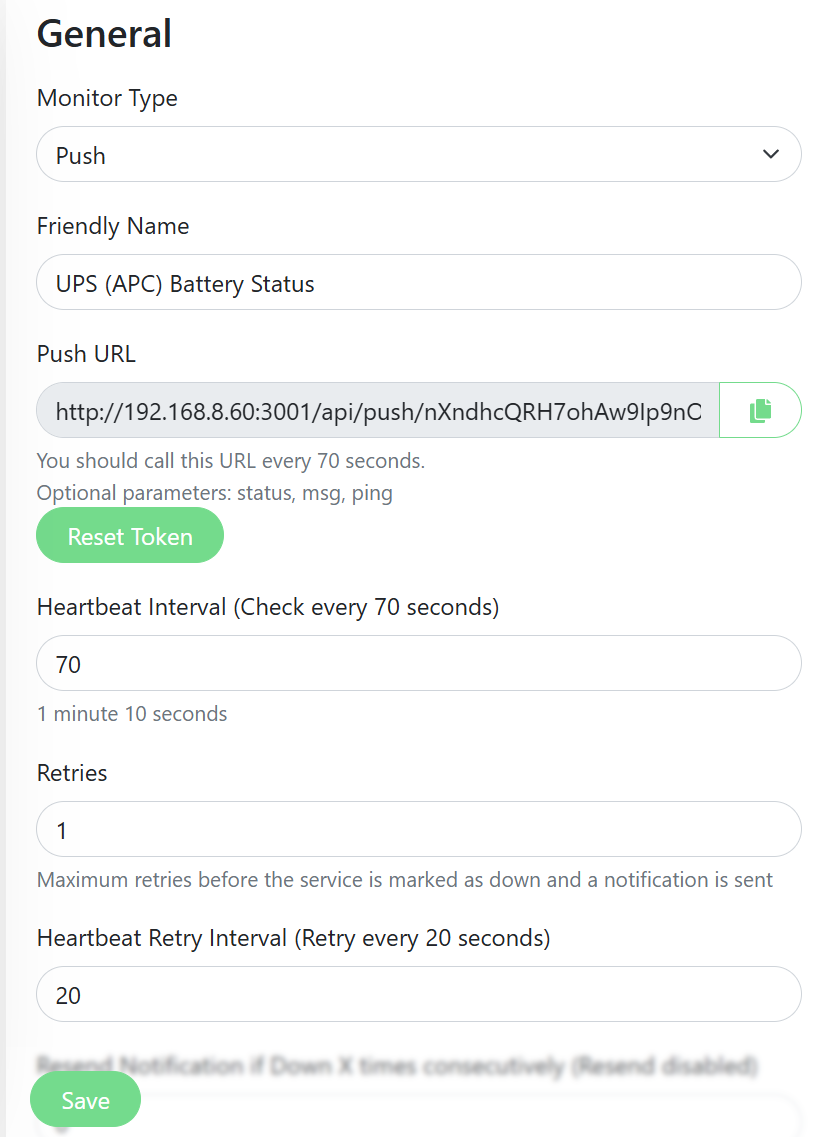
- Would it not be nice to also get an alert via UptimeKuma if power has gone down? This is an ideal case for a passive (push) monitor that would go from your RPi to regularly report the state.
- On your UptimeKuma instance:
- Click the "Add New Monitor" button.
- Fill out the form:
- Monitor Type: Select "Push".
- Friendly Name:
UPS Battery Status - Heartbeat Interval:
70(This means if the Pi fails to check in for 70 seconds, the monitor will go "Down").
- After you select "Push," Uptime Kuma will generate a Push URL. It will look something like this:
http://A.B.C.D:3001/api/push/LzGjP4k9q - Copy this URL up to the code (not the part after ?).
- Keep it open and save it once the crontab job (later on) is set up.
- On your RPI:
sudo -i
nano /usr/local/sbin/push_ups_to_kuma.sh

#!/bin/bash

# --- CONFIGURATION ---
PUSH_URL="http://A.B.C.D:3001/api/push/CODE"
#PUSH_URL="http://192.168.8.60:3001/api/push/YourPushTokenHere"

# Full paths for all commands (cron-safe)
APCACCESS_CMD="/usr/sbin/apcaccess"
GREP_CMD="/usr/bin/grep"
AWK_CMD="/usr/bin/awk"
CURL_CMD="/usr/bin/curl"

# Get the raw status text (e.g., "ONLINE" or "ONBATT")
STATUS_MSG=$($APCACCESS_CMD | $GREP_CMD "STATUS" | $AWK_CMD '{print $3}')

# Get the battery value (per your UPS model)
BATT_VAL=$($APCACCESS_CMD | $GREP_CMD "BCHARGE" | $AWK_CMD '{print $3}')

# Set as 'up' only if battery is 'ONLINE'
KUMA_STATUS="up"
if [ "$STATUS_MSG" != "ONLINE" ]; then
    KUMA_STATUS="down"
fi

echo "Sending to Kuma: Kuma Status=${KUMA_STATUS}, UPS Status=${STATUS_MSG}, Battery=${BATT_VAL}%"

# Send the data to Uptime Kuma
$CURL_CMD \
    --get \
    --data-urlencode "status=${KUMA_STATUS}" \
    --data-urlencode "msg=${STATUS_MSG}, battery at ${BATT_VAL}%." \
    "$PUSH_URL"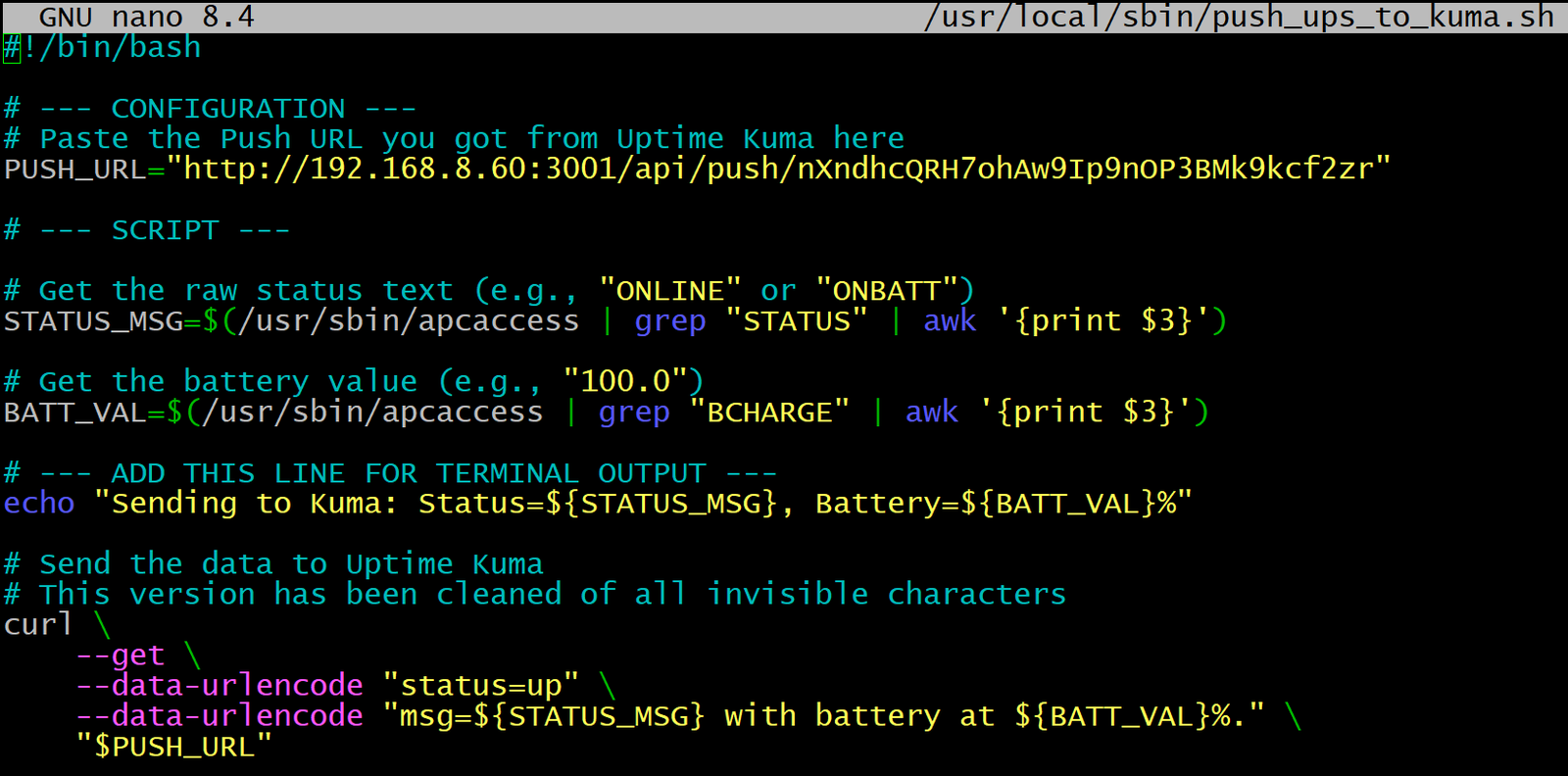
- Make the script executable:
chmod +x /usr/local/sbin/push_ups_to_kuma.sh- Add it to crontab to run every minute:
crontab -e

# Send UPS status to Uptime Kuma every minute
* * * * * /usr/local/sbin/push_ups_to_kuma.sh >/dev/null 2>&1- Ensure the UptimeKuma monitor is saved and watch the magic happen 😇
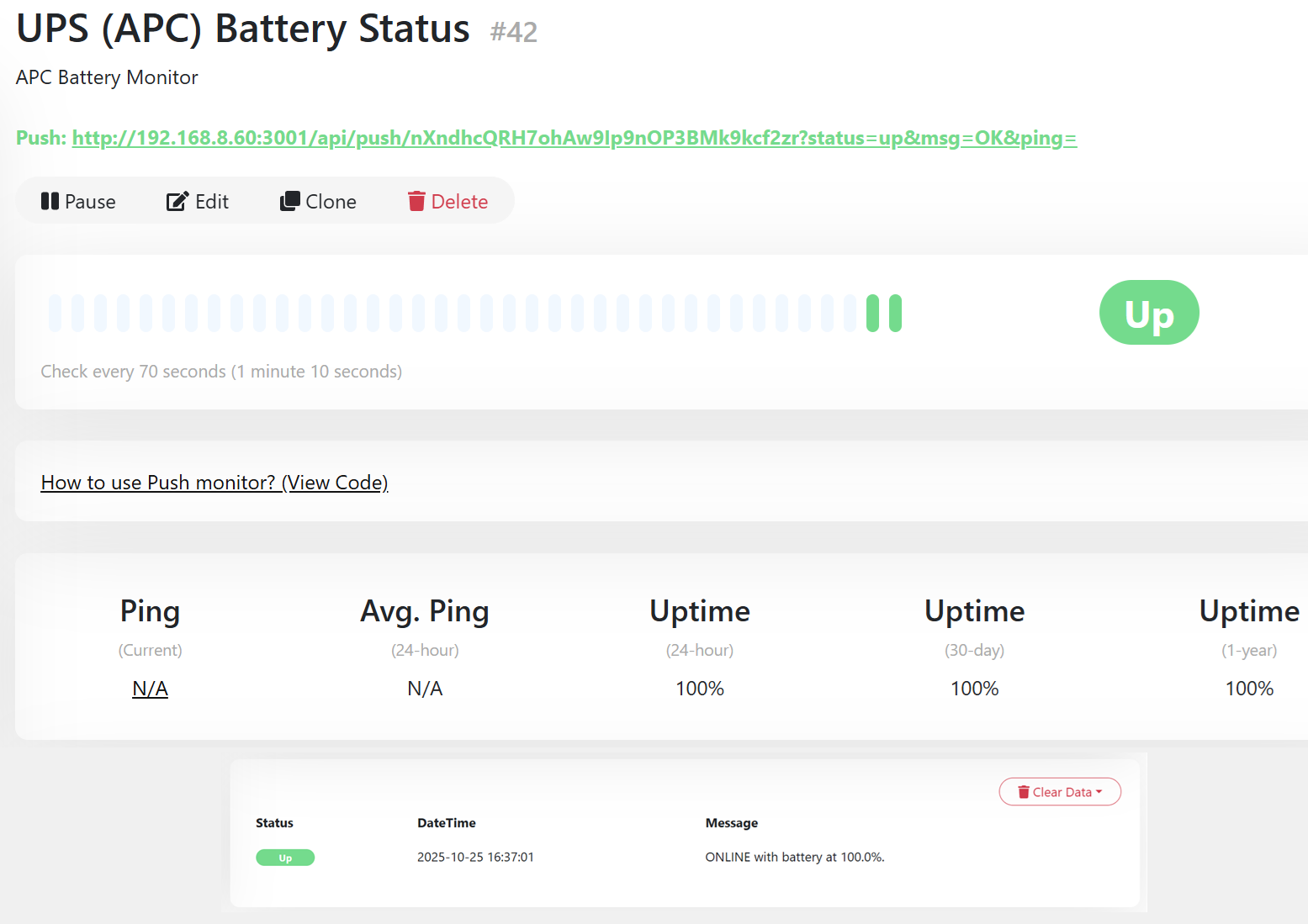
Run a UPS drain test!
- Back up / snapshot any critical VMs and containers just in case
- Ensure that anything important is not plugged into the UPS ports that are not actually backed up (some UPS units have more electrical plugs that are not battery-covered).
- On the RPi, watch the log -
tail -f /var/log/ups_manager.logto watch for any changes in real time. - Unplug your UPS unit and wait for a signal
- An email should be sent immediately to notify you power is out.
- The UptimeKuma notification should arrive in under a minute.
- Watch the battery status (such as via SSH by running
apcaccess). When the amount goes beyond a certain threshold (such as 80%), another email should be fired about gracefully switching off your VM/containers on your Proxmox host. - It is up to you if you would like to plug back into your UPS now or leave it till the end.

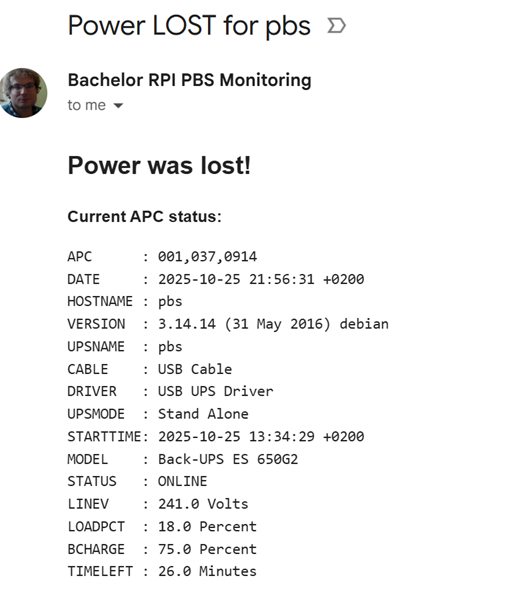
- Lastly, check the output from the log available in
/var/log/ups-manager.log.

Add Wake-on-LAN to automatically wake up your hosts!
- Imagine the power goes down for a short amount of time but already one of your Proxmox hosts gets powered down. What if our script was to detect the change and then based on the previously saved flags trigger a wake-on-LAN call to wake that host (or those hosts) back up?
- In my case, I actually have the RPi connected to a different ‘Router UPS’ that lasts much longer (around 2-3 hours) and so if the power goes down before the Pi is off, it can switch everything back on.
- 2x pre-requisites:
- To make it work, you will need to allow WoL in the BIOS of each of your Proxmox host - if not set already, you will need to plug a screen/keyboard to it, reboot it and "Wake-on-LAN," "Power On by PCIE" or something similar to set it up.
- You will also need to locate the MAC address of the management port of each of your Proxmox hosts. You can SSH in and run
ip addrand find the interface that you use to connect to the web GUI with. Typically, that would be the MAC address of yourvmbr0interface for LAN.
- Install the required package on the RPi:
sudo apt install wakeonlan- We will need to modify two scripts:
- Our ups_manager.sh script to account for the MAC address of each Proxmox host we want to provide
WoLfor if power goes back up before a total shutdown. - The
onbatteryscript to extract those MAC addresses and send aWoLpacket to each host that had the shutdown flag on (before that flag was deleted).
- Our ups_manager.sh script to account for the MAC address of each Proxmox host we want to provide
- Update the
ups_manager.shscript:
sudo nano /usr/local/sbin/ups_manager.sh

#!/bin/bash

#================================================
#              UPS SHUTDOWN MANAGER             #
#================================================

# --- User Configuration ---
EMAIL_TO="[email protected]"
PROXMOX_HOSTS=(
    "192.168.8.4"  # Proxmox2
    "192.168.8.3"  # Proxmox1
)
START_PERCENT=80
END_PERCENT=30
PI_SHUTDOWN_PERCENT=10

# --- System Configuration ---
LOG_FILE="/var/log/ups_manager.log"
FLAG_DIR="/tmp/ups_shutdown_flags"
PI_FLAG_FILE="${FLAG_DIR}/pi_shutdown.flag"

# --- Add MAC addresses for each host fo Wake-on-LAN
declare -A PROXMOX_MACS
PROXMOX_MACS["192.168.8.4"]="40:62:31:0a:d8:f5"  # Proxmox2 MAC
PROXMOX_MACS["192.168.8.3"]="00:b0:b7:e0:01:f8"  # Proxmox1 MAC

# --- Cron-safe paths ---
APCACCESS_CMD="/usr/sbin/apcaccess"
GREP_CMD="/usr/bin/grep"
AWK_CMD="/usr/bin/awk"
BC_CMD="/usr/bin/bc"
SSH_CMD="/usr/bin/ssh"

#================================================
#                   FUNCTIONS                   #
#================================================

log_message() {
    echo "$(date '+%Y-%m-%d %H:%M:%S') - $1" | tee -a "$LOG_FILE"
}

send_email() {
    local subject="$1"
    local body="$2"
    echo "$body" | mutt -s "$subject" "$EMAIL_TO"
    log_message "Email sent to $EMAIL_TO: $subject"
}

graceful_shutdown_host() {
    local HOST_IP=$1
    log_message "Attempting graceful (non-blocking) shutdown of $HOST_IP..."

    # This command runs remotely on the Proxmox host
    # It will not block if a VM gets stuck.
    $SSH_CMD -i /root/.ssh/upsmanage_rsa -o ConnectTimeout=10 root@$HOST_IP '
        log_msg() { echo "$(date): $1"; }

        log_msg "Received shutdown signal from UPS manager."

        # 1. Gracefully shut down all running VMs
        log_msg "Sending shutdown signal to all QEMU VMs..."
        for vmid in $(qm list | grep running | awk "{print \$1}"); do
            qm shutdown $vmid
        done

        # 2. Wait 5 minutes (300 seconds) for VMs to shut down
        log_msg "Waiting 300 seconds for graceful VM shutdown..."
        sleep 300

        # 3. Forcefully stop any VMs still running (like stuck Windows VMs)
        log_msg "Forcing shutdown of any remaining VMs..."
        for vmid in $(qm list | grep running | awk "{print \$1}"); do
            log_msg "VM $vmid is stuck. Forcing stop."
            qm stop $vmid
        done

        # 4. Gracefully shut down all running containers
        log_msg "Sending shutdown signal to all LXC Containers..."
        for ctid in $(pct list | grep running | awk "{print \$1}"); do
            pct shutdown $ctid
        done

        # 5. Wait 2 minutes (120 seconds) for containers
        log_msg "Waiting 120 seconds for containers to stop..."
        sleep 120

        # 6. Forcefully stop any containers still running
        log_msg "Forcing shutdown of any remaining containers..."
        for ctid in $(pct list | grep running | awk "{print \$1}"); do
            log_msg "Container $ctid is stuck. Forcing stop."
            pct stop $ctid
        done

        # 7. Shut down the Proxmox host
        log_msg "All guests stopped. Shutting down Proxmox host now."
        shutdown -h now
    '
}

#================================================
#                 SCRIPT LOGIC                  #
#================================================

mkdir -p "$FLAG_DIR"
log_message "Script started. Checking UPS status..."

# --- Get UPS Status ---
APC_OUTPUT=$($APCACCESS_CMD)
if [ $? -ne 0 ]; then
    log_message "FATAL: 'apcaccess' command failed. Is apcupsd running?"
    exit 1
fi

UPS_STATUS=$(echo "$APC_OUTPUT" | $GREP_CMD "STATUS" | $AWK_CMD '{print $3}')
# Use BCHARGE per your discovery
BATT_PERCENT=$(echo "$APC_OUTPUT" | $GREP_CMD "BCHARGE" | $AWK_CMD '{print $3}' | cut -d'.' -f1)

if [ "$UPS_STATUS" != "ONBATT" ]; then
    log_message "UPS is on line power ($UPS_STATUS). No action needed."
    exit 0
fi

log_message "WARNING: UPS is on battery! Current level: ${BATT_PERCENT}%"

# --- Dynamic Threshold Calculation ---
declare -a THRESHOLDS
HOST_COUNT=${#PROXMOX_HOSTS[@]}

if [ "$HOST_COUNT" -eq 1 ]; then
    THRESHOLDS=($START_PERCENT)
else
    RANGE=$(($START_PERCENT - $END_PERCENT))
    INTERVALS=$(($HOST_COUNT - 1))
    STEP=$(echo "scale=4; $RANGE / $INTERVALS" | $BC_CMD)

    for (( i=0; i<$HOST_COUNT; i++ )); do
        THRESH=$(echo "scale=4; $START_PERCENT - ($i * $STEP)" | $BC_CMD)
        THRESHOLDS[$i]=$(printf "%.0f" "$THRESH")
    done
fi

log_message "Calculated shutdown thresholds: ${THRESHOLDS[*]}"

# --- Check Proxmox Hosts ---
for (( i=0; i<${#PROXMOX_HOSTS[@]}; i++ )); do
    HOST_IP=${PROXMOX_HOSTS[$i]}
    HOST_THRESHOLD=${THRESHOLDS[$i]}
    FLAG_FILE="${FLAG_DIR}/host_${HOST_IP}.flag"

    if [ "$BATT_PERCENT" -le "$HOST_THRESHOLD" ] && [ ! -f "$FLAG_FILE" ]; then
        log_message "TRIGGER: Battery at ${BATT_PERCENT}%. Threshold of ${HOST_THRESHOLD}% met for ${HOST_IP}."
        touch "$FLAG_FILE"

        SUBJECT="UPS ALERT: Shutting down Proxmox Host ${HOST_IP}"
        BODY="UPS battery level reached ${BATT_PERCENT}%.

Triggering graceful (non-blocking) shutdown for Proxmox host at ${HOST_IP} (Threshold: ${HOST_THRESHOLD}%)."
        send_email "$SUBJECT" "$BODY"

        # Call shutdown function in the background
        graceful_shutdown_host "$HOST_IP" &

    elif [ -f "$FLAG_FILE" ]; then
        log_message "INFO: Shutdown command for ${HOST_IP} already sent."
    fi
done

# --- Check Raspberry Pi Self-Shutdown ---
if [ "$BATT_PERCENT" -le "$PI_SHUTDOWN_PERCENT" ] && [ ! -f "$PI_FLAG_FILE" ]; then
    log_message "CRITICAL: Battery at ${BATT_PERCENT}%. Shutting down Raspberry Pi."
    touch "$PI_FLAG_FILE"
    sudo shutdown -h now
fi

log_message "The script has finished."
- And then we will need to update our
onbatteryscript:
nano /etc/apcupsd/offbattery

#!/bin/bash

# Variables
MAIL_TO="[email protected]"
LOG_FILE="/var/log/ups_manager.log"
MAIL_BODY="/tmp/power_restored.html"
SUBJ="Power restored for `hostname`"

# We do this *before* sending the email, so the log file is up-to-date.
CONFIG_FILE="/usr/local/sbin/ups_manager.sh"
if [ -f "$CONFIG_FILE" ]; then
    # Source the config to get host IPs, MACs, and flag dir
    # We must 'eval' the arrays so that this script can read them
    eval $(grep -E 'PROXMOX_HOSTS=\(' $CONFIG_FILE)
    eval $(grep -E 'declare -A PROXMOX_MACS' $CONFIG_FILE)
    eval $(grep -E 'PROXMOX_MACS\[' $CONFIG_FILE)
    eval $(grep -E 'FLAG_DIR=' $CONFIG_FILE)

    WAKE_CMD="/usr/bin/wakeonlan"

    echo "$(date) - Power restored. Checking for hosts to wake up." >> "$LOG_FILE"

    if [ -n "$FLAG_DIR" ] && [ -n "${PROXMOX_HOSTS[0]}" ]; then
        # Loop through all known hosts
        for HOST_IP in "${PROXMOX_HOSTS[@]}"; do
            FLAG_FILE="${FLAG_DIR}/host_${HOST_IP}.flag"

            # Check if this host was shut down by our script
            if [ -f "$FLAG_FILE" ]; then
                # Host was shut down. Let's wake it up.

                # Get the MAC from the associative array
                MAC_VAR="PROXMOX_MACS[\"$HOST_IP\"]"
                eval "HOST_MAC=\$$MAC_VAR"

                if [ -n "$HOST_MAC" ] && [ "$HOST_MAC" != "00:00:00:00:00:00" ]; then
                    echo "$(date) - Waking up $HOST_IP (MAC: $HOST_MAC)..." >> "$LOG_FILE"
                    $WAKE_CMD "$HOST_MAC"
                else
                    echo "$(date) - ERROR: No valid MAC address found for $HOST_IP. Cannot wake." >> "$LOG_FILE"
                fi
            fi
        done
    else
        echo "$(date) - ERROR: Could not read arrays or FLAG_DIR from $CONFIG_FILE." >> "$LOG_FILE"
    fi
else
    echo "$(date) - ERROR: Could not find $CONFIG_FILE to source for WoL." >> "$LOG_FILE"
fi

# Create HTML email body
cat > $MAIL_BODY << EOF
<html>
    <body>
        <h2>Good news, power was restored!</h2>
        <p>Wake-on-LAN commands have been sent to any hosts that were shut down.</p>
        <p><strong>APC status just after restoration:</strong>
        <pre>`/usr/sbin/apcaccess status`</pre>
        <p><strong>Recent log file output (including WoL attempts):</strong>
        <pre>`tail -n 20 /var/log/ups_manager.log`</pre>
        <p>Your RPi script :)</p>
    </body>
</html>
EOF

# Send the email
mutt -e 'set content_type="text/html"' \
     -s "$SUBJ" \
     "$MAIL_TO" \
     -a "$LOG_FILE" < "$MAIL_BODY"

# Clear the flags *after* checking them and sending the email ---
echo "$(date) - Clearing all shutdown flags." >> "$LOG_FILE"
if [ -n "$FLAG_DIR" ]; then
    rm -f ${FLAG_DIR}/host_*.flag
    rm -f ${FLAG_DIR}/pi_shutdown.flag
else
    # Fallback to the original path just in case config sourcing failed
    rm -f /tmp/ups_shutdown_flags/host_*.flag
    rm -f /tmp/ups_shutdown_flags/pi_shutdown.flag
fi

rm -f "$MAIL_BODY"  # Remove our temporary file
exit 0
GitOps - manage your scripts with Gitea
- In case you have a local instance of Gitea to manage version control of your scripts, apps and/or websites, you can also manage your scripts this way.
- The idea is to have a copy of all the work in
/optand commit that to Gitea. We will create a simple deploy.sh script that can be used in the future if you download a newer version and want to deploy it from the otherwise passive git repo on/optto the actual ‘live folders’.- IMPORTANT: Once implemented, you should not be making any changes directly to the live locations (such as under
/etc/apcupsd) but within/optand then using thedeploy.shscript to copy them (for testing) before committing the changes locally and to your origin server.
- IMPORTANT: Once implemented, you should not be making any changes directly to the live locations (such as under
- Assuming that you have an instance of Gitea, you would need to make a copy of the scripts into one folder. The approach below will show you how - let’s utilize
/optfor this purpose.
# Create a new folder
sudo mkdir -p /opt/ups-scripts

# Copy your existing scripts there
sudo cp /usr/local/sbin/ups_manager.sh /opt/ups-scripts
sudo cp /usr/local/sbin/push_ups_to_kuma.sh /opt/ups-scripts

# Copy the on & onbattery scripts to your new to-be-git managed folder
sudo cp /etc/apcupsd/onbattery /opt/ups-scripts
sudo cp /etc/apcupsd/offbattery /opt/ups-scripts- Create a
deploy.shscript:
nano /opt/ups-scripts/deploy.sh

#!/bin/bash
#
# This script deploys all custom scripts from the /opt/ups-scripts (SOURCE)
# to their live (DESTINATION) locations.
#
# Run this script any time you make a change in the /opt/ups-scripts repo.
#
set -e # Exit immediately if any command fails

echo "Starting deployment of UPS scripts..."
SOURCE_DIR="/opt/ups-scripts"

# === LIVE LOCATIONS ===
DEST_CRON_SCRIPTS="/usr/local/sbin"
DEST_APC_SCRIPTS="/etc/apcupsd"

# --- 1. Deploy Cron/Sbin Scripts ---
echo "Deploying cron scripts to $DEST_CRON_SCRIPTS..."
sudo cp "$SOURCE_DIR/ups_manager.sh" "$DEST_CRON_SCRIPTS/ups_manager.sh"
sudo cp "$SOURCE_DIR/push_ups_to_kuma.sh" "$DEST_CRON_SCRIPTS/push_ups_to_kuma.sh"

# Ensure they are executable
sudo chmod +x "$DEST_CRON_SCRIPTS/ups_manager.sh"
sudo chmod +x "$DEST_CRON_SCRIPTS/push_ups_to_kuma.sh"

# --- 2. Deploy apcupsd Event Scripts ---
echo "Deploying apcupsd scripts to $DEST_APC_SCRIPTS..."
sudo cp "$SOURCE_DIR/onbattery" "$DEST_APC_SCRIPTS/onbattery"
sudo cp "$SOURCE_DIR/offbattery" "$DEST_APC_SCRIPTS/offbattery"

# Ensure they are executable
sudo chmod +x "$DEST_APC_SCRIPTS/onbattery"
sudo chmod +x "$DEST_APC_SCRIPTS/offbattery"

echo ""
echo "--------------------------------"
echo "Deployment successful!"
echo "Run 'git commit' and 'git push' to save your changes."
echo "--------------------------------"- Add them to Gitea
cd /opt/ups-scripts
sudo chown -R your_user:your_user .
git init
# In case your default branch is called 'master' rather than 'main'
git branch -m main
git add .
git commit -m "Initial commit of all UPS management scripts."
# You will need to create the repository on your Gitea server first
git remote add origin http://your-gitea-server/your-user/ups-scripts.git
git push -u origin main
- Voila, all done! Just remember to follow the GitOps method of deployment:
- Edit the files in
/optand then run thedeploy.shscript. - If you are happy with the changes, then commit them and push them.
- If you make changes to the repo in Gitea, then run
git pullon your local instance and, once confirmed that it downloaded properly (no conflicts, etc.), then run thedeploy.shscript again.
- Edit the files in
- You might ask ‘why not just symlink the live destinations, such as
/etc/apcupsd?’ You totally could, but what happens if you run agit pulland then have a conflict? On a production server that is time-sensitive to disruption, this could be an issue, so I recommend following the best practices from the start. Enjoy!
Enjoying this tutorial?
This site is a non-profit project. If it saved you some time, you can support it by getting Jan some coffee.
☕ Buy me a coffee
Comments