Part 2 - Deploy PatchMon to monitor updates
Go to previous section Download Markdown Go to next section
September 12, 2026
Table of Contents
Introduction
In this tutorial, we will set up PatchMon as a policeman in our stack that detects if updates are available. While from version 2, Patchmon supports applying updates, the functionality is rather limited / basic for our use case. What is missing specifically in relation to Proxmox?
- Snapshots before patching while trimming the older ones
- A check that there is enough space available before patches are applied (pre-patch scripts)
- Disable monitoring for the duration of the patch (pre-patch scripts)
- Sensitivity to the type of service running on that VM/LXC - Web, DB, firewall / DNS services, HA services, critical or not.
- Evaluation of how well the job went, informing the admin(s) when needed via channels like Slack, Telegram, Signal or Discord.
- Auto-healing in certain cases with pre-defined job templates to restart/kill services, rebooting the host, etc.
Pre-requisites
- Docker is installed (preferably in a VM rather than in a container)
- 5 GB of disk space, 1 GB available RAM minimum
Step 1 - Download & configure PatchMon
mkdir patchmon && cd patchmon

curl -fsSL -o docker-compose.yml https://raw.githubusercontent.com/PatchMon/PatchMon/main/docker/docker-compose.yml
curl -fsSL -o env.example https://raw.githubusercontent.com/PatchMon/PatchMon/main/docker/env.example
cp env.example .env
- Randomize the values (unless you want to connect it to your existing PostgreSQL DB, such as for HA purposes):
sed -i "s/^POSTGRES_PASSWORD=$/POSTGRES_PASSWORD=$(openssl rand -hex 32)/" .env
sed -i "s/^REDIS_PASSWORD=$/REDIS_PASSWORD=$(openssl rand -hex 32)/" .env
sed -i "s/^JWT_SECRET=$/JWT_SECRET=$(openssl rand -hex 64)/" .env- Furthermore, in the .env file, edit the following three values:
# Example for when the server runs on 192.168.6.19
SERVER_PROTOCOL=http
SERVER_HOST=192.168.6.19
SERVER_PORT=3333
CORS_ORIGIN=http://192.168.6.19:3333- Consider changing the default port if you use the default port already:
nano docker-compose.yml

# Locate frontend:

# Change from:
ports:
  - "3000:3000"

# To something like:
ports:
- "3333:3000"- Finally, run the famous command:
docker compose up- The images will be pulled when launching on the first go, so give it extra time before the front-end and back-end boot up and start talking to each other.
- In case you make any changes in the config, run
docker compose up --force-recreate.
Step 2 - Integrate PatchMon with Proxmox for LXCs
- Once you get through the login set up, go to Settings > URL Config and ensure that your host and port are updated. This will modify the environmental variables in the database that are required for a successful deployment of the agent to endpoints.
- To create an auto-enrollment token for your Proxmox host (or cluster), while still in Settings, go to Integrations (the first tab is for Proxmox). Click on the ‘+ New Token’ button. Give it a name and unless you have specific requirements, leave the rest as-is.
- If you have more sites, you can have two or more Proxmox auto-enrollment tokens and then have the hosts from that site to be placed automatically into a group that corresponds with the site.

- Save the token details aside and note the command that it recommends to run on your Proxmox host to detect all of your LXCs.
- SSH into each of your Proxmox hosts and run the provided command:
- Ensure that there are no spaces with additional new lines
- If you are not running it as ‘root’, then ensure that the second part of the command finishes with ‘sudo bash’. For example:
jan@proxmox2:~$ curl -s "http://192.168.6.19:3333/api/v1/auto-enrollment/script?type=proxmox-lxc&token_key=patchmon_ae_XYZ&token_secret=XYZ"| sudo bash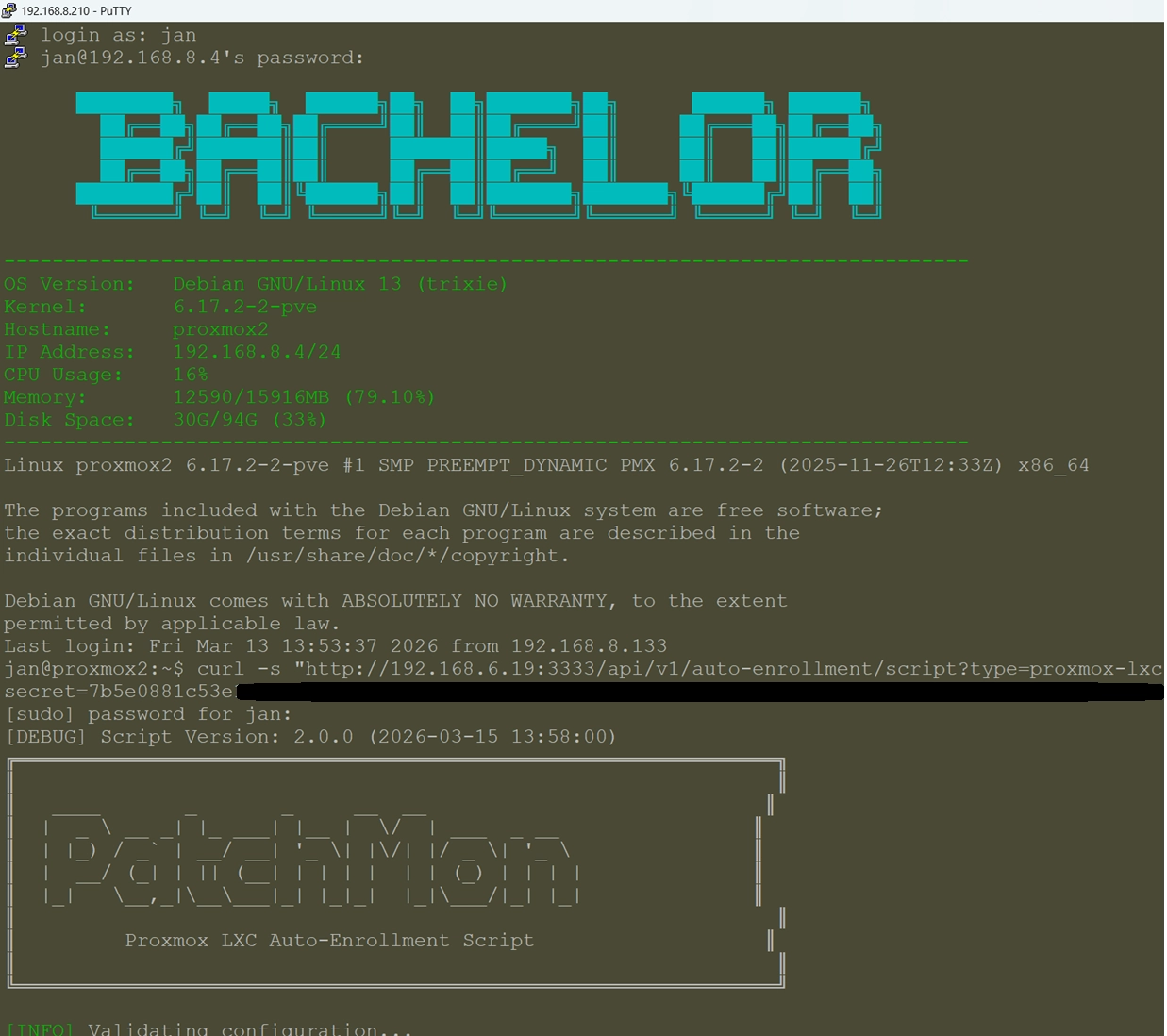
Step 3 - Manually Enroll FreeBSD Devices with Patchmon
VMs and bare-metal devices that are on FreeBSD will not work with an automated ‘master’ auto-enrollment token. We will need to enroll them manually using individual keys. While this process could be automated (by creating a token request for each device), if you just have a few, it is often faster to do it manually. Here's how to go about it:
- In PatchMon, click on Hosts > Add Host, choose ‘FreeBSD’ and copy paste the suggested command. Note that it is not using
bashbutshonly and the syntax is slightly different than on Linux. - Get fresh token information for each new host you add manually - simply by clicking on the ‘Add Host’ button.
- Download curl just in case it is not there:
pkg install curl- Run the command that is suggested after the token information - you should see something like this:
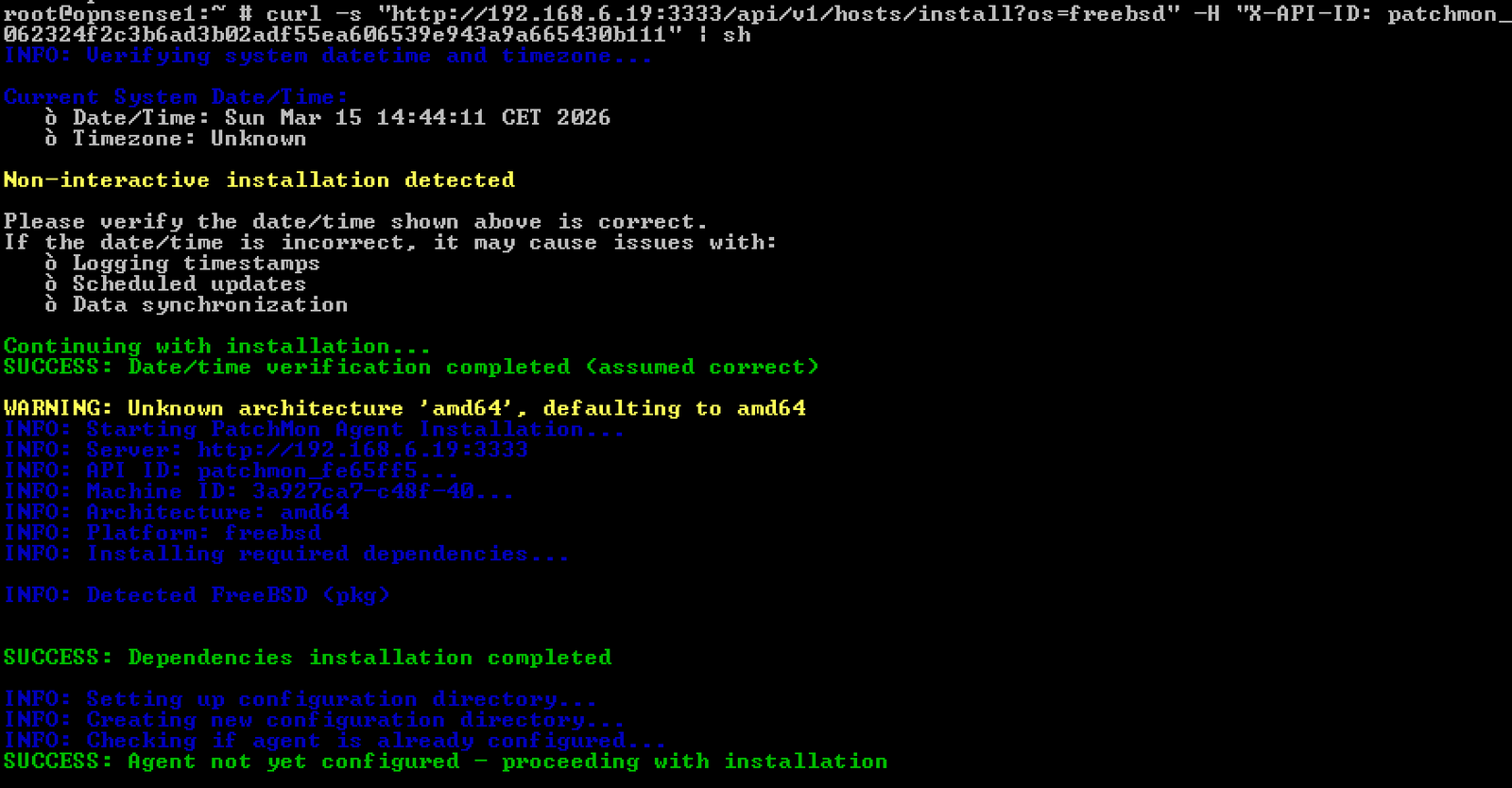
- For OPNSense nodes that operate as backups with PatchMon being available on another site via a Site-to-Site VPN tunnel (esp. when WireGuard), the backup node intentionally keeps its own S2S tunnel down and may not know how to route traffic to the other site. You can fix it with a temporary static route:
# Test that traffic gets through to your PatchMon's IP and port number:
nc -zvw 5 192.168.6.19 3333

# If you get 'Network is unreachable', it means that no route to that host available.

# The first IP is your PatchMon's, the second of y our primary OPNSense node:
route add 192.168.6.19 192.168.8.1

# Now run the enrollment command!

# Once done, remove the route, as during a switch-over event, we would not want to go via
# the now-master unit.
route delete 192.168.6.19- Note: If you have accidentally used the same token on more than one device, you will need to remove the installation files on the duplicate device. Each device must have its own unique token. On FreeBSD, this is done as follows:
# Remove config, auth files and logs:
rm -rf /etc/patchmon/*

# Stop the agent:
service patchmon_agent stop
Step 4: Automated Enrollment Via Semaphore or AWX
Notice that only LXC containers are handled by the Proxmox enrollment automation. For VMs and other bare-metal or virtualized hosts, we would need to either install them manually (via the ‘Hosts’ section) or we can leverage Ansible with AWX, Semaphore or another tool at your disposal.
Create a Master Auto-Enrollment Token for your Linux Fleet
For all your Linux-based devices, create an auto-enrollment token that will result in the host getting its own set of token key and secret, as those need to be unique per host. We will then use this token as part of the Ansible automation playbook.
- Go to Settings > Integrations > Auto-Enrollment (Direct).
- Click New Token.
- Name it something like
VM & Bare-Metal Fleet. - Set the Usage Type to
Auto-Enrollment. - Copy the Token Key and Token Secret immediately (you won't see them again).
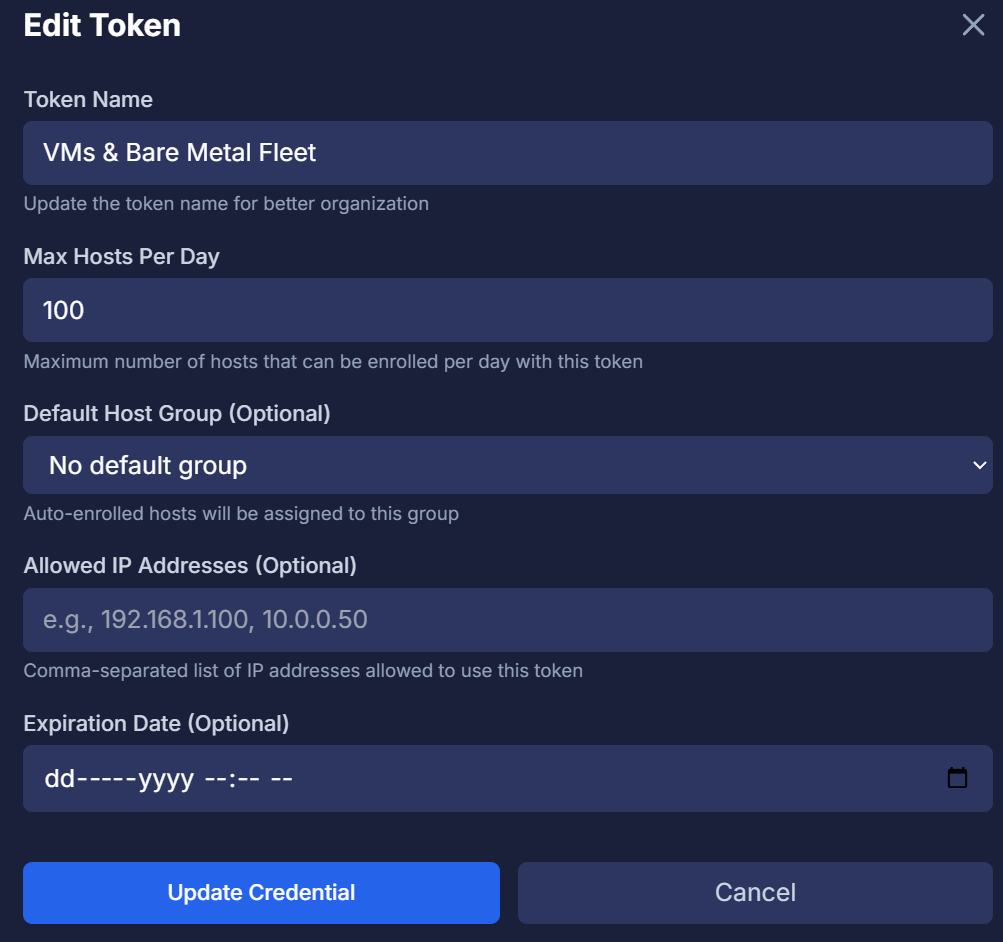
Use an Ansible playbook to deploy PatchMon on your VMs and bare-metal devices
Assuming you already have:
- An existing instance of Gitea, Forgejo or similar where you store your Ansible playbooks
- Each of the hosts (where you want to deploy the playbook) is reachable via SSH. If not, please follow my previous guide on how to set it up.
Add the following simple YAML script that can then be pushed to your fleet:
---
- name: Deploy on all new hosts to maintain fleet in PatchMon
  hosts: all
  become: yes
  vars:
    patchmon_server: "http://192.168.6.19:3333"
    # token_key and token_secret need to be available in Semaphore as a Variable Group (Secrets)

  tasks:
    - name: 1. Identify Service Name
      set_fact:
        patchmon_service: "{{ (ansible_os_family == 'FreeBSD') | ternary('patchmon', 'patchmon-agent') }}"

    - name: 2. Check if PatchMon is already installed and running
      # We use 'command' instead of 'service_facts' for speed and reliability across OS types
      shell: "service {{ patchmon_service }} status"
      register: agent_status
      failed_when: false
      changed_when: false

    - name: 3. Deployment Block (Only runs if agent is missing)
      block:
        - name: 3a. Download and Execute enrollment script
          shell: >
            curl -s "{{ patchmon_server }}/api/v1/auto-enrollment/script?type=direct-host&token_key={{ lookup('env','PATCHMON_TOKEN_KEY') }}&token_secret={{ lookup('env','PATCHMON_TOKEN_SECRET') }}" | sh
          register: enrollment_output

        - name: 3b. Log Enrollment Result
          debug:
            msg: "Host successfully enrolled: {{ ansible_hostname }}. Remember to manually toggle the 'Docker' option if it runs Docker, as the API currently does not support this option."

      # This condition prevents the "Endless Duplication" problem
      when: true # Temporary to re-install after server wipe
        #- "'running' not in agent_status.stdout"
        #- "'is running' not in agent_status.stdout"
        #- "agent_status.rc != 0"

    - name: 4. Ensure Service is enabled
      service:
        name: "{{ patchmon_service }}"
        state: started
        enabled: yes
Sync & Add The Job To Automation Platform
- Firstly, ensure that the new playbook is synced into your preferred Automation Platform. Below you can find the steps for both Semaphore and AWX.
In Semaphore UI:
- Go to Variable Groups → New Group
- Call it something like ‘Patchmon enrollment token’
- Go to Secrets and add the two environmental variables:
PATCHMON_TOKEN_KEYPATCHMON_TOKEN_SECRET
- Provide the values from the Master Auto-Enrollment Token that we created earlier in Patchmon.
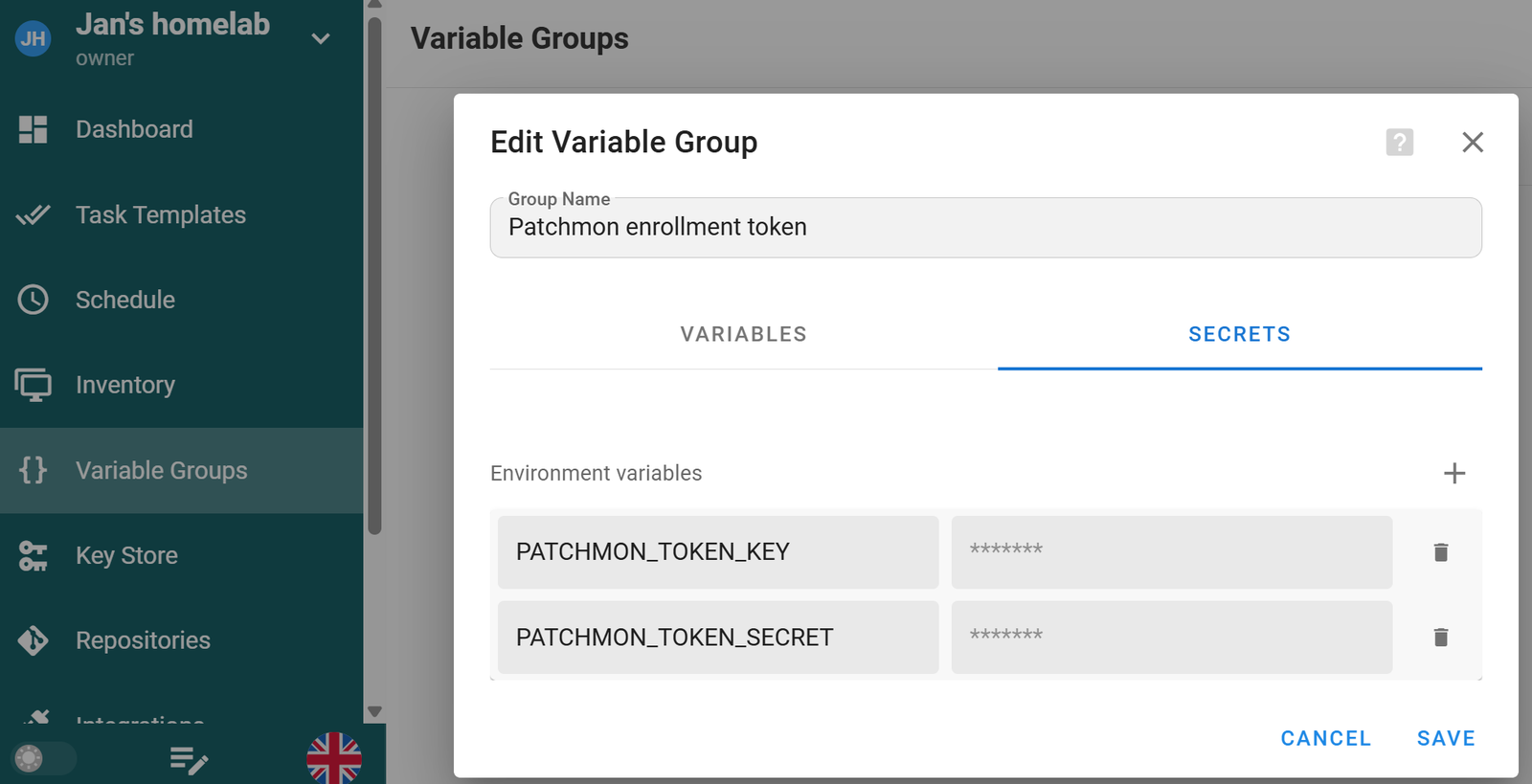
- Then set up a task template that I called ‘Enroll host with Patchmon’:
- Path to playbook file: relative to where you placed it in Gitea, such as
patching/enroll_patchmon.yml. - Inventory: all hosts (in my case, it is called
ALL Sites & Clusters) - Repository: your Gitea (or other) repo
- Variable Groups: the newly created one, in my case it is called the
Patchmon enrollment token - Vaults: Ensure you add the Proxmox API keys from the Ansible Vault
- Limit: ticked - we will be providing hosts on launch
- Path to playbook file: relative to where you placed it in Gitea, such as

- Run the job against just one host to verify that it is working.

Setting it up in AWX
- In case you run your automation in AWX rather than in Semaphore, to set it up in the same way, go to the Projects tab → click on the ‘Sync’ button.
- Add a new Template (job). Here are some recommended parameters (specifically for AWX but can be applied in other environments):
- Name:
PatchMon - Auto Enrollment. - Inventory: Select the inventory.
- Project: Select your Gitea (or other source version control software) project.
- Playbook: Select
enroll_patchmon.ymlfrom the dropdown. - Credentials: Select your
Ansible SSH Key(depending on how you named it). - Tick the box for Privilege Escalation.
- Add two variables from Patchmon:
- Name:
---
token_key: "your_key"
token_secret: "your_actual_secret"
- Run the job - in my case, I tested it with just one VM called mail1:
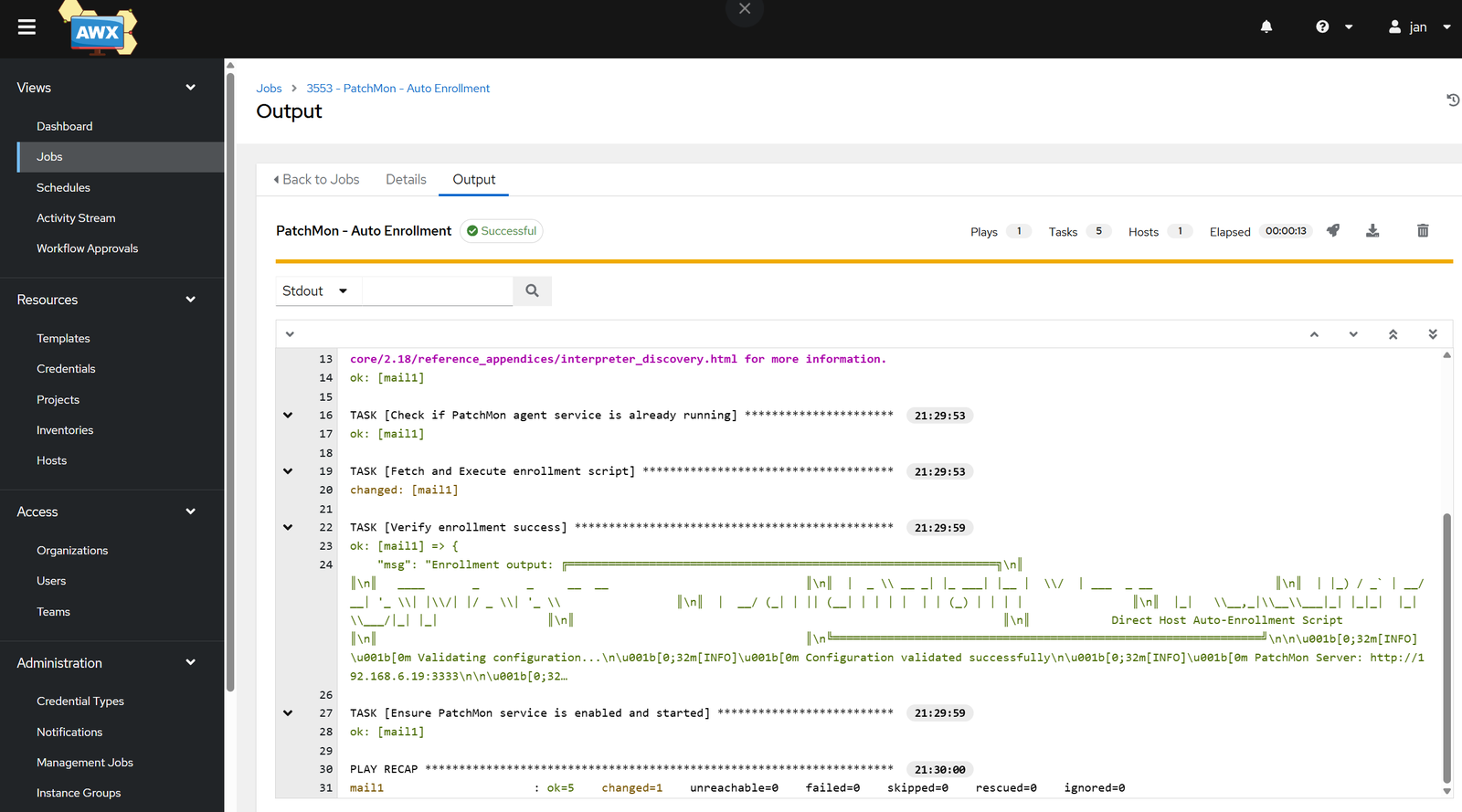
- Once verified working against one host, feel free to run it against multiple.
Step 5 - Docker hosts & groups
Once your hosts have been added in, you should see them in Patchmon. In my experience, docker hosts do not get automatically spotted. I had to open each host that has docker containers and went to the ‘Integrations’ tab and enabled it, as shown below:
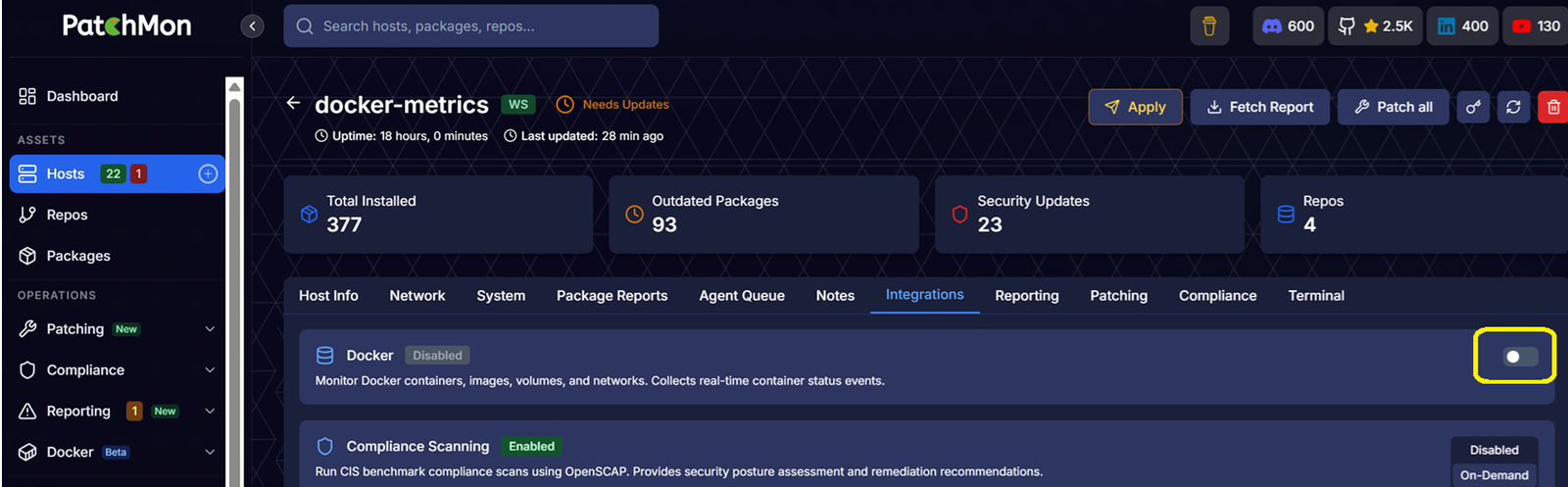
- Within a minute or two after saving, I was able to see the running and offline containers:

- Rinse and repeat for every host that runs Docker.
In case you want to utilize the Groups feature, now would be a good time to set it up as you see fit - we will not be actually using the groups for the automation, as it is not possible to update Patchmon groups via API as of version 2.0.2.

Updating Patchmon
For those less experienced with Docker in Proxmox VMs, if you desire to update your Patchmon docker instance, here is how to approach it based on how we installed it. In this example, we will update from version 2.0.2 to version 2.1.3 released in late 2026.
Assuming you are not using any SSO service (if yes, please read the release notes, as some services need manual changes first),
- Edit the
docker-compose.ymlfile to ensure it follows the current instance:
nano /opt/patchmon/docker-compose.yml

# Under 'server:', add a hostname:

name: patchmon

services:

  server:
    **image: ghcr.io/patchmon/patchmon-server:2.1.3**
    restart: unless-stopped
**    hostname: patchmon-server**
    ..
- In addition, in the release notes, the Patchmon team recommends pinning the version of the Apache Guacamole daemon
guacdfor higher stability.
...
  guacd:
    **image: guacamole/guacd:1.6.0**
    restart: unless-stopped
    read_only: true
..- Then pull the image versions:
cd /opt/patchmon && docker compose pull- Restart Patchmon:
docker compose up -d

# Watch the logs:
docker compose logs -f server - If it is all good, let’s also check for older images and prune them:
docker image ls

# Find out of date images and remove them - an example is below:
docker rmi \
  ghcr.io/patchmon/patchmon-backend:latest \
  ghcr.io/patchmon/patchmon-frontend:latest

# There are usually more images that are not in use and can be safely removed.
Enjoying this tutorial?
This site is a non-profit project. If it saved you some time, you can support it by getting Jan some coffee.
☕ Buy me a coffee
Comments