What we want to prevent is a situation when the sync breaks for any reason and users would be hitting your websites and some of them would not be able to reach or see that background image, cover photo or another resource. For this reason, we need to keep an eye on the sync jobs. In this tutorial, we will cover integrating monitoring with Uptime Kuma.
Monitor all Syncthing jobs per VM on UptimeKuma
Using this approach, we will be able to monitor all sync jobs in one script per a web server. This means that if one sync job will be down, the service will be treated as all down, which may not always be the case – just keep it in mind. I can update this guide with how to monitor individual jobs, yet it does get tedious when you have more than two web servers.
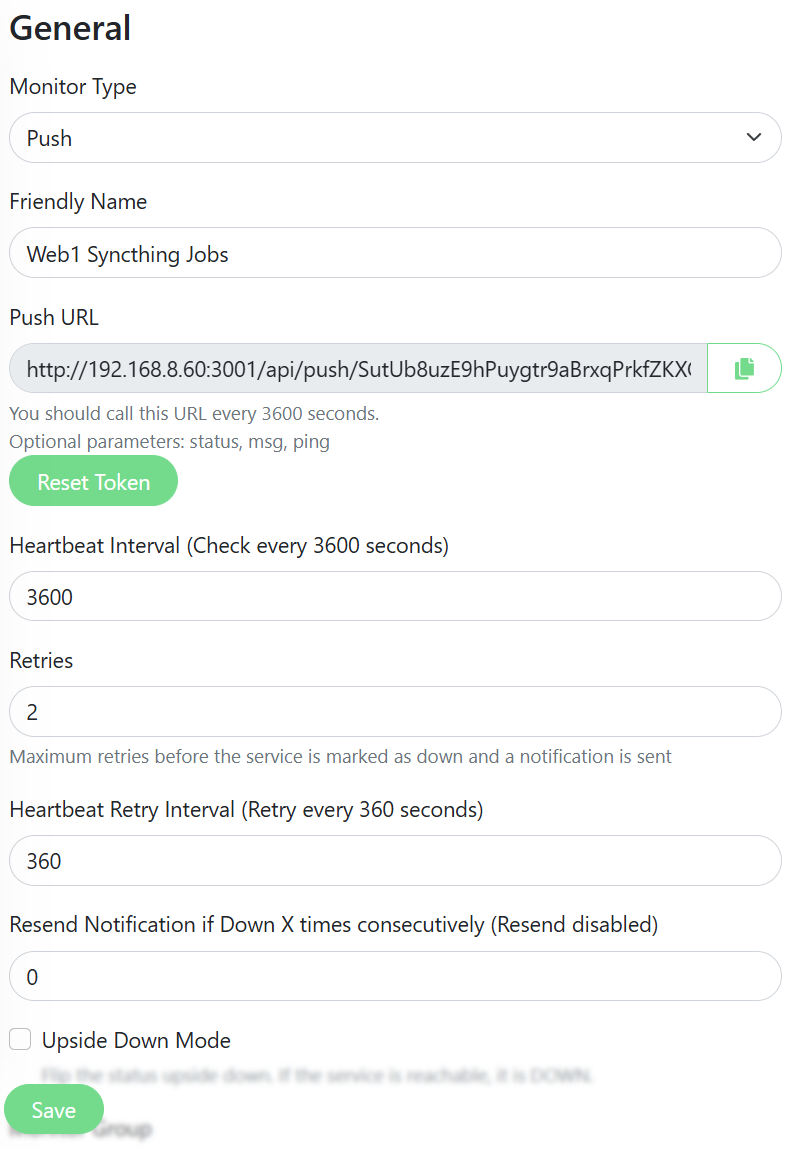
- Log into Uptime Kuma’s dashboard, click on ‘Add New Monitor’ and select the passive ‘Push’ type. Give it a friendly name such as ‘Web1 Syncthing jobs’. Copy the generated Push URL. A job of this type is only needed to run once an hour, so the time can be set to 3600 or higher (unless you sync mission critical sync jobs). Save it.
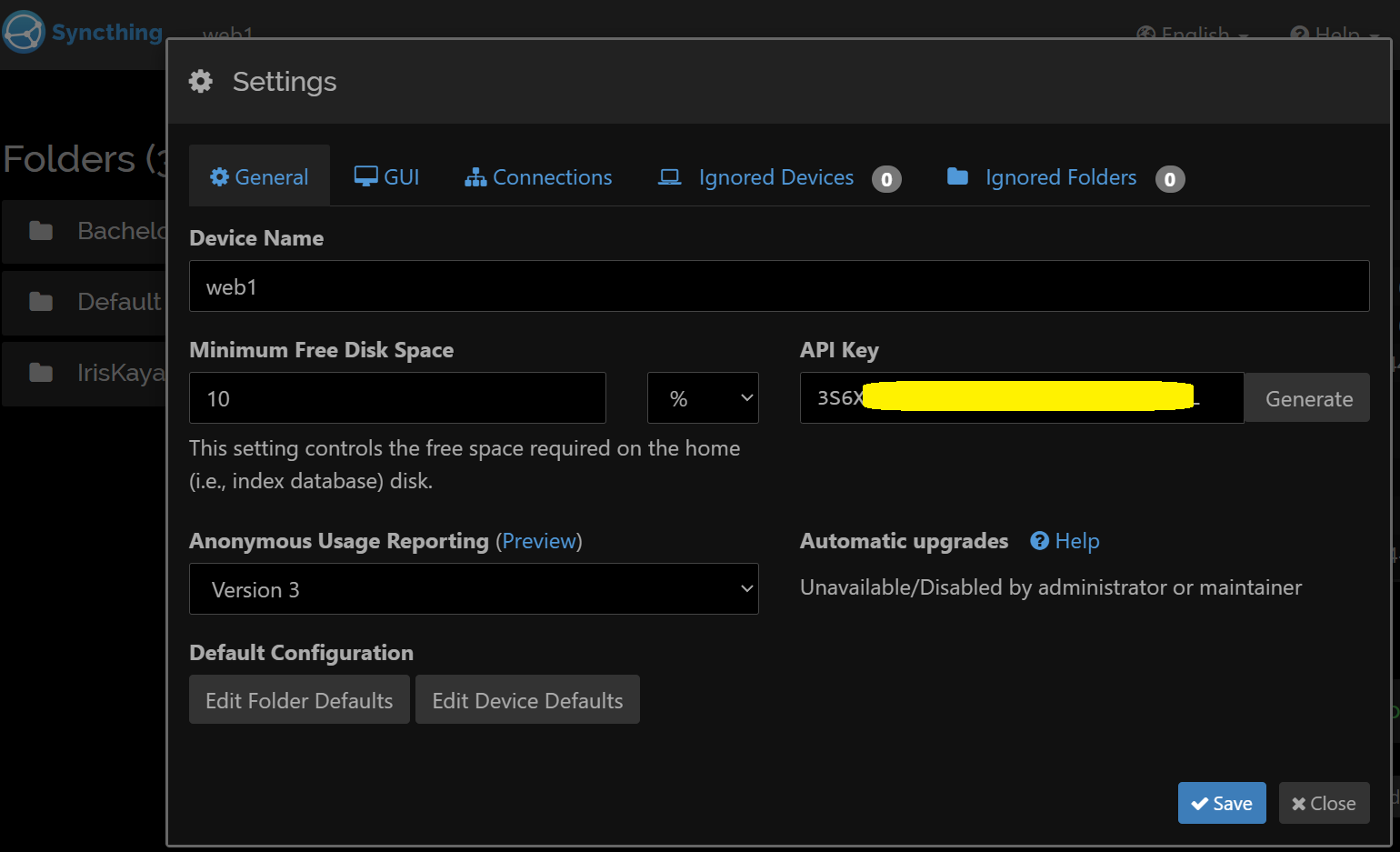
- Open the Syncthing Web UI, go to ‘Actions’ → ‘Settings’. Select the ‘General’ tab. Note your API key there. If you are on a headless machine and cannot connect easily/directly, you can create a secure tunnel from your device, such as by running
ssh -p 22 -L 9090:localhost:8384 user@1.2.3.4(and then you can reach the web GUI locally onhttp://127.0.0.1:9090).
Syncthing monitor script from UptimeKuma
- SSH into your web server VM. We will use a Bash script for the purpose:
# Install curl and jq in case you don't have them
sudo apt install curl jq -y

# Create a folder under /opt where we will store our future syncthing scripts on this server.
mkdir /opt/syncthing-monitor

# Grant yourself the necessary rights for this folder (replace the username with yours):
sudo chown jan:jan /opt/syncthing-monitor

# Create a script:
nano /opt/syncthing-monitor/syncthing_monitor.sh

# Copy paste the following text and edit it with your API key and URL

#!/bin/bash
# A universal Syncthing monitor script that checks all folders on a host
# and sends a single consolidated status to an Uptime Kuma push monitor.
#
# Used for debugging:
# set -x

# --- Configuration ---
# Your Syncthing instance URL and port.
SYNCTHING_HOST="<http://localhost:8384>"

# Your Syncthing API Key (found in Actions > Settings > General).
# This key is specific to the server this script runs on.
SYNCTHING_API_KEY="YOUR_API_KEY"

# The Uptime Kuma push URL for THIS SERVER's Syncthing instance.
UPTIME_KUMA_PUSH_URL="<http://x.x.x.x:3001/api/push/CODE>" # Do not include ?status=up&msg=OK&ping=

# Set to 1 to treat paused folders as 'down', set to 0 to ignore them.
TREAT_PAUSED_AS_DOWN="1"

# --- Full Paths to Commands ---
# Use 'which curl' and 'which jq' on your system to find these paths.
CURL_CMD="/usr/bin/curl"
JQ_CMD="/usr/bin/jq"

# ---------------------
# A short delay to prevent errors if the script starts before the Syncthing
# API is ready after a system reboot.
sleep 15

# --- Functions ---

# Sends a status update (up/down) and a message to the configured Uptime Kuma URL.
# Arguments:
#   $1: status ("up" or "down")
#   $2: message (string)
send_kuma_update() {
    local status="$1"
    local message="$2"
    # The 'curl' command sends the GET request to the Uptime Kuma push URL.
    $CURL_CMD -s --get --connect-timeout 10 \\
        --data-urlencode "status=$status" \\
        --data-urlencode "msg=$message" \\
        "$UPTIME_KUMA_PUSH_URL" > /dev/null
    echo "Sent status '$status' to Uptime Kuma: $message"
}

# Checks the status of a single Syncthing folder.
# This function will ONLY produce output if there is an error.
# Arguments:
#   $1: folder_id
#   $2: folder_label
#   $3: is_paused ("true" or "false")
check_single_folder_status() {
    local folder_id="$1"
    local folder_label="$2"
    local is_paused="$3"

    # First, check the paused state, but only if the configuration flag is enabled.
    if [[ "$TREAT_PAUSED_AS_DOWN" -eq 1 && "$is_paused" == "true" ]]; then
        echo "Warning for folder '$folder_label' (ID: $folder_id): Syncing is paused."
        return
    fi

    # If not paused (or if we're ignoring paused folders), check the sync status for errors.
    local folder_status
    folder_status=$($CURL_CMD -s -H "X-API-Key: $SYNCTHING_API_KEY" -H "Referer: Syncthing" "$SYNCTHING_HOST/rest/db/status?folder=$folder_id")

    # Check if we got a valid JSON response.
    if [[ -n "$folder_status" && "${folder_status:0:1}" == "{" ]]; then
        local folder_state
        folder_state=$(echo "$folder_status" | $JQ_CMD -r '.state // "unknown"')

        if [[ "$folder_state" == "error" ]]; then
            echo "Error on folder '$folder_label' (ID: $folder_id): The folder is in an error state. Check permissions or path."
        fi
    else
        # This handles cases where the API is up but gives a bad response for a folder.
        echo "Warning on folder '$folder_label' (ID: $folder_id): Received empty or invalid API response."
    fi
}

# --- Main Loop ---
echo "Starting universal Syncthing monitor for all folders on this host."

while true; do
    echo "----------------------------------------"
    echo "Performing check at $(date)"

    # First, get the configuration for all folders from the Syncthing API.
    # Use the 'Referer' header to satisfy Syncthing's CSRF protection.
    all_folders_config=$($CURL_CMD -s -H "X-API-Key: $SYNCTHING_API_KEY" -H "Referer: Syncthing" "$SYNCTHING_HOST/rest/config/folders")

    # Check if the API call was successful. If not, the API is likely down.
    if [[ -z "$all_folders_config" || "${all_folders_config:0:1}" != "[" ]]; then
        send_kuma_update "down" "Fatal: Syncthing API cannot be reached or returned invalid data. Is the service running?"
        echo "Error detected. Retrying in 60 seconds."
        sleep 60
        continue # Skips the rest of this loop iteration and tries again.
    fi

    # This variable will store all error messages found during the checks.
    aggregated_errors=""

    # We use a robust for-loop with jq to handle potential spaces in folder labels.
    folder_count=$(echo "$all_folders_config" | $JQ_CMD '. | length')
    for i in $(seq 0 $((folder_count - 1))); do
        # Extract all necessary info for the current folder
        folder_info=$(echo "$all_folders_config" | $JQ_CMD ".[$i]")
        folder_id=$(echo "$folder_info" | $JQ_CMD -r '.id')
        folder_label=$(echo "$folder_info" | $JQ_CMD -r '.label')
        is_paused=$(echo "$folder_info" | $JQ_CMD -r '.paused')

        echo "Checking folder: '$folder_label' ($folder_id)"
        # Run the check for the current folder and capture any error message it produces.
        single_folder_error=$(check_single_folder_status "$folder_id" "$folder_label" "$is_paused")

        # If an error message was returned, append it to our aggregate list.
        if [ -n "$single_folder_error" ]; then
            # Add a newline for nice formatting if we already have other errors.
            if [ -n "$aggregated_errors" ]; then
                aggregated_errors+=$'\\n'
            fi
            aggregated_errors+="$single_folder_error"
        fi
    done

    # After checking all folders, decide on the final status.
    if [ -z "$aggregated_errors" ]; then
        # If the error string is empty, everything is OK.
        send_kuma_update "up" "All Syncthing folders are syncing OK."
        echo "All checks passed. Next check in 1 hour."
        sleep 3600
    else
        # If we have errors, send a 'down' status with the detailed messages.
        send_kuma_update "down" "$aggregated_errors"
        echo "Error(s) detected. Retrying in 60 seconds."
        echo "--- ERRORS ---"
        echo -e "$aggregated_errors" # -e interprets the newlines correctly
        echo "--------------"
        sleep 360
    fi
done
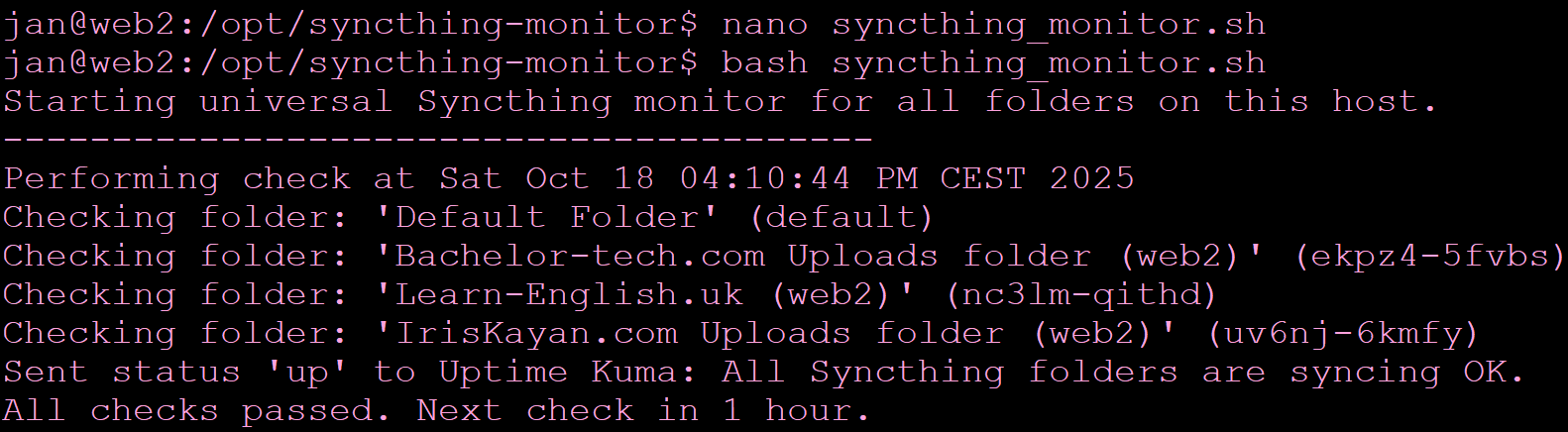
- Run the bash script, you should ideally see a positive response.
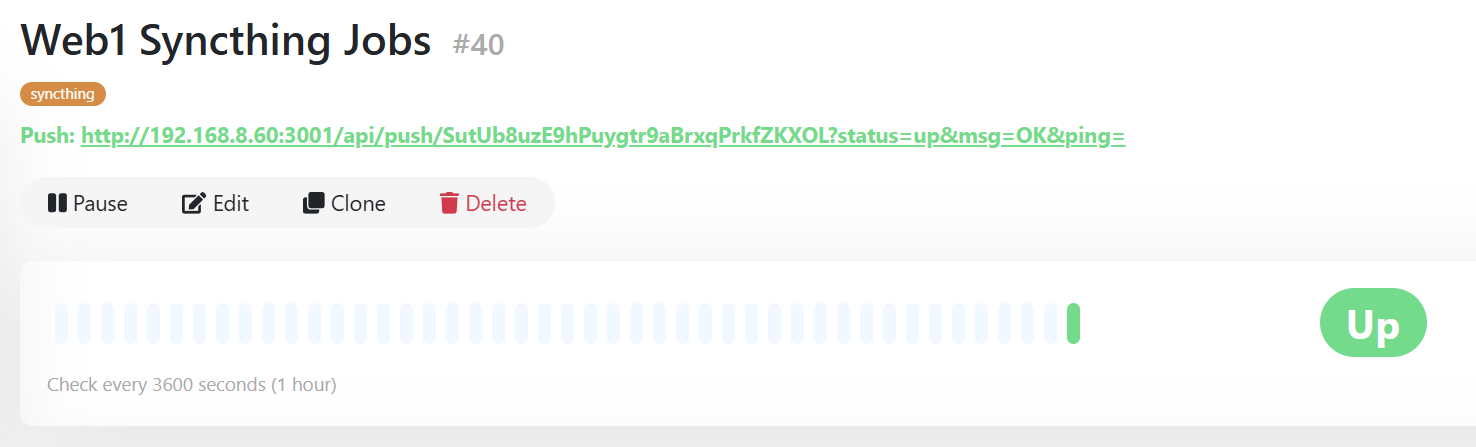
- Then check if Uptime Kuma registered it.
- You can then simulate an error by changing the folder ID in the script to something that does not exist, re-run the bash script and check the error in Kuma 😇
Set up local logging on each web server for Syncthing;s monitor
- Now what we want is more robust logging and to set this up as a daemon (service) that starts during the VM’s boot. Let’s start with the service part.
# Make your script executable:
chmod +x /opt/syncthing-monitor/syncthing_monitor.sh

# Let's create a log file and give it the necessary permissions:
# Change your username as you need.
sudo touch /var/log/syncthing_monitor.sh.log
sudo chown jan:jan /var/log/syncthing_monitor.sh.log

# Create a service file name, ideally with a similar name to your script.
# Replace YOUR_USERNAME with yours and ensure the file names match.
sudo nano /etc/systemd/system/syncthing_kuma_monitor.sh.service

[Unit]
Description=Syncthing to Uptime Kuma Monitor
After=network.target

[Service]
User=YOUR_USERNAME
# Make sure this path is correct
ExecStart=sh -c '/opt/syncthing-monitor/syncthing_monitor.sh >> /var/log/syncthing_monitor.sh.log 2>&1'
Restart=always
RestartSec=15

[Install]
WantedBy=multi-user.target
- Then refresh the daemon service and enable it.
sudo systemctl daemon-reload
sudo systemctl start syncthing_kuma_monitor.sh.service
sudo systemctl status syncthing_kuma_monitor.sh.service

# If the above goes well, then enable it after boot.
sudo systemctl enable syncthing_kuma_monitor.sh.service
- Now regarding the log file, it will be stored under
/var/log/syncthing_monitor.sh.log. In case nothing is saved in there, make sure that:- Your
ExecStart=line starts withsh -c ‘file1 >> file2 2<&1’, as otherwise it sees it as three separate, plain-text arguments to pass to the script. It doesn’t understand that>>is a special instruction for redirecting output. By encapsulating it this way, the ExecStart parameter passes the entire string inside the quotes (-c '...') as an argument to theshcommand. - Your user has access to it (without using sudo).
- The .service file points to it correctly.
- There are no ‘invisible lines in your script. You can fix those by running
sudo apt install dos2unixand thendos2unix /opt/syncthing-monitor/syncthing_kuma_your_script.sh.
- Your
Configure logrotate for our Syncthing monitor script
- To ensure that the log file does not get too huge over time, let’s use
logrotateto tackle it. This configuration will rotate the log weekly, keep 4 old compressed logs, and ensure the new log file is created with the correct permissions for your script to write to it.
sudo nano /etc/logrotate.d/syncthing_kuma_monitor

# Replace the username at the end with yours.

/var/log/syncthing_monitor.sh.log
{
    weekly
    missingok
    rotate 4
    compress
    notifempty
    create 0644 your_user your_group
}
- Run a dry-run test. The output should indicate that the ‘log does not need rotating (log has already been rotated)’. There is no need to further reload/restart the logrotate service.
sudo logrotate -d /etc/logrotate.d/syncthing_kuma_monitor