There are a few cases when your intervention may be needed over time as your run Syncthing. Let’s have a look at them to be familiar, you can even simulate them before valuable data is synced over.
Issue no.1: Syncthing Data Loss Situation
- Imagine if the folder you sync on the
web2VM gets unexpectedly deleted. What happens? Let’s go through an example scenario – a WordPress instance’s uploads folder is synced betweenweb1andweb2VM. Then the uploads folder onweb2gets deleted. - By default, web1 will keep the data and web2 will stop with an error.
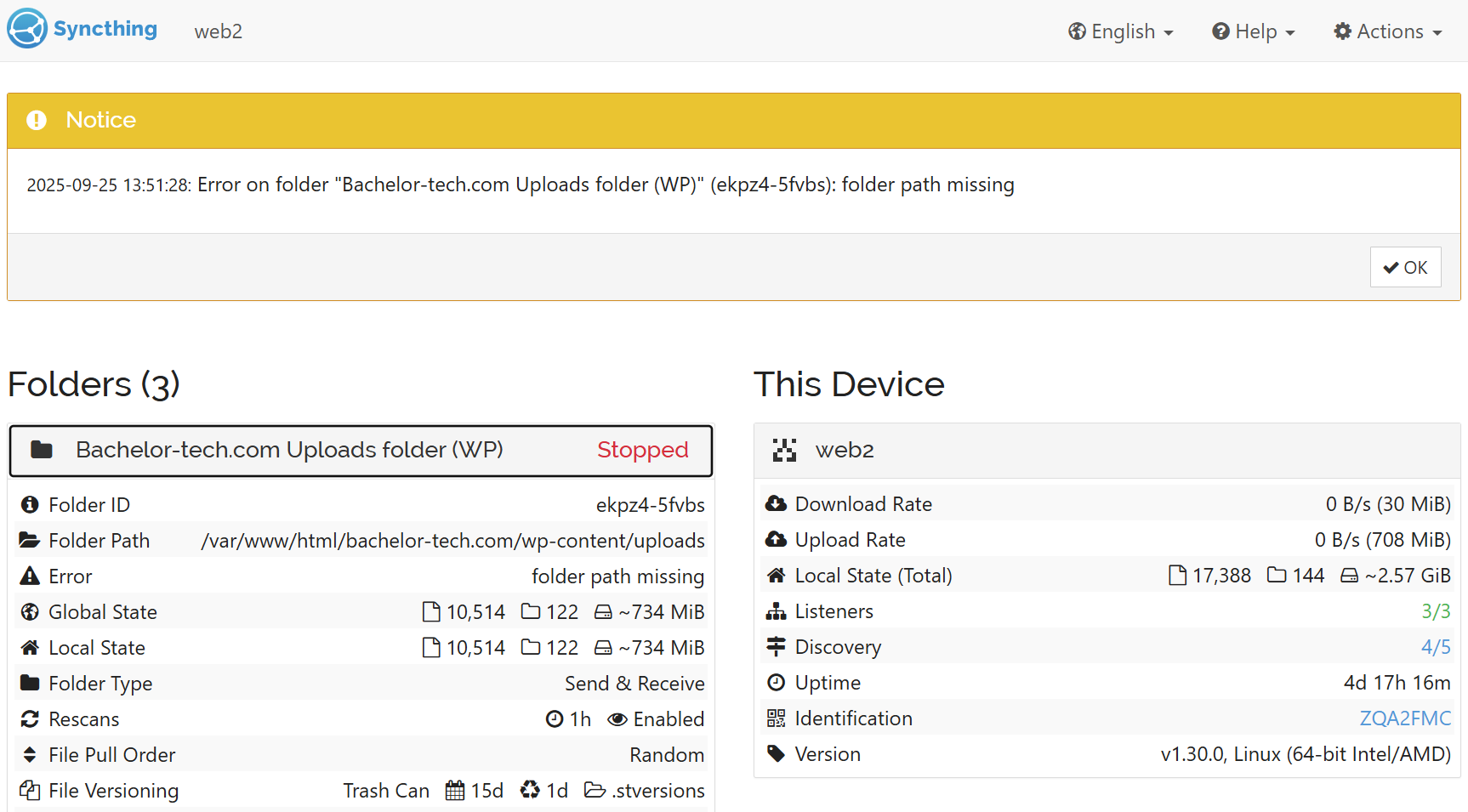
- What we want to prevent is a situation in which Syncthing will think that
web2has the newest version and deletes everything away in the respective folder onweb1(you would achieve that by just creating an empty file called.stfolderin the folder to sync, which makes it feel quite fragile). So here is the safe method:
- Pause syncing of this folder on all nodes.
- On the node with the data (e.g.
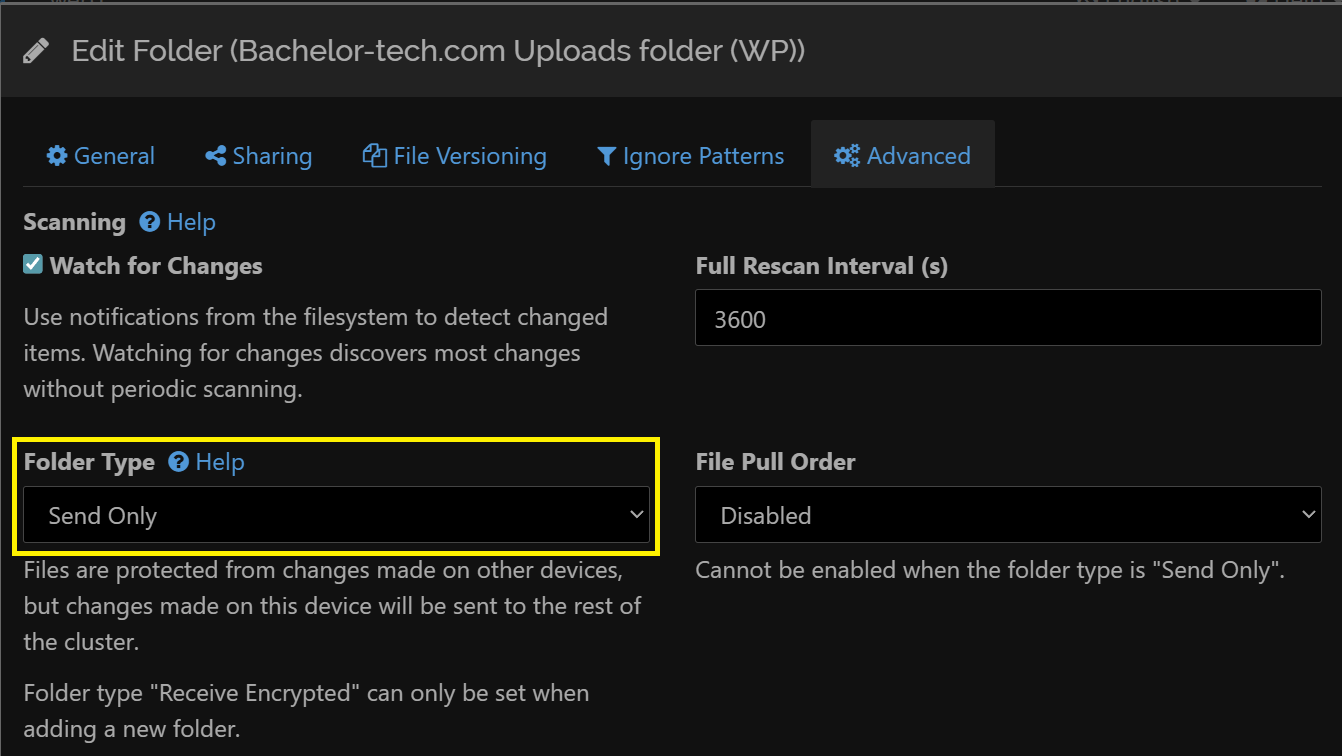
web1), edit the job → Advanced → set it to ‘Send only’. This will prevent it from losing the data.
- On the node with no data (e.g.
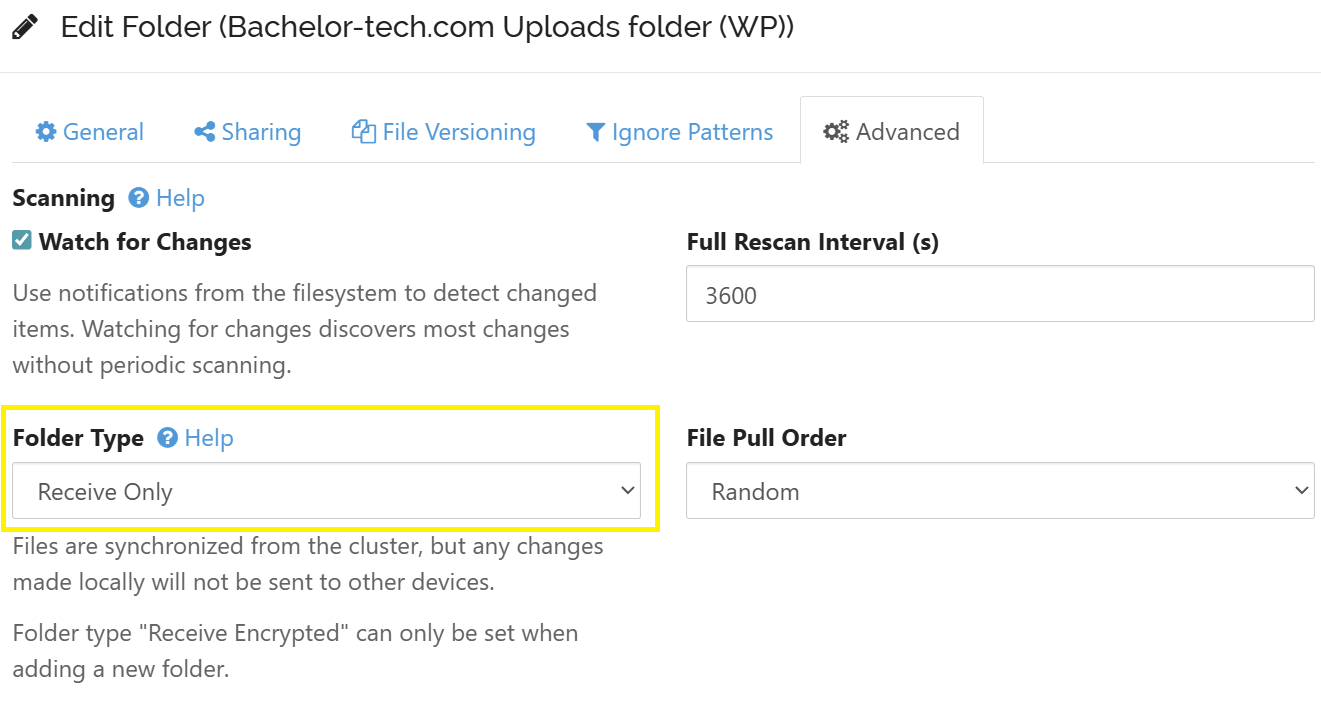
web2), edit the job → Advanced → set it to ‘Receive only’. This will make it download the files and no data will be lost.
- On the node with no data, ensure the path exists with the correct permissions, e.g.
# Create the missing folder (if missing):
mkdir /path/to/uploads/.stfolder
# mkdir -p /var/www/html/bachelor-tech.com/wp-content/uploads/.stfolder
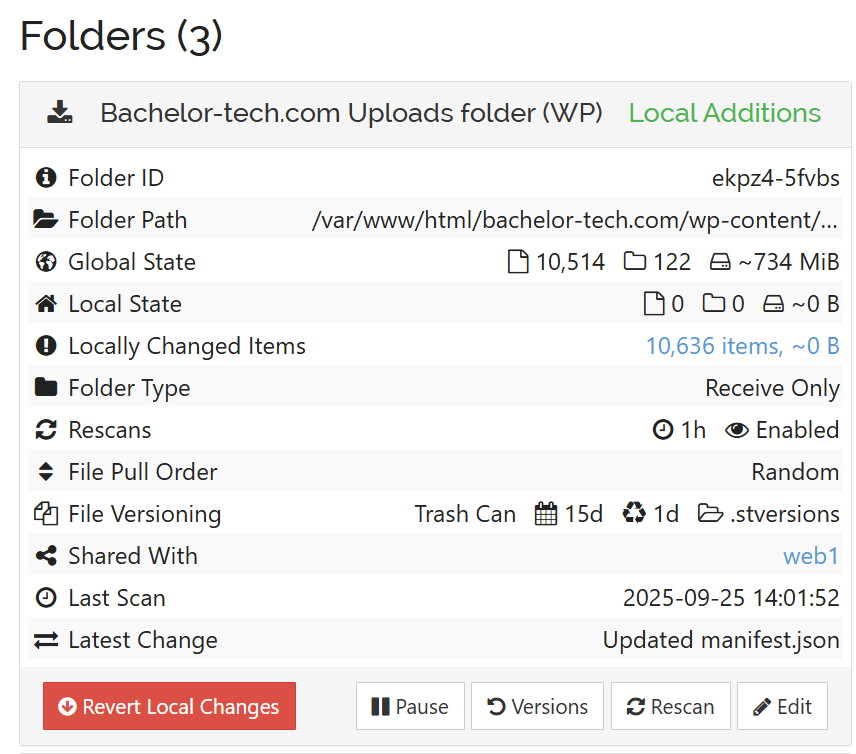
- Now you will see an option to ‘Revert local changes’. Click on that.
- Un-pause the jobs on all nodes and watch the magic. Then remove the over-riding option, as in the future,
web2may receive data that will need to be synced toweb1.
That is all! Now if you had the web server VM excluded from traffic, such as in HAProxy’s load balancing back-end, then you can add it back. In fact, it may be best to set the newly modified VM as the only VM in the back-end to perform tests to ensure that nothing is missing.
Issue no.2: Service not coming up
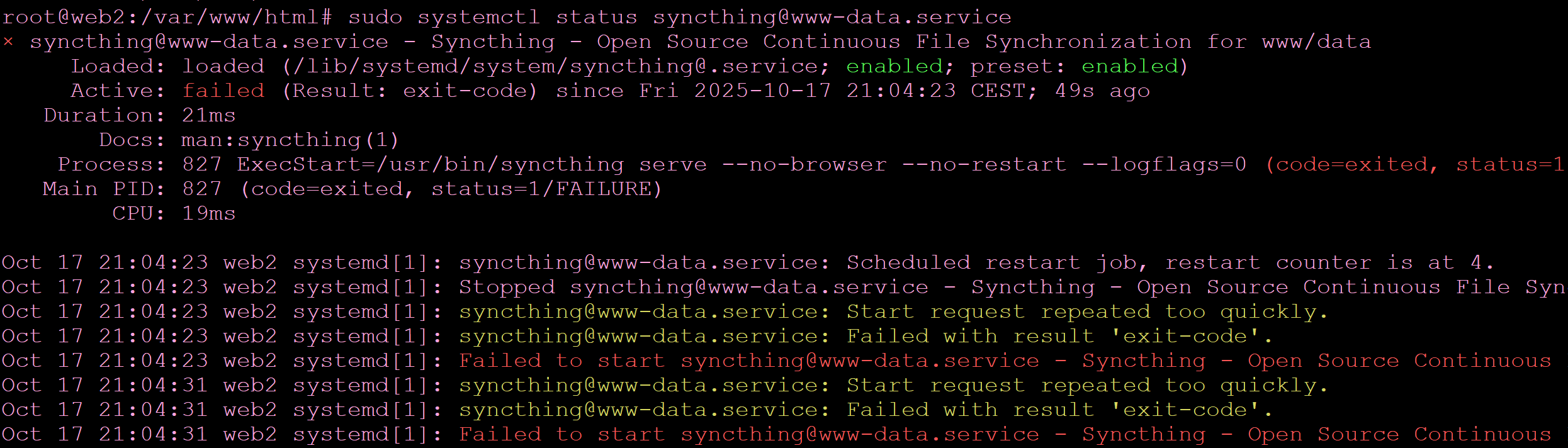
- In case you face a situation when the service is not starting, as shown below:
- There are a few things to verify:
- Check the journal in
journalctl -xeu [email protected] - Ensure that a config file is available for this user by running
sudo runuser -u username -- syncthing paths– check that the path exists (you can also move it away for a test that it starts up in case it is invalid).- Verify that the same user has the correct file permissions for these files. Cd into the config folder and run sudo
chown -R username:username .→ then restart the syncthing service.
- Verify that the same user has the correct file permissions for these files. Cd into the config folder and run sudo
- Check the journal in
Issue no.3: Web server change – preserving the Syncthing ID (identity)
Another situation that may occur is if you need to move away (or re-create) one Syncthing instance on another server. Alternatively, you may get into this situation if you simply moved the service to run under a different user.
- By default, a new installation generates a new Device ID, which means you would have to go to every other node in the cluster to “Remove” the old device and “Add” the new one. To avoid this, you can migrate the identity.
- If you want to use the previous set of keys and you still have access to the previous instance’s config, you will need to locate the encryption keys (
cert.pemandkey.pem). - There are also
https-cert.pemandhttps-key.pem. These only control the SSL certificate for the GUI. You generally don’t need to migrate these unless you have a specific reason to preserve the browser trust for the GUI page itself. - These two files mathematically derive the Device ID. If you copy them to the new instance’s configuration folder, the new instance will essentially “impersonate” the old one, and your cluster will continue syncing without any configuration changes on the other nodes.
You will need to locate the previous set of keys. Here are some ideas for where to look:
ls -la <one_of_these_below:>
~/.config/syncthing/
~/.local/state/syncthing/
/var/www/html/.local/state/syncthing/ # If this was www-data's default folder
- Then you can migrate the identity (mostly the two keys but can also migrate the
config.xmlif it is safe to start):
# Stop the new Syncthing service
sudo systemctl stop [email protected]

# Let's say you want to move them to the /opt/syncthing-config folder
mv old-folder/ /opt/syncthing-config/.

# Fix permissions (for example to the www-data user)
sudo chown www-data:www-data /opt/syncthing-config/cert.pem
sudo chown www-data:www-data /opt/syncthing-config/key.pem
# or just to the whole folder
sudo chown www-data:www-data /opt/syncthing-config/*

# Start the Syncthing instance again
sudo systemctl start [email protected]
Then re-create the tunnel for your computer to verify that the identity was successfully transferred.