In order to make the workflows interactive within Discord based on what AI determines that needs to be implemented, we will need to set up a bot. It is a relatively simple task but do follow along if you have not done it before. It should take less than 10 minutes.
Create a Discord App
- Go to https://discord.com/developers/applications
- Click “New Application”
- Name it something like
Infrastructure Bot - Click on the Create button. Agree with the T&C (there may also be a CAPTCHA to pass through).
Create a Bot
- In your new application, click “Bot” in the left sidebar
- Under Token, click on the “Reset Token” button
- Copy the token to your password vault, as it will not appear again.
Installation Context
- Go to the new ‘Installation’ tab.
- Scroll down to the ‘Install Link’ section and set it to ‘None’.
- Save changes.
Configure Bot Settings
- On the Bot page, scroll down and enable:
| Setting | Value |
|---|---|
| Public Bot | Off (only you can add it) |
| Requires OAuth2 Code Grant | Off (by default) |
| Presence Intent | Off (by default) |
| Server Members Intent | Off (by default) |
| Message Content Intent | ON (required to read messages – vital for our set up) |
Set Permissions & Invite Bot
- Go to the OAuth2 menu option**.**
- Under Scopes, check:
bot
- Under Bot Permissions, check:
Read Message HistorySend MessagesAdd ReactionsView Channels
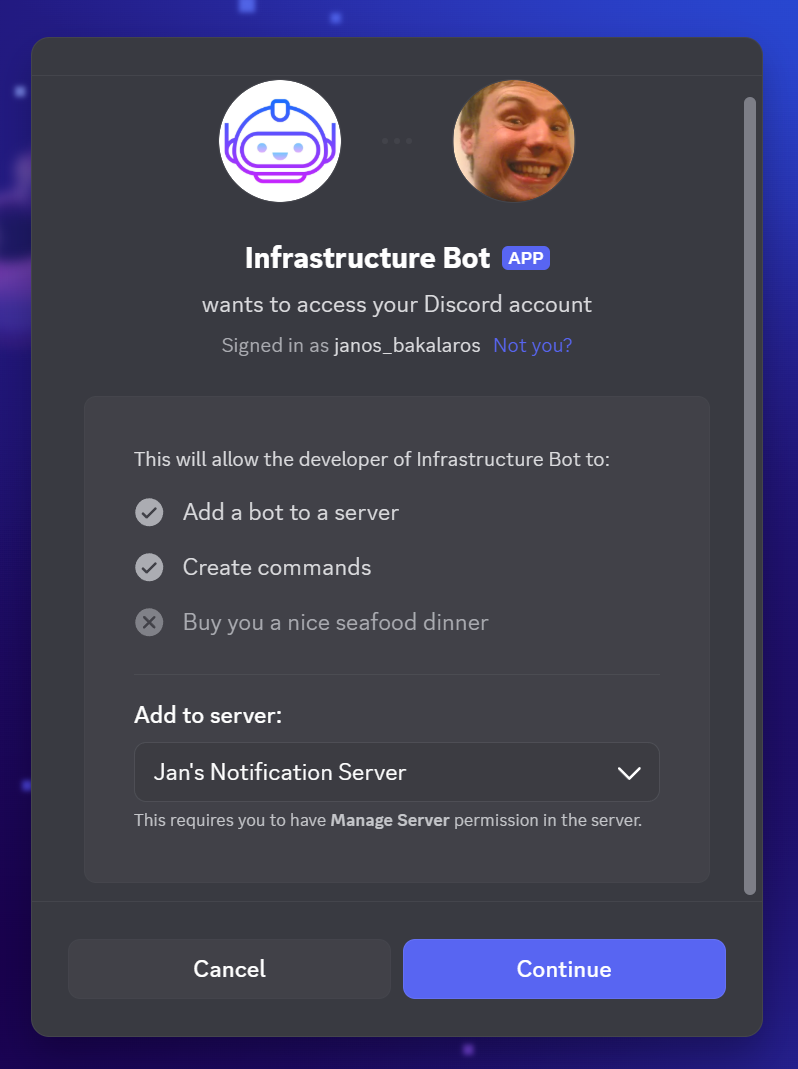
- Copy the generated URL at the bottom – it looks like:
https://discord.com/api/oauth2/authorize?client_id=123456789&permissions=76800&scope=bot
Get Your Channel ID
- Save the value, such as
1234567890123456789 - In Discord, go to User Settings → Advanced → Enable Developer Mode
- Right-click on your monitoring channel → “Copy Channel ID”
With Discord being set up, we can finally import the AI-assisted workflow!