Bachelor Tech
  • Home
  • Tutorials
  • Tips
  • Portfolio
  • About Jan
  • Contact Jan

5. Set up Syncthing for Vaultwarden data sync

by Jan Bachelor January 12, 2026

To ensure that the uploaded data stay consistent across multiple web servers, we will employ Syncthing, which I already use on my web servers. If you would like some help with deploying it, check out my previous tutorial on How to Configure HA for Web Servers.

  • The permissions depend on which user runs the Syncthing service. In my case, this is www-data. We will need to ensure that this user has access to Docker for monitoring purposes:
# Stop the container briefly to ensure the folder is free:
cd /opt/vaultwarden
sudo docker compose down

# Grant the 'www-data' user full Read/Write access to the docker volume
# using ACLs (Access Control Lists). This persists even if Docker recreates files.
sudo setfacl -R -m u:www-data:rwx /opt/vaultwarden/vw-data
sudo setfacl -d -m u:www-data:rwx /opt/vaultwarden/vw-data

# Start the container again (in a detached mode to free up the shell):
sudo docker compose up -d
  • Assuming you have Syncthing already deployed, add a new folder on web1:
    • General tab
      • Label: Vaultwarden (web1)
      • Path: /opt/vaultwarden/vw-data
    • Sharing tab → if you already have your other Syncthing web servers defined, then tick the boxes.
    • File versioning tab→ It is recommended to set up ‘Trash can versioning’ for 30 days+.
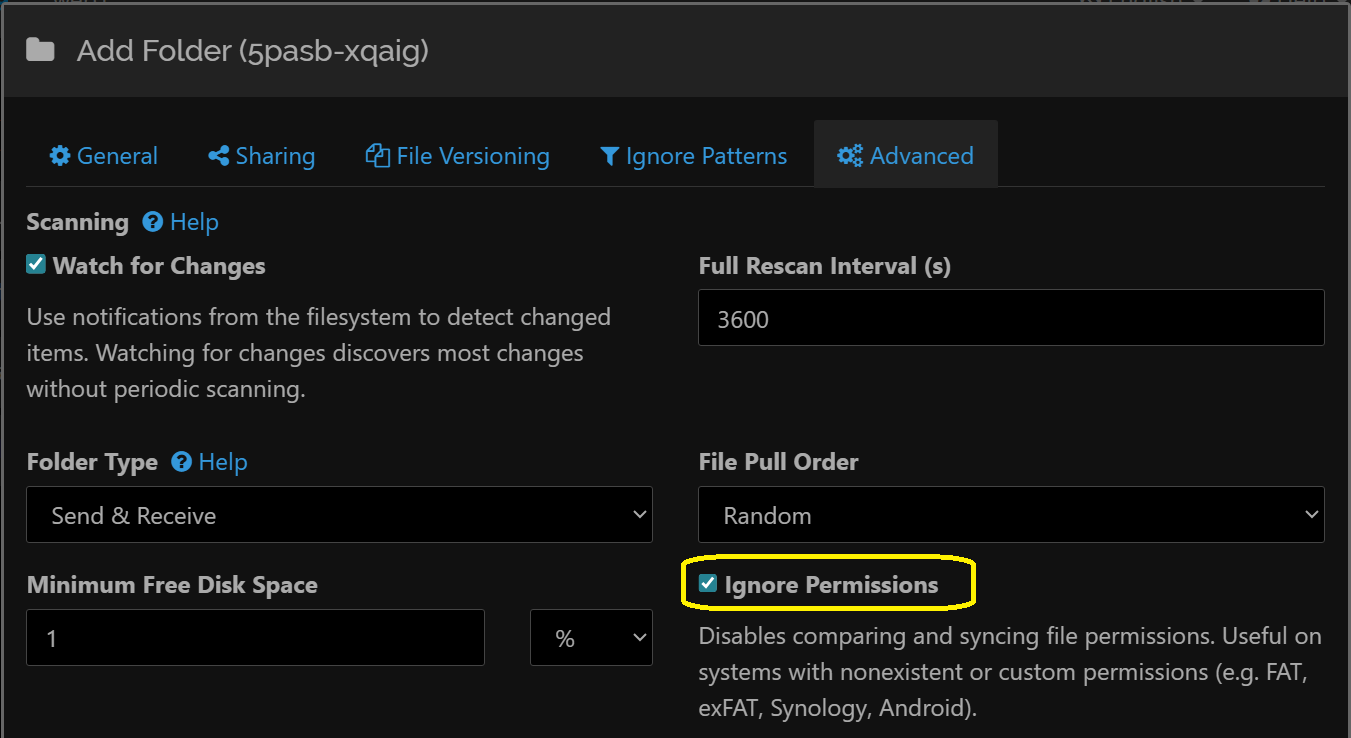
    • Skip to the Advanced tab → Check [x] Ignore Permissions (Docker manages the ownership, Syncthing just moves the data bits).
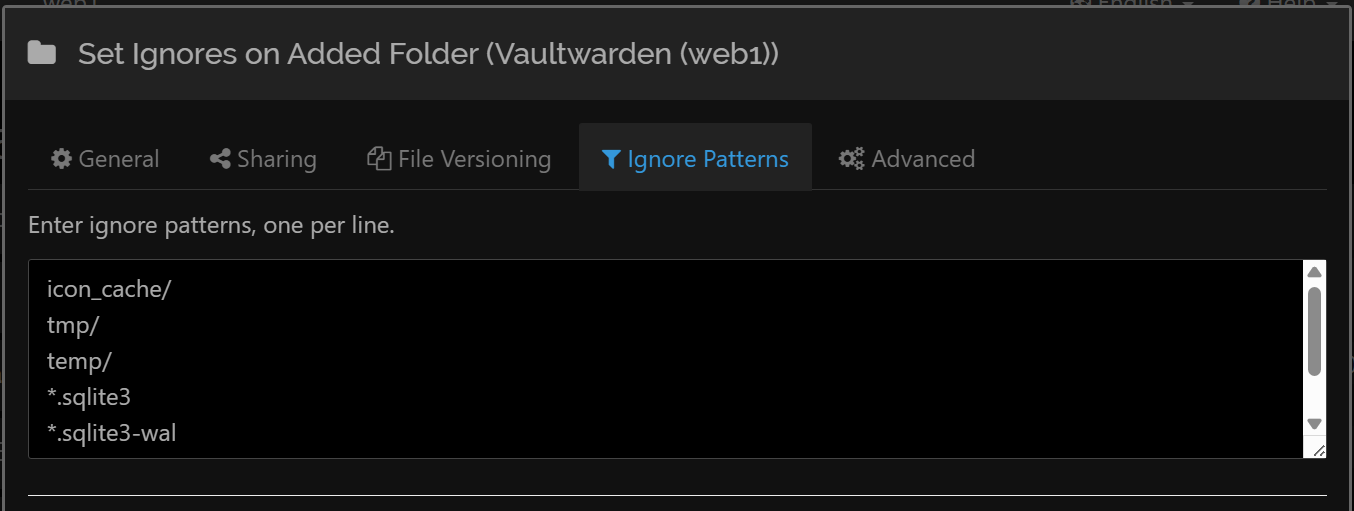
    • Go back to the Ignore Patterns tab (tick the box and once you complete the other tabs and go forward, copy paste this list):
icon_cache/
tmp/
temp/
*.sqlite3
*.sqlite3-wal
*.sqlite3-shm
*.log
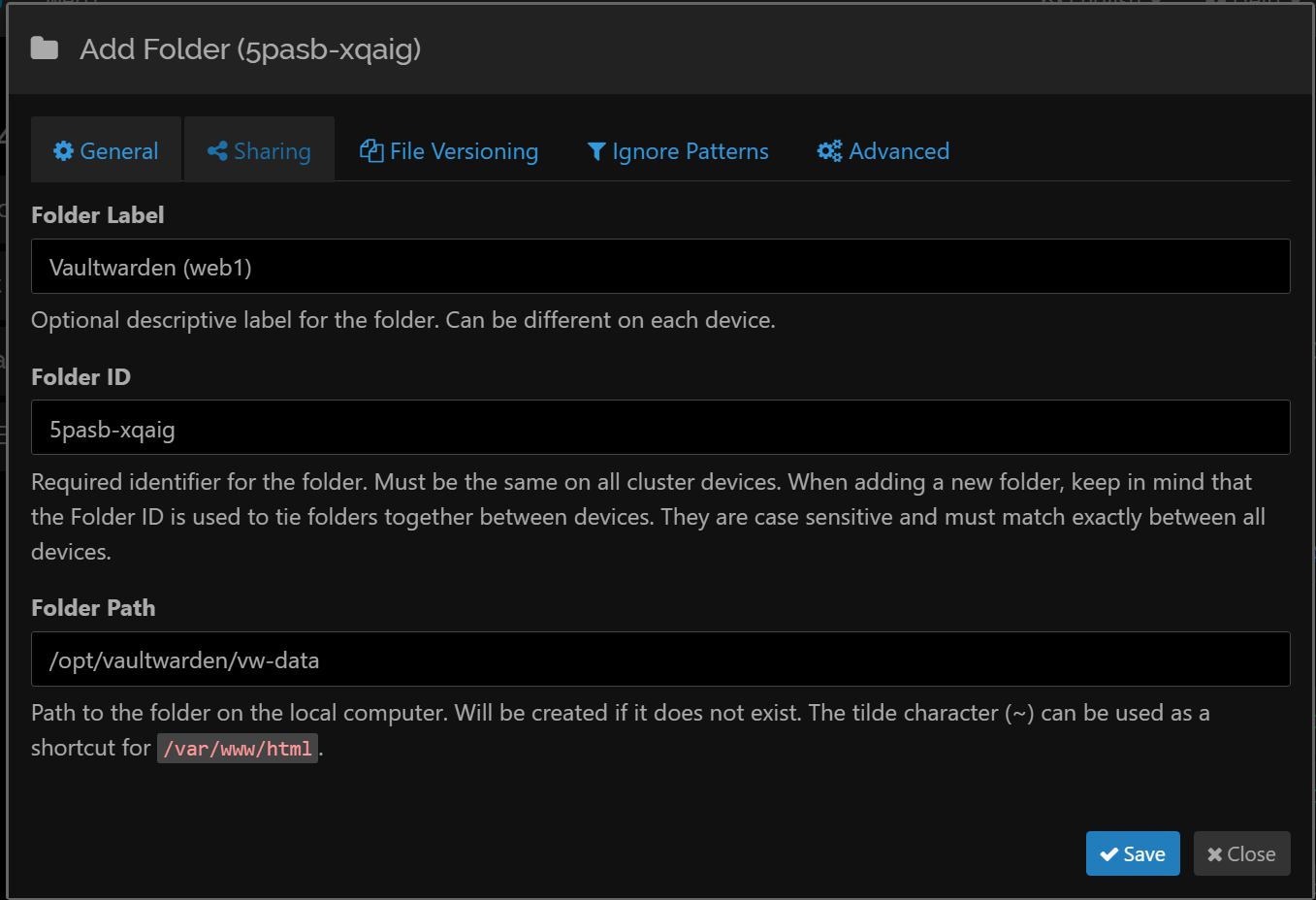
Add a folder into Syncthing to monitor changes for.
Add a folder to Syncthing
Ensure that permissions are ignored due to nested docker permissions limitation.
Ignore permissions due to virtualization nesting with Docker
Add certain temp files and folders into an ignore list including a potential local DB, even though we are not using it in our set up.
Ignore temp files and local DB (not in use)

Troubleshooting Syncthing folder addition

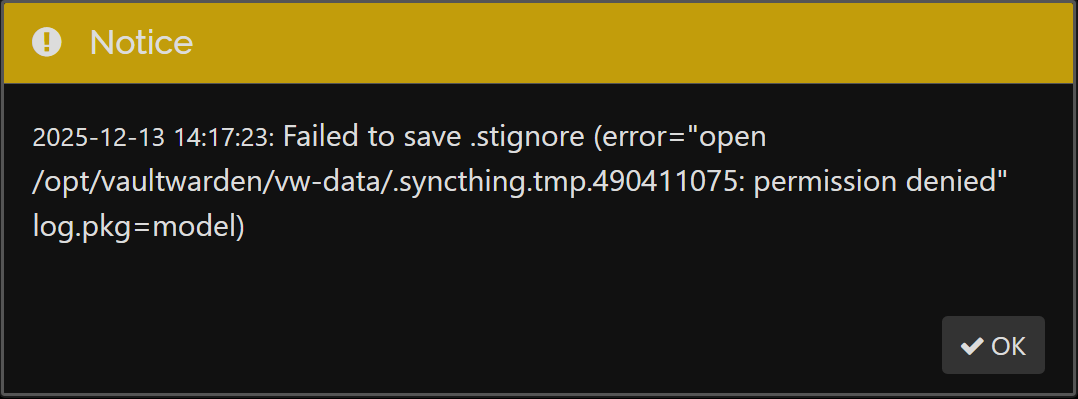
  • In case you add the sync job and immediately get a permission error like the one below, it means your permissions on the /opt/vaultwarden folder are not correct:
A scenario in which the folder permissions are not set up properly for Syncthing to have read+write access.
Ensure Syncthing can read and write into the folder
  • While in my case, the user is www-data, in your case, it is likely different. How can you find out? Let’s take a look:
 # List all running processes, filter 'syncthing' and filter out the command itself:
 sudo ps aux | grep syncthing | grep -v grep
  • Then adjust the ‘sudo setfacl -R’ and ‘sudo setfacl -d’ commands above accordingly.
  • For additional troubleshooting scenarios, you can check my previous guide for Syncthing that includes data loss situations and recovery options.

Add Syncthing on other web nodes

  • SSH into your other web server nodes and set up the file permissions accordingly as we have done at the beginning of this Step.
  • Open Syncthing on each of your other web nodes and accept the invitation:
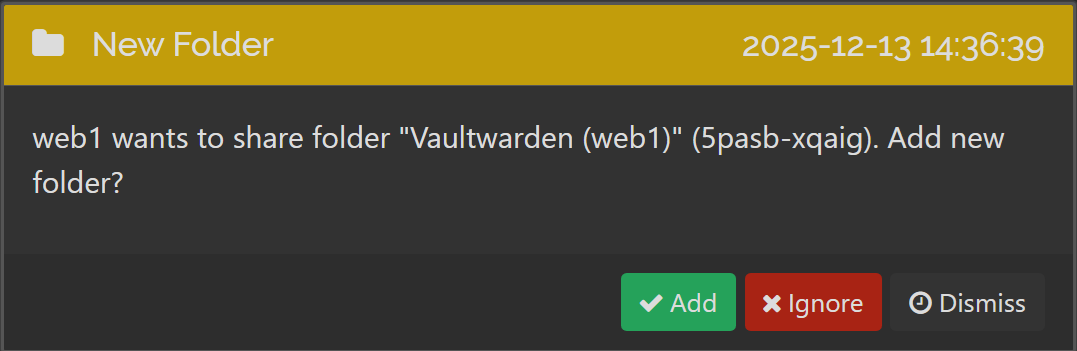
A notification in Syncthing on another web server that a folder sync is available - add it.
A notification on another web server once the folder is monitored

Set up the name, path, trash can, ignore permissions in the Advanced tab and then set up the file/folder patterns to be ignored, as we have done previously.

4. Troubleshoot Vaultwarden Docker/Web UI service
6. Set up Monitoring for Vaultwarden’s Docker Container + Website using UptimeKuma
Go back to course overview: Deploy Vaultwarden in multi-site environment (Docker, OPNSense, Galera cluster, Nginx)

Leave a Comment Cancel Reply

Save my name, email, and website in this browser for the next time I comment.

This site uses Akismet to reduce spam. Learn how your comment data is processed.

0 FacebookWhatsappEmail

Course Steps

  1. 1. Vaultwarden or Bitwarden?
  2. 2. Create a Vaultwarden DB + Install Dependencies
  3. 3. Configure OPNSense + HAProxy for Vaultwarden
  4. 4. Troubleshoot Vaultwarden Docker/Web UI service
  5. 5. Set up Syncthing for Vaultwarden data sync
  6. 6. Set up Monitoring for Vaultwarden’s Docker Container + Website using UptimeKuma
  7. 7. Harden Vaultwarden with Fail2ban
  8. 8. Bonus: Customize the 403 Forbidden page on Nginx
  9. 9. Migrate your data from Bitwarden to Vaultwarden
  10. 10. Backups, Restoration & Additional Security Considerations

Other courses

Turn your Raspberry Pi into a Proxmox Backup...

July 13, 2025

Create an automated Gravity workflow that will allow...

January 19, 2024

Dynamically Populate Gravity Forms from Google Sheets (GSheets...

March 16, 2021

Concur Alternative: Import Employees’ Credit Card Expenses to...

January 19, 2024

OPNSense in HA with CARP with dual WANs

June 30, 2025

Buy Me a Coffee

Buy Me a Coffee Buy Me a Coffee

Recent Posts

  • Check for remaining disk space on your fleet

  • How to get LXC containers for Proxmox outside of ready-made templates

  • How to join two Proxmox nodes into a cluster (PVE 8.x)

All Rights Reserved. The theme was customized from Soledad, see PenciDesign

Bachelor Tech
  • Home
  • Tutorials
  • Tips
  • Portfolio
  • About Jan
  • Contact Jan