Part 1 - Self-Host Obsidian with CouchDB Sync and Self-hosted LiveSync
Download Markdown Go to next section
June 24, 2026
Table of Contents
- Introduction to Part 1
- Deploy the Obsidian container
- Nginx vhost
- HAProxy set up (OPNsense)
- Create the vault, tune the display
- Deploy CouchDB
- Provision CouchDB
- nginx vhost + HAProxy for CouchDB
- Client setup: desktop
- Client setup: Android
- Backing up the whole vault to Gitea, independently of LiveSync
- Software Versions at the time of write-up
Introduction to Part 1
I wanted to move my IT tutorials off Notion and onto something self-hosted, editable as plain Markdown, and eventually pushed straight to a self-hosted publishing site (covered in Part 2 and 3 of this series). Obsidian was the obvious editor, but "self-hosted Obsidian" turns out to mean two separate challenges: running the app itself somewhere reachable from a browser, and syncing a vault across a desktop, a laptop and a phone, and that without paying for Obsidian Sync or fighting a full peer-to-peer mesh across every device.
This article covers both: deploying linuxserver/obsidian (a full desktop Obsidian instance streamed to your browser via KasmVNC/Selkies) inside Docker, and syncing it against a self-hosted CouchDB instance using the self-hosted LiveSync community plugin, client-server sync, offline editing, and onboarding a new device (an Android phone) in one step via a Setup URI.
Why not Syncthing, and why not Obsidian Sync?
- Obsidian Sync is Obsidian's own paid cloud service. It works fine, but it's the exact external dependency this whole project set out to avoid.
- Syncthing is genuinely great for server-to-server replication (I already use it elsewhere in this stack), but every device becomes its own sync node, which means managing a background daemon per device, manual pairing per pair of devices, and a noticeably worse experience on mobile than a plugin running inside the app.
- Self-hosted LiveSync is a client-server model: every device talks to one CouchDB instance you control. Onboarding a new device is a single Setup URI/QR code, it's the same plugin on desktop and mobile, and it does real offline-first editing with automatic merge on reconnect.
Why internal-only, reached over WireGuard
Neither the Obsidian container nor CouchDB need to be internet-facing. Both sit on an internal-only HAProxy frontend already used for other LAN-only services (Gitea, Termix, Semaphore UI, etc. in this environment). My phone and laptop already run WireGuard for other internal access, so it reaches these the same way when off the home network, no new public attack surface for what is, after all, a private authoring tool and its sync backend.
Prerequisites
- OPNsense with HAProxy, an internal-only HTTPS frontend with SSL offloading and a working ACME certificate (
frontend-https-LAN-VIPin this environment) - Docker + Compose on the target web host
nginxalready doing vhost-based multiplexing on a shared port (this environment uses8081, every internal service gets its ownserver_nameblock on that same listener, differentiated by Host header)- WireGuard already configured on any mobile device that needs off-LAN access, with its DNS setting pointing at the internal resolver (see Step 6, this is a common thing to miss)
Topology
web2- a VM running docker containers where we set up both the Obsidian and CouchDB as separate containers:obsidiancontainer, bound to127.0.0.1:3000couchdbcontainer, bound to127.0.0.1:5984- host nginx gets one
server_nameblock per service on the shared8081listener
- OPNsense with a
frontend-https-LAN-VIP- internal-only virtual IP, gets one ACL rule per service - Devices: desktop (LAN or WireGuard), an Android phone (WireGuard when off-LAN), and the container's own browser-accessed instance
Deploy the Obsidian container
On web2, I deployed a docker-compose.yml under `/opt/obsidian/:
services:
  obsidian:
    image: lscr.io/linuxserver/obsidian:latest
    container_name: obsidian
    restart: always
    environment:
      - PUID=1001
      - PGID=1001
      - TZ=Europe/Prague
      - SELKIES_H264_CRF=18
    volumes:
      - ./config:/config
    shm_size: "1gb"
    ports:
      - "127.0.0.1:3000:3000"
    logging:
      driver: "journald"
      options:
        tag: "{{.Name}}"
Two things worth explaining:
shm_size: "1gb"isn't optional, this is a real Electron app running inside the container, and Chromium/Electron needs real shared memory to not crash.SELKIES_H264_CRF=18: this image doesn't actually use classic KasmVNC's protocol under the hood, it uses Selkies (WebRTC-style video streaming of the desktop). Default video quality (CRF 25) visibly blurs during scrolling/typing due to compression and 18 gives a noticeably sharper picture at the cost of more CPU on the host, since encoding is done in software (no GPU passed through).
Port binding is 127.0.0.1:3000:3000, not 0.0.0.0 - the internal HAProxy frontend is the only intended entry point.
Save that as compose.yml in its own directory, then bring the container up:
mkdir -p /opt/obsidian && cd /opt/obsidian
# save the compose.yml above into this directory
docker compose up -d
Confirm it's actually running before moving on:
docker ps --filter name=obsidianNginx vhost
server {
    listen 8081;
    server_name obsidian.bachelor-tech.com;

    include /etc/nginx/snippets/trusted-proxies.conf;
    include /etc/nginx/snippets/custom-error-403.conf;
    include /etc/nginx/blocklist.conf;

    location / {
        proxy_pass http://127.0.0.1:3000;

        # This image's desktop-stream websocket is long-lived - default
        # 60s proxy timeouts will silently drop it mid-session.
        proxy_http_version 1.1;
        proxy_set_header Upgrade $http_upgrade;
        proxy_set_header Connection "upgrade";
        proxy_read_timeout 3600s;
        proxy_send_timeout 3600s;

        proxy_set_header Host $host;
        proxy_set_header X-Real-IP $remote_addr;
        proxy_set_header X-Forwarded-For $proxy_add_x_forwarded_for;
        proxy_set_header X-Forwarded-Proto $scheme;
    }
}
Save that to /etc/nginx/sites-available/obsidian.conf (adjust the path to whatever convention your own nginx install uses), symlink it into sites-enabled/, then test and reload:
sudo ln -s /etc/nginx/sites-available/obsidian.conf /etc/nginx/sites-enabled/
sudo nginx -t && sudo systemctl reload nginx
nginx -t matters here specifically: reloading straight away on a typo takes the whole shared listener (in my case, on port 8081) down for every other vhost on it too, not just this one.
HAProxy set up (OPNsense)
On the internal frontend-https-LAN-VIP:
- Real server: reuse the existing host nginx real-server object (
web2_nginx, port8081). Nginx does the host-based routing, HAProxy doesn't need a new server entry per service. - Backend pool: Mode HTTP (Layer 7), Server Timeout
3600s, and under Advanced → Pass Thru addtimeout tunnel 3600s. OPNsense's GUI doesn't expose this setting directly, and without it the desktop-stream websocket gets killed by the defaulttimeout server. - Condition:
hdr - HTTP Host Header matches→obsidian.bachelor-tech.com - Rule: use that condition → route to the backend pool
- Add the rule to
frontend-https-LAN-VIP - Internal DNS: add a Host Override in Unbound pointing
obsidian.bachelor-tech.comat the LAN-VIP address
Create an ACME cert for the subdomain
If using OPNSense, go to Services -> ACME and ensure that you have added your subdomain (such as obsidian.bachelor-tech.com) into the list.
A brand-new subdomain silently fails HTTPS (the browser downgrades to plain HTTP, showing "Not secure" with the https struck through in the address bar) until you add the new hostname to the certificate's domain list and force a reissue. The same applies to CouchDB's subdomain later (HTTPS is required for the sync).
Create the vault, tune the display
Once https://obsidian.bachelor-tech.com loads, create a local vault as normal.
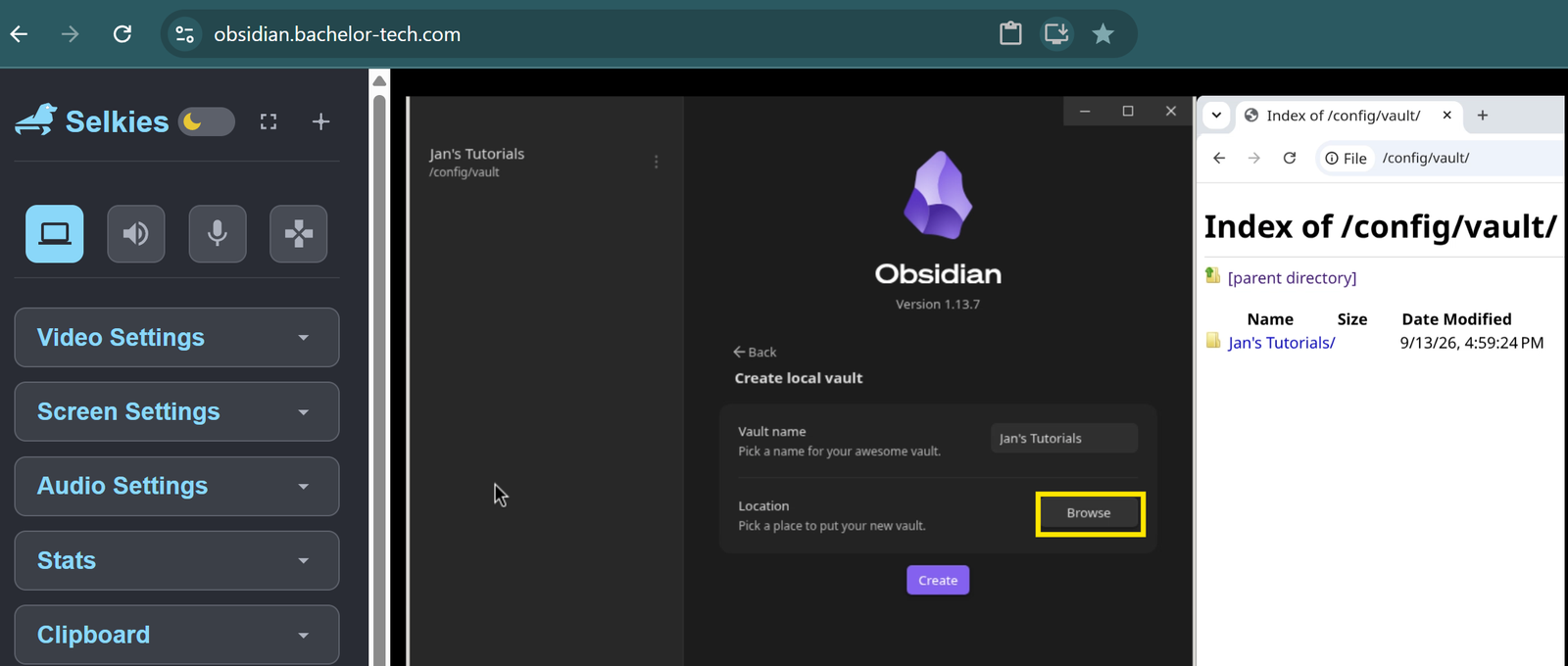
Two follow-ups worth knowing before you start writing:
- The container's home directory (
/config) is the only persisted path. Put the vault inside it (e.g. in/config/vault/), anywhere outside that mount doesn't survive a container restart. - There's a settings sidebar inside the streamed desktop itself (separate from Obsidian's own settings) with Video/Screen/Audio sections. If your monitor is high-resolution, the stream auto-negotiates to your actual browser viewport, make sure the browser window is maximized before assuming a "Preset" dropdown's ceiling is a hard limit; it isn't, the Width/Height fields underneath accept any resolution manually too.
Deploy CouchDB
services:
  couchdb:
    image: couchdb:3.4
    container_name: couchdb
    restart: always
    user: "5984:5984"
    environment:
      - COUCHDB_USER=obsidian
      - COUCHDB_PASSWORD=<generate a strong password>
    volumes:
      - ./data:/opt/couchdb/data
      - ./etc/local.d:/opt/couchdb/etc/local.d
    ports:
      - "127.0.0.1:5984:5984"
    logging:
      driver: "journald"
      options:
        tag: "{{.Name}}"
Save that as compose.yml in its own directory, then set ownership on the data/config directories before starting the container, CouchDB's data/config directories need to be owned by UID 5984, or it fails to start at all:
mkdir -p /opt/couchdb/data /opt/couchdb/etc/local.d && cd /opt/couchdb
# save the compose.yml above into this directory
chown -R 5984:5984 ./data ./etc
docker compose up -d
Confirm it's actually running before moving on:
docker ps --filter name=couchdbProvision CouchDB
COUCHDB_USER/COUCHDB_PASSWORD alone doesn't create the system databases, check _all_dbs, and if it's empty, create them:
AUTH="obsidian:<password>"
BASE="http://127.0.0.1:5984"

for db in _users _replicator _global_changes; do
  curl -s -u "$AUTH" -X PUT "$BASE/$db"
done
Self-hosted LiveSync needs CORS enabled with two specific non-http origins, app://obsidian.md for desktop, capacitor://localhost for Android/iOS:
curl -s -u "$AUTH" -X PUT "$BASE/_node/_local/_config/httpd/enable_cors" -d '"true"'
curl -s -u "$AUTH" -X PUT "$BASE/_node/_local/_config/chttpd/enable_cors" -d '"true"'
curl -s -u "$AUTH" -X PUT "$BASE/_node/_local/_config/cors/origins" -d '"app://obsidian.md,capacitor://localhost,http://localhost"'
curl -s -u "$AUTH" -X PUT "$BASE/_node/_local/_config/cors/credentials" -d '"true"'
curl -s -u "$AUTH" -X PUT "$BASE/_node/_local/_config/cors/methods" -d '"GET,PUT,POST,HEAD,DELETE"'
curl -s -u "$AUTH" -X PUT "$BASE/_node/_local/_config/cors/headers" -d '"accept, authorization, content-type, origin, referer"'
And tuning for embedded images in notes (default document/request size limits are too small):
curl -s -u "$AUTH" -X PUT "$BASE/_node/_local/_config/couchdb/max_document_size" -d '"50000000"'
curl -s -u "$AUTH" -X PUT "$BASE/_node/_local/_config/chttpd/max_http_request_size" -d '"4294967296"'
curl -s -u "$AUTH" -X PUT "$BASE/_node/_local/_config/chttpd_auth/require_valid_user" -d '"true"'
curl -s -u "$AUTH" -X PUT "$BASE/_node/_local/_config/httpd/WWW-Authenticate" -d '"Basic realm=couchdb"'
Create the database that the vault will sync into:
curl -s -u "$AUTH" -X PUT "$BASE/obsidian-vault"nginx vhost + HAProxy for CouchDB
Same pattern as Step 2/3, one difference: proxy_buffering off matters here specifically, since CouchDB's _changes feed (what LiveSync uses for near-real-time updates) is a long-lived streaming response, buffering it delays updates reaching clients.
server {
    listen 8081;
    server_name couchdb.bachelor-tech.com;

    include /etc/nginx/snippets/trusted-proxies.conf;
    include /etc/nginx/snippets/custom-error-403.conf;
    include /etc/nginx/blocklist.conf;

    client_max_body_size 50M;
    proxy_buffering off;

    location / {
        proxy_pass http://127.0.0.1:5984;
        proxy_http_version 1.1;
        proxy_read_timeout 3600s;
        proxy_send_timeout 3600s;
        proxy_set_header Host $host;
        proxy_set_header X-Real-IP $remote_addr;
        proxy_set_header X-Forwarded-For $proxy_add_x_forwarded_for;
        proxy_set_header X-Forwarded-Proto $scheme;
    }
}
Same as Step 2: save it to /etc/nginx/sites-available/couchdb.conf, symlink it into sites-enabled/, then test and reload:
sudo ln -s /etc/nginx/sites-available/couchdb.conf /etc/nginx/sites-enabled/
sudo nginx -t && sudo systemctl reload nginx
HAProxy side: identical shape to Step 3 (reuse web2_nginx, timeout tunnel 3600s, condition on couchdb.bachelor-tech.com, add to frontend-https-LAN-VIP). Remember the certificate SAN list again here, same gotcha, second occurrence.
WireGuard DNS, for the phone specifically
For the phone to resolve couchdb.bachelor-tech.com while connected over WireGuard away from home, the tunnel's peer config needs to push the internal DNS resolver, or the VPN comes up fine but the hostname simply won't resolve:
DNS = 192.168.8.254Use your own internal resolver's address based on your home lab's setting
Client setup: desktop
- Settings → Community plugins → Browse → Self-hosted LiveSync (author: vrtmrz) → Install → Enable
- Setup wizard: choose CouchDB as the remote type, then "Configure a remote manually" (unless you already have a Setup URI from another device)
- Enter: URI
https://couchdb.bachelor-tech.com, Usernameobsidian, Password (from Step 6), Databaseobsidian-vault
📷 Screenshot: the "CouchDB Configuration" form with the URL/username/database fields filled in (password blurred)
- Set an end-to-end encryption passphrase when prompted
- On first connect, "Config Doctor" may flag "Enhance chunk size" (default
0/60 tuned for constrained backends), accept the fix. This is genuinely better for a self-hosted CouchDB with the largermax_document_sizewe set above, and it's much cleaner to change before real content exists than after. - You'll be asked how to reconcile data on first connect ("Compare time and take newer", "Overwrite all with remote files", or "Use the detailed flow"). If the remote is empty (a fresh install), "Compare time and take newer" is safe, there's nothing to lose either direction. Do not pick "Overwrite all with remote files" on a fresh empty server if your local vault has real content, that direction makes remote authoritative, and would wipe your local files to match an empty database.
📷 Screenshot: the "Data retrieval scheduled" merge-strategy screen
📷 Screenshot: the "Conflict & Deletion Options" screen (how to handle files deleted on other devices)
Gotcha: "black screen" isn't always a crash
If the container's browser session goes fully black and a page refresh doesn't fix it, check whether the Obsidian process itself is still running inside the container before assuming the video stream is broken:
docker exec obsidian ps aux | grep -i obsidianIf nothing's there, the app was closed (e.g. navigating back to the vault picker can sometimes fully quit it) and needs relaunching, docker restart obsidian is the reliable fix, since the container's init sequence relaunches the app fresh.
Gotcha: a "successful" sync toast doesn't always mean what you think
"Fetch everything operation completed" in the sync log is describing a pull (remote → local), not a push. If you interrupt an initial "upload this device as master" operation (e.g. by closing the vault mid-sync, or restarting the app before a queued background push finishes), reconnecting can silently re-run as a plain fetch-and-join instead of resuming the original push, leaving the remote database still empty despite looking like everything succeeded. Check the actual document count on the server (GET /obsidian-vault → doc_count) if anything about the sync timing felt interrupted, rather than trusting the toast alone.
Client setup: Android
- Install Obsidian from the Play Store
- Community plugins → install Self-hosted LiveSync
- In the plugin: "Open Setup URI" (or scan a QR code), generated on desktop via Settings → Git → Setup tab → "Copy Setup URI" / "Show QR code", or command palette → "Self-hosted LiveSync: Copy settings as a new Setup URI"
- Enter the same passphrase used to generate the URI, it auto-fills server, credentials, database, and your E2E encryption passphrase in one step
- Make sure WireGuard is connected first if you're off the home network
📷 Screenshot: the Setup URI / QR code screen on desktop, and the same vault open on Android after scanning it
Generate the Setup URI after confirming the desktop push actually landed real documents on the server (doc_count > 1, not just the internal version-marker document), otherwise the phone just inherits the same not-yet-synced state.
Backing up the whole vault to Gitea, independently of LiveSync
LiveSync (above) solves availability: every device sees the same vault, close to real time. It doesn't give you history. CouchDB keeps its own internal revision log, but that's not the same thing as a real, browsable git history you can diff, roll back to a specific point, or keep as a plain off-site copy outside the CouchDB database itself.
So a second, independent job covers that: every 20 minutes, web2 commits and pushes the entire vault (not just a curated subfolder) straight to its own Gitea repository, obsidian_vault_backup. It runs against the server-side copy at /opt/obsidian/config/vault/, the same folder the browser-accessed container in Step 1 reads and writes, which LiveSync keeps in sync with the desktop, so this backup effectively captures whatever the desktop looks like too, just on a 20-minute delay rather than instantly.
Authentication is the same pattern used everywhere else in this series: a git SSH deploy key scoped to that one repository alone (obsidian_vault_backup, write access, since this job needs to push), not a broad account-wide token.
#!/bin/bash
# /opt/vault-backup/backup_vault.sh
set -e
cd "/opt/obsidian/config/vault/Jan's Tutorials"
git add -A
if ! git diff --cached --quiet; then
  git commit -q -m "vault backup: $(date -Iseconds)"
  git push -q
  echo "backed up: $(date -Iseconds)"
else
  echo "no changes: $(date -Iseconds)"
fi
# /etc/systemd/system/vault-backup.service
[Unit]
Description=Back up the full Obsidian vault to Gitea
After=network-online.target
[Service]
Type=oneshot
ExecStart=/opt/vault-backup/backup_vault.sh# /etc/systemd/system/vault-backup.timer
[Unit]
Description=Run vault-backup.service every 20 minutes
[Timer]
OnBootSec=3min
OnUnitActiveSec=20min
AccuracySec=1min
[Install]
WantedBy=timers.targetSave the script to /opt/vault-backup/backup_vault.sh and make it executable, save the two unit files to /etc/systemd/system/, then enable and start the timer:
sudo mkdir -p /opt/vault-backup
sudo chmod +x /opt/vault-backup/backup_vault.sh
sudo systemctl daemon-reload
sudo systemctl enable --now vault-backup.timer
Confirm it's actually scheduled, and that a run went cleanly, before trusting it:
systemctl list-timers vault-backup.timer
sudo systemctl start vault-backup.service   # trigger one run immediately, rather than waiting up to 20 minutes
journalctl -u vault-backup.service --no-pager -n 10
Deliberately plain: no image processing, no filename conventions, no rewriting anything, just a straight git add -A of the entire vault on a timer. That's the right level of ambition for a safety-net backup covering everything you've ever written, including drafts, private notes, and anything not meant to go anywhere near a public site.
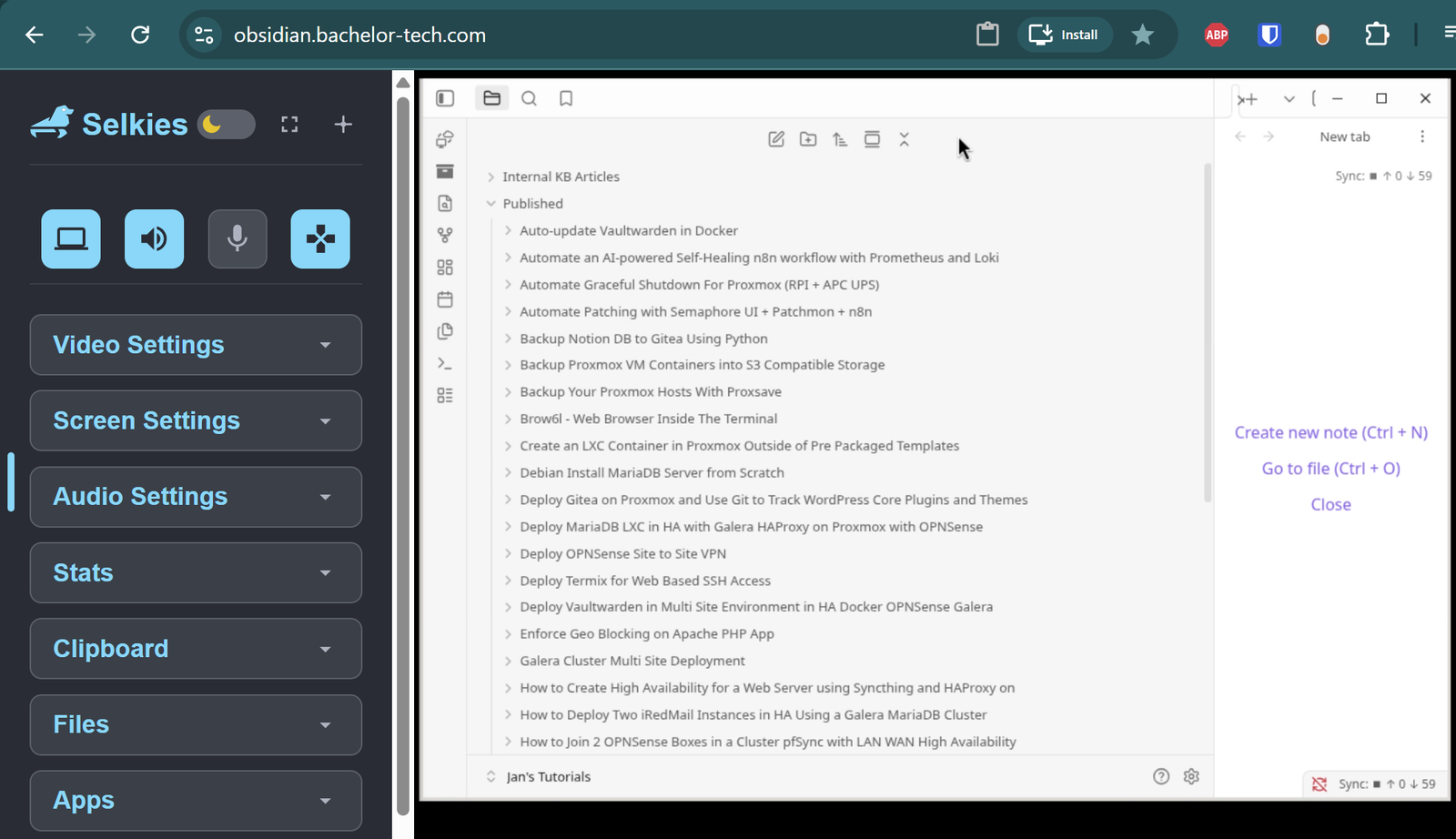
The vault's Published/ folder is the one exception: it's curated content meant for public consumption, and it gets a second, much more involved pipeline on top of this one, image resizing, SEO-friendly renaming, and an automatic publish to a live Grav CMS site. That pipeline is entirely separate from this backup (different repository, different host, different trigger), and is covered in full in Part 3.
Software Versions at the time of write-up
- CouchDB: 3.4.3 (Erlang/OTP 25)
- Docker: 29.1.3, Compose v5.0.0
- nginx: 1.28.0 (Debian 12/bookworm)
- Self-hosted LiveSync plugin: 1.0.16
- Obsidian: 1.13.7
Enjoying this tutorial?
This site is a non-profit project. If it saved you some time, you can support it by getting Jan some coffee.
☕ Buy me a coffee
Comments