How to programmatically create home folders for new users on Box with Azure Functions
June 2, 2026
Table of Contents
- Short Intro
- The workflow
- Part 1: (Optional) Entra ID provisioning
- Part 2: Custom app in Box + Azure Function app
- Part 3: Node JS app prep
- Part 4a: Test the app - Manual trigger
- Part 4b: Test the app - Automated trigger
- Part 5: Create a Key Vault + upload credentials as env variables
- Part 6: From local to cloud
- Verification
- Things to know
Short Intro
Problem statement: If root folders are not allowed in Box by an IT policy, new users get no access to any files once their accounts are created. The usual workaround is an IT admin creating a folder on a shared system account and adding the user as an editor. That leaves the admins (and the system account) with standing access to every employee's files, and anything a user deletes lands in the system account's trash instead of their own.
Set up + Required permissions: A Box Enterprise account, and admin access to Azure and Box. An identity provider (IdP) with SSO is assumed; Entra ID is used as the example in the optional Part 1. You also need the right to create resources in an Azure subscription (Azure roles are separate from Entra roles, so an Entra admin role alone is not enough).
Solution: An Azure Function watches Box for newly created users. For each one it creates a folder, hands ownership to that user and removes its own access, so the home folder is natively owned by the employee and not created (and inherently accessible) by an admin on a system account. It does not matter how the account was created: Entra provisioning, another IdP, or an admin adding the user by hand.
Scope: This covers new users only. Existing folders are not touched, and the function does not create the Box accounts themselves. Moving existing folders to their owners is a different problem with its own pitfalls (an admin-owned folder can only be handed over by its current owner), and is not covered here.
The workflow
- Trigger: an Azure Function on a 15-minute timer polls Box's Admin Events API for
NEW_USERevents. This is polling, not a webhook: Box webhooks are tied to files and folders, so there is no clean webhook for account creation. Expect the folder to appear within roughly 15 minutes plus a few minutes for Box to publish the event. Because it reads Box's own event log, it works regardless of how the account was created. The code is plain Node.js, so it can be moved to another runtime later. - The app authenticates as a dedicated Box service account and creates a folder named after the user's Box ID (unique, and safe to retry).
- The new user is added to that folder as an editor.
- The folder is renamed from the ID to the user's name plus "- Home". This happens while the service account still owns the folder.
- The user's collaboration is upgraded to owner. Box transfers ownership and demotes the service account to editor.
- The service account's own collaboration is deleted, so nothing but the user has access.
Part 1: (Optional) Entra ID provisioning
This part only creates the Box accounts. The home-folder function in the rest of this post works without it, so if accounts are created by hand or another way, skip to Part 2. If you turn provisioning on, run it through your change-management process, because it changes a production system.
Check these before you start:
- Account matching. Provisioning matches Entra users to Box accounts by one attribute (check which one under Attribute Mapping, the row with matching precedence 1, for example
userPrincipalNameormail). If an existing Box account uses a different login than the Entra identity, provisioning will create a second account instead of recognizing the first. - Former employees. The default status mapping is based on whether the Entra object is soft-deleted, not on whether the account is disabled. A disabled but not deleted user who is still in the assigned group can be treated as active. Remove them from the group first.
- The assigned list does two jobs. If "Assignment required" is on for the enterprise app, the assigned users and groups control both who can sign in with SSO and who is provisioned. Removing a group can lock its members out.
- Accounts created directly in Box (service or admin accounts) are not touched by a sync as long as they are not in an assigned group. Check that they are not.
- Deprovisioning. A removed user is expected to be deactivated, not deleted, and with Box Governance or retention policies Box requires their content to be transferred before deletion. Verify with one test user before enabling it for everyone.
- Scoping filters evaluate attributes on the user object. At the time of writing, group membership (
IsMemberOf) is not supported, so a filter cannot say "only members of this group".
Steps:
- In the Entra admin center, go to the Box app.
- Go to the Provisioning tab → New configuration. Proceed through the Azure portal.
- Under Admin Credentials, click Authorize. This opens a Box login window. Sign in with the Team Admin account and grant access.
- Click Test Connection to confirm Entra can reach Box's provisioning API.
- Click Create to save the configuration.
- Go to Properties → enable notification emails (route to the IT team) and turn on Accidental deletions prevention (to safeguard against the provisioning engine bulk-disabling or deleting Box user accounts in a single sync cycle). Set the threshold low compared to your headcount, because the default is sized for much larger organizations. Save.
- Go to Attribute Mapping → Users → review the default attribute mappings (email as matching key, name, department, etc.) and map them to the ones from Box.
- (Optional:) Set up a scoping filter to limit auto-provisioning by attribute, such as department. This could be good for testing.
- Use on-demand provisioning to test against 1-2 pilot users before wider rollout. Verify the Box account is created and matched to the right person.
- Once validated, go to Overview → Start Provisioning, and watch the first sync in the provisioning logs.
- Confirm synced users appear under Managed Users in the Box Admin Console.
Provisioning can be paused from the Overview page without deleting already-provisioned Box accounts. Disabling it stops new syncs but does not retroactively remove existing users.
Part 2: Custom app in Box + Azure Function app
- Create a custom app in Box: Go to account.box.com/developers/console and create a new app with the following parameters:
- Server Authentication (Client Credentials grant)
- With this name: BoxHomeFolder-Automation
- Set access to 'App + Enterprise Access'.
- Scope access - set only these: 'Read all files and folders', 'Write all files and folders', 'Manage enterprise properties' (to build the Events API poller).
- Leave 'Make API calls using the as-user header' and 'Generate user access tokens' off. They would let this credential act as any user in your enterprise, which is exactly the standing power this project removes. The flow below never needs them.
- Save the client ID and secret, along with the Enterprise ID, in your team's password manager.
- Note: There is no CORS to set as this is a server-to-server interaction.
- Once done, an enterprise admin needs to authorize the app (Admin Console → Apps → Custom Apps, or the Authorization tab of the app). Until it is approved, every token request is rejected with
invalid_client. - Note that the app gets its own service account, a Box user with a generated login (something like
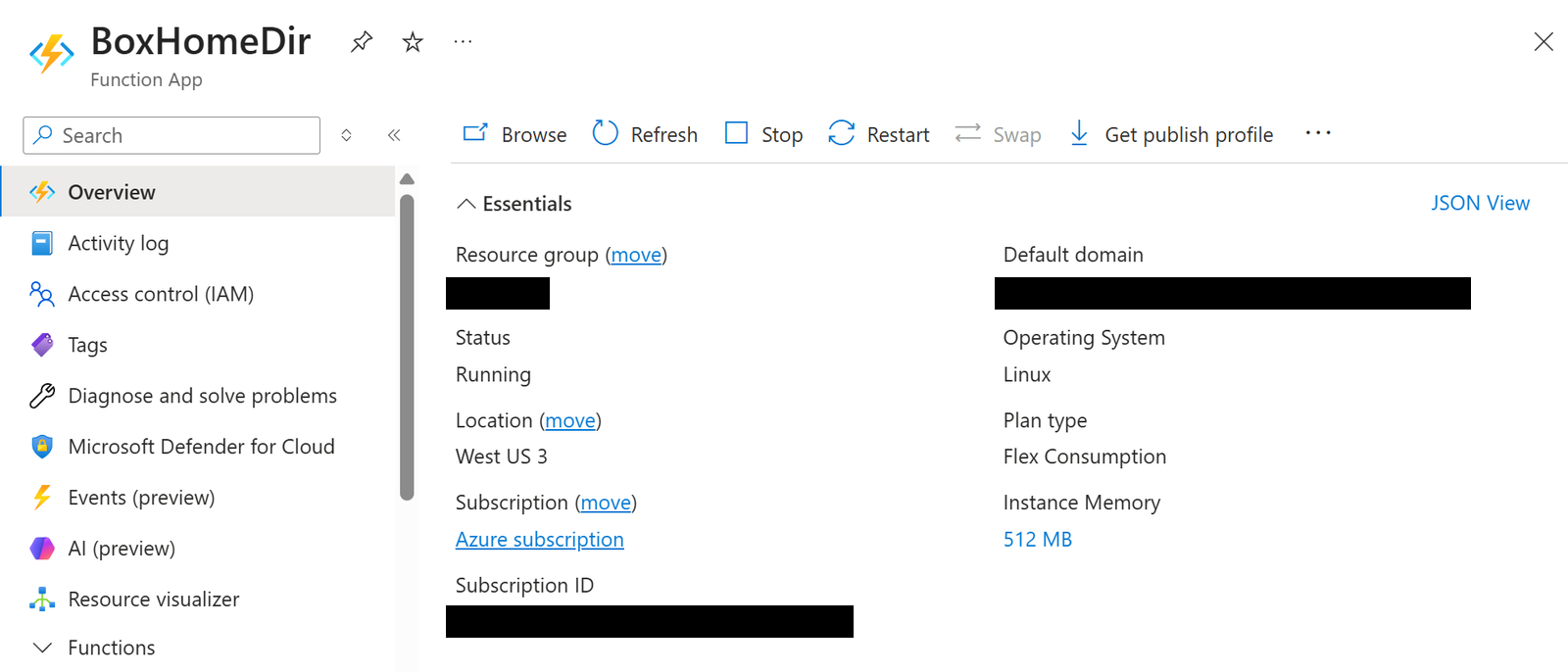
AutomationUser_<app id>_<random>@boxdevedition.com). It is separate from any existing system account you have. With 'App + Enterprise Access' it can invite any user, but it can only see content it created or was invited to. That is why the folder is created by the service account itself. - Set up a Function app in MS Azure with these settings:
- Runtime: Node.js, version 22 (or newest supported)
- Plan: Flex Consumption works well for a function that mostly sleeps
- Memory: the smallest (512 MB is default)
- Once the app is running, go to Environment variables and save the 'AzureWebJobsStorage' value - it will be used in Part 4b.
Part 3: Node JS app prep
- On your device, download Node JS v22 (as per your Azure Function app setting) with the newest version of npm. Pick the LTS release, not the "Current" one, because Azure only supports certain versions. On a Win device, you can use Chocolatey:
# Source: https://nodejs.org/en/download

# Download and install Chocolatey:
powershell -c "irm https://community.chocolatey.org/install.ps1|iex"
# Download and install Node.js:
choco install nodejs --version="22.23.2"
# Verify the Node.js version:
node -v # Should print "v22.23.2".
# Verify npm version:
npm -v # Should print "10.9.8".- If
npm -vprints something much older, update it withnpm install -g npm@latest. - Install Azure tools
# Some parts will be blocked by default, no issues with that.
npm install -g azure-functions-core-tools@4

# Should print a 4.x version number. Will be downloaded if blocked previously.
func --version

# Output should be version 4.x, such as 4.1.2- Create the following structure in your preferred IDE:
# tree /F
box-homedir-automation/
│   host.json
│   local.settings.json
│   local.settings.json.example
│   package-lock.json
│   package.json
│   readme.md
│
└───src
    ├───functions
    │       checkNewUsers.js
    │       createHomeFolder.js
    │
    └───lib
            boxClient.js
            checkpoint.js
homeFolder.js- package.json
{
  "name": "box-home-folder-function",
  "version": "1.0.0",
  "description": "Provisions a Box home folder for new users, owned by them, with no standing access for admins or the service account.",
  "main": "src/functions/*.js",
  "scripts": {
    "start": "func start"
  },
  "dependencies": {
    "@azure/functions": "^4.5.0",
    "@azure/data-tables": "^13.2.2",
    "box-node-sdk": "^4.13.0"
  }
}- host.json
{
  "version": "2.0",
  "logging": {
    "applicationInsights": {
      "samplingSettings": {
        "isEnabled": true,
        "excludedTypes": "Request"
      }
    }
  },
  "extensionBundle": {
    "id": "Microsoft.Azure.Functions.ExtensionBundle",
    "version": "[4.*, 5.0.0)"
  }
}
If func start later warns that '1.0.0' is an invalid value for host.json 'version', the file has the wrong content. The version must be "2.0".
- local.settings.json.example (copy it to
local.settings.jsonand fill in your real values; never commit that file)
{
  "IsEncrypted": false,
  "Values": {
    "AzureWebJobsStorage": "PASTE_REAL_STORAGE_CONNECTION_STRING_HERE",
    "FUNCTIONS_WORKER_RUNTIME": "node",

    "BOX_CLIENT_ID": "your-box-custom-app-client-id",
    "BOX_CLIENT_SECRET": "your-box-custom-app-client-secret",
    "BOX_ENTERPRISE_ID": "your-box-enterprise-id",

    "BOX_HOME_FOLDER_PARENT_ID": "0"
  }
}
AzureWebJobsStorage can stay UseDevelopmentStorage=true for the manual test in Part 4a, but the timer trigger in Part 4b stores its position in Azure Table Storage, so it needs the real connection string you saved in Part 2.
- src\lib\boxClient.js
const { BoxClient, BoxCcgAuth, CcgConfig } = require('box-node-sdk/sdk-gen');

/**
 * Builds a Box client authenticated as the service account via CCG.
 * Reads credentials from environment / Application Settings.
 */
function getBoxClient() {
  const ccgConfig = new CcgConfig({
    clientId: process.env.BOX_CLIENT_ID,
    clientSecret: process.env.BOX_CLIENT_SECRET,
    enterpriseId: process.env.BOX_ENTERPRISE_ID,
  });
  const ccgAuth = new BoxCcgAuth({ config: ccgConfig });
  return new BoxClient({ auth: ccgAuth });
}

module.exports = { getBoxClient };- src\lib\homeFolder.js (the core sequence, shared by the manual test and the timer)
/**
 * Core provisioning sequence:
 *   1. Service account creates a folder named by user ID (collision-safe;
 *      reuses an existing folder of the same name instead of failing, to
 *      survive a retry after a previous interrupted run)
 *   2. New user is added as a collaborator (editor)
 *   3. Folder is renamed to a friendly display name (best-effort, non-fatal)
 *   4. That collaboration is upgraded to "owner", so ownership transfers to the user
 *      and the service account is automatically demoted to editor on this folder
 *   5. The service account's now-editor collaboration is deleted
 *
 * End state: the user owns the folder outright. No admin identity and no
 * service account retains standing access to it.
 *
 * @param {import('box-node-sdk/sdk-gen').BoxClient} client
 * @param {string} userId - Box user ID
 * @param {string} userName - display name, used for the friendly folder name
 * @param {{log: Function, warn: Function}} logger - context.log/context.warn from the caller
 * @returns {Promise<{folderId: string, folderName: string, ownedBy: string}>}
 */
async function provisionHomeFolder(client, userId, userName, logger) {
  // '0' = enterprise root. Set BOX_HOME_FOLDER_PARENT_ID if home folders
  // should nest under a specific parent instead.
  const parentFolderId = process.env.BOX_HOME_FOLDER_PARENT_ID || '0';
  const uniqueFolderName = String(userId);
  const friendlyFolderName = `${userName} - Home`;

  // 1. Create the folder, named by user ID. Reuse on conflict.
  let folder;
  try {
    folder = await client.folders.createFolder({
      name: uniqueFolderName,
      parent: { id: parentFolderId },
    });
    logger.log(`Created folder ${folder.id} (named "${uniqueFolderName}")`);
  } catch (createErr) {
    const conflictId = createErr.contextInfo?.conflicts?.[0]?.id;
    if (createErr.message?.includes('item_name_in_use') && conflictId) {
      logger.warn(`Folder "${uniqueFolderName}" already exists (id ${conflictId}), reusing it instead of failing.`);
      folder = await client.folders.getFolderById(conflictId);
    } else {
      throw createErr;
    }
  }

  // 2. Invite the user as a collaborator so ownership can be handed over.
  const collaboration = await client.userCollaborations.createCollaboration({
    item: { type: 'folder', id: folder.id },
    accessibleBy: { type: 'user', id: userId },
    role: 'editor',
  });
  logger.log(`Added user ${userId} as editor (collaboration ${collaboration.id})`);

  // 3. Rename to the friendly display name. Cosmetic only, so non-fatal.
  try {
    await client.folders.updateFolderById(folder.id, {
      requestBody: { name: friendlyFolderName },
    });
    logger.log(`Renamed folder ${folder.id} to "${friendlyFolderName}"`);
  } catch (renameErr) {
    logger.warn(`Could not rename folder ${folder.id}, continuing anyway. Error: ${renameErr.message}`);
  }

  // 4. Upgrade that collaboration to owner. The service account is
  //    automatically demoted to editor on this folder as a side effect.
  await client.userCollaborations.updateCollaborationById(collaboration.id, {
    requestBody: { role: 'owner' },
  });
  logger.log(`Transferred ownership of folder ${folder.id} to user ${userId}`);

  // 5. Find and remove the service account's own (now editor) collaboration.
  const collabs = await client.listCollaborations.getFolderCollaborations(folder.id);
  const me = await client.users.getUserMe();
  const ownCollab = collabs.entries.find(
    (c) => c.accessibleBy && c.accessibleBy.id === me.id
  );
  if (ownCollab) {
    await client.userCollaborations.deleteCollaborationById(ownCollab.id);
    logger.log(`Removed service account's collaboration (${ownCollab.id})`);
  } else {
    logger.warn('Could not find service account collaboration to remove, verify manually in Box.');
  }

  return { folderId: folder.id, folderName: friendlyFolderName, ownedBy: userId };
}

module.exports = { provisionHomeFolder };
💡 Note
A few things about the Box SDK that cost time to find out. Import from
box-node-sdk/sdk-gen(the bare package exports something else).updateCollaborationByIdandupdateFolderByIdtake their body wrapped in{ requestBody: {...} }, whilecreateCollaborationtakes it directly. If you pass the role directly toupdateCollaborationById, Box receives an empty body and answers with a 400. Ownership can only be handed over by the current owner, which is why the service account creates the folder itself.
- src\functions\createHomeFolder.js (an HTTP trigger for manual testing, it calls the same shared code)
const { app } = require('@azure/functions');
const { getBoxClient } = require('../lib/boxClient');
const { provisionHomeFolder } = require('../lib/homeFolder');

/**
 * Manual test endpoint. Calls the same provisionHomeFolder logic the timer
 * trigger (checkNewUsers.js) uses in production, kept here for one-off
 * testing against a specific user without waiting for a real Box event.
 *
 * Call with POST body: { "userId": "<box user id>", "userName": "<display name>" }
 */
app.http('createHomeFolder', {
  methods: ['POST'],
  authLevel: 'function',
  handler: async (request, context) => {
    let body;
    try {
      body = await request.json();
    } catch {
      return {
        status: 400,
        jsonBody: { error: 'Expected a JSON body with userId and userName' },
      };
    }

    const { userId, userName } = body;
    if (!userId || !userName) {
      return {
        status: 400,
        jsonBody: { error: 'userId and userName are both required' },
      };
    }

    try {
      const client = getBoxClient();
      const outcome = await provisionHomeFolder(client, userId, userName, context);
      return { status: 200, jsonBody: outcome };
    } catch (err) {
      context.error('Home folder provisioning failed:', err);
      return { status: 500, jsonBody: { error: err.message } };
    }
  },
});- src\lib\checkpoint.js (remembers where the event stream was left off between runs)
const { TableClient } = require('@azure/data-tables');

const TABLE_NAME = 'BoxProvisioningCheckpoints';
const PARTITION_KEY = 'box';
const ROW_KEY = 'newUserStream';

function getTableClient() {
  const connectionString = process.env.AzureWebJobsStorage;
  return TableClient.fromConnectionString(connectionString, TABLE_NAME);
}

async function ensureTableExists(tableClient) {
  try {
    await tableClient.createTable();
  } catch (err) {
    // Already exists, which is the expected steady state after the first run.
    if (err.statusCode !== 409) {
      throw err;
    }
  }
}

/**
 * Returns the saved stream position, or null if this is the first run
 * (no checkpoint saved yet).
 */
async function getCheckpoint() {
  const tableClient = getTableClient();
  await ensureTableExists(tableClient);
  try {
    const entity = await tableClient.getEntity(PARTITION_KEY, ROW_KEY);
    return entity.streamPosition;
  } catch (err) {
    if (err.statusCode === 404) {
      return null;
    }
    throw err;
  }
}

async function saveCheckpoint(streamPosition) {
  const tableClient = getTableClient();
  await ensureTableExists(tableClient);
  await tableClient.upsertEntity(
    {
      partitionKey: PARTITION_KEY,
      rowKey: ROW_KEY,
      streamPosition: String(streamPosition),
    },
    'Replace'
  );
}

module.exports = { getCheckpoint, saveCheckpoint };- src\functions\checkNewUsers.js (the timer trigger, the real production path)
const { app } = require('@azure/functions');
const { getBoxClient } = require('../lib/boxClient');
const { provisionHomeFolder } = require('../lib/homeFolder');
const { getCheckpoint, saveCheckpoint } = require('../lib/checkpoint');

const MAX_PAGES_PER_RUN = 5; // safety cap so one run can't loop indefinitely

app.timer('checkNewUsers', {
  // Every 15 minutes. Adjust to how quickly new hires need their folder.
  schedule: '0 */15 * * * *',
  handler: async (myTimer, context) => {
    const client = getBoxClient();

    const savedPosition = await getCheckpoint();

    if (savedPosition === null) {
      // First run ever: catch the checkpoint up to the present without
      // provisioning anything for existing history. We don't want to
      // retroactively provision every existing employee in one go.
      // Walks forward through the stream, discarding entries instead of
      // processing them. (createdAfter is avoided on purpose: the SDK
      // wants a wrapped date object for it, which is easy to get wrong.)
      let bootstrapPosition = '0';
      for (let page = 0; page < MAX_PAGES_PER_RUN; page++) {
        const result = await client.events.getEvents({
          streamType: 'admin_logs',
          streamPosition: bootstrapPosition,
          eventType: ['NEW_USER'],
          limit: 100,
        });
        bootstrapPosition = result.nextStreamPosition ?? bootstrapPosition;
        if (!result.entries || result.entries.length < 100) {
          break; // caught up
        }
      }
      await saveCheckpoint(bootstrapPosition);
      context.log(`First run: walked forward and seeded checkpoint at position ${bootstrapPosition}. No events processed this run.`);
      return;
    }

    let position = savedPosition;
    let processedCount = 0;

    for (let page = 0; page < MAX_PAGES_PER_RUN; page++) {
      const result = await client.events.getEvents({
        streamType: 'admin_logs',
        streamPosition: position,
        eventType: ['NEW_USER'],
        limit: 100,
      });

      if (!result.entries || result.entries.length === 0) {
        position = result.nextStreamPosition ?? position;
        break;
      }

      for (const event of result.entries) {
        const userId = event.source?.id;
        const userName = event.source?.name;
        if (!userId || !userName) {
          context.warn(`Skipping NEW_USER event with missing source info: ${JSON.stringify(event)}`);
          continue;
        }
        try {
          const outcome = await provisionHomeFolder(client, userId, userName, context);
          context.log(`Provisioned home folder for ${userName} (${userId}): folder ${outcome.folderId}`);
          processedCount++;
        } catch (err) {
          // Log and continue: one bad user shouldn't block the rest of
          // the batch or stall the checkpoint forever. Failed users will
          // need manual follow-up.
          context.error(`Failed to provision home folder for ${userName} (${userId}):`, err);
        }
      }

      position = result.nextStreamPosition ?? position;

      // If we got fewer than a full page, we're caught up.
      if (result.entries.length < 100) {
        break;
      }
    }

    await saveCheckpoint(position);
    context.log(`Run complete. Processed ${processedCount} new user(s). Checkpoint saved at ${position}.`);
  },
});
💡 Note
The stream type is
admin_logson purpose. Box also offersadmin_logs_streaming, which is faster but can deliver the same event twice, and this function does not check whether a user already has a home folder.admin_logsis slower (a few minutes) but does not deliver duplicates.
- In your IDE, go to the folder and run 'npm install':
cd path\to\box-homedir-automation
npm install- This command will read the
package.jsonfile and will pull in@azure/functions,@azure/data-tablesandbox-node-sdk, the packages the code needs.
Part 4a: Test the app - Manual trigger
- While in the project folder, run the following:
func start- If you get an error about missing files, make sure you are not using a network or otherwise slower storage (or a folder that a backup tool syncs), clean up and try again:
rmdir /s /q node_modules
del package-lock.json
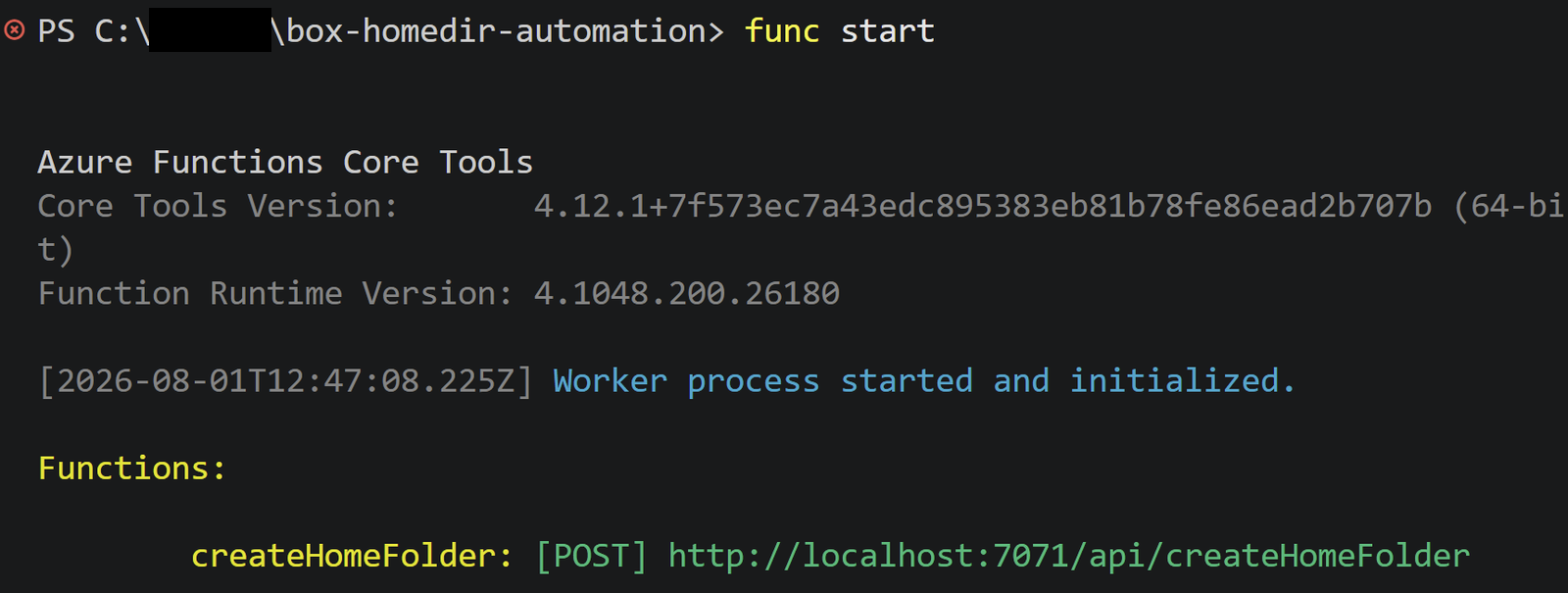
npm install- You should see something like this, listing both functions (the
checkNewUserstimer is used in Part 4b):
- In case you get warnings related to a health check, then do not worry, we did not install Azurite for the health checks, you can ignore it:
[2026-08-01T12:47:23.304Z] [Tag=''] Process reporting unhealthy: Unhealthy. Health check entries are {"azure.functions.web_host.lifecycle":{"status":"Healthy","description":null},"azure.functions.script_host.lifecycle":{"status":"Healthy","description":null},"azure.functions.webjobs.storage":{"status":"Unhealthy","description":"A timeout occurred while running check."}}- Get your test user's Box ID: Box Admin Console → Users → click on your test user → the numeric user ID is in the URL or below in the user details. It is a plain number, not the GUID that Entra shows.
- Call the function locally (leave
func startrunning and use a second terminal):
# Mac OS, Linux:
curl -X POST http://localhost:7071/api/createHomeFolder -H "Content-Type: application/json" -d '{"userId": "PASTE_ID_HERE", "userName": "Test User"}'

# Powershell:
try {
    Invoke-RestMethod -Uri http://localhost:7071/api/createHomeFolder -Method Post -ContentType "application/json" -Body '{"userId": "123456789", "userName": "TestUser"}'
} catch {
    $_.ErrorDetails.Message
}- In Windows PowerShell,
curlis an alias for a different command, so useInvoke-RestMethodthere. Thetry/catchprints the error body, whichInvoke-RestMethodotherwise hides. - In case you get a 'Unable to connect to the remote server' error, make sure that '
func start' was triggered and is waiting for requests. - 'Error 404 - not found' → ensure the user ID is correct, find it in the Box admin interface (not in Entra).
- If the rename fails with 'Item with the same name already exists', the function only logs a warning and carries on, because ownership matters more than the name. The cause is another folder called 'TestUser - Home' in the same parent. Remove or rename it if you want the friendly name.
- If you get 'The remote server returned an error: (500) Internal Server Error.', then go to the func start's log in the terminal and check what the error is. If you see 'Error 400: Invalid_client', do the following:
- Verify that your client ID and secret are correct (no trailing space when pasting).
- Check whether the app is actually authorized yet. Go to the Developer Console and check its settings and status. It should read as App + Enterprise Access and be in an approved state; if that app is sitting in a "pending" or "not yet authorized" state, every token request fails with exactly this error, credentials notwithstanding.
- The function does not check whether the user already has a home folder. Calling it twice for the same user creates a second folder. The timer only calls it for new users, so this only matters for manual tests. Delete the extra folder afterwards.
Part 4b: Test the app - Automated trigger
Let's simulate an automated trigger to verify that it works as expected.
- Before you start: put the real storage connection string (from Part 2) into your local
local.settings.jsonasAzureWebJobsStorage. The timer function keeps its position in Azure Table Storage, so the local emulator value does not work for it. This also means your local runs share the checkpoint with the deployed app, which is intended. It also means that a localfunc startkeeps polling on its own schedule, so stop it when you are done testing. - While the
func appis running (still locally), run an empty command from the terminal. The first run only saves the current position in the event stream and processes nothing. That is by design, so existing users are not touched.
# Powershell (Win)
Invoke-RestMethod -Uri http://localhost:7071/admin/functions/checkNewUsers -Method Post -ContentType "application/json" -Body '{"input": ""}'

# Curl (Mac OS, Linux)
curl -X POST http://localhost:7071/admin/functions/checkNewUsers -H "Content-Type: application/json" -d '{"input": ""}' | python3 -m json.tool- Then create a Box test user (Admin Console → Users → Add Users).

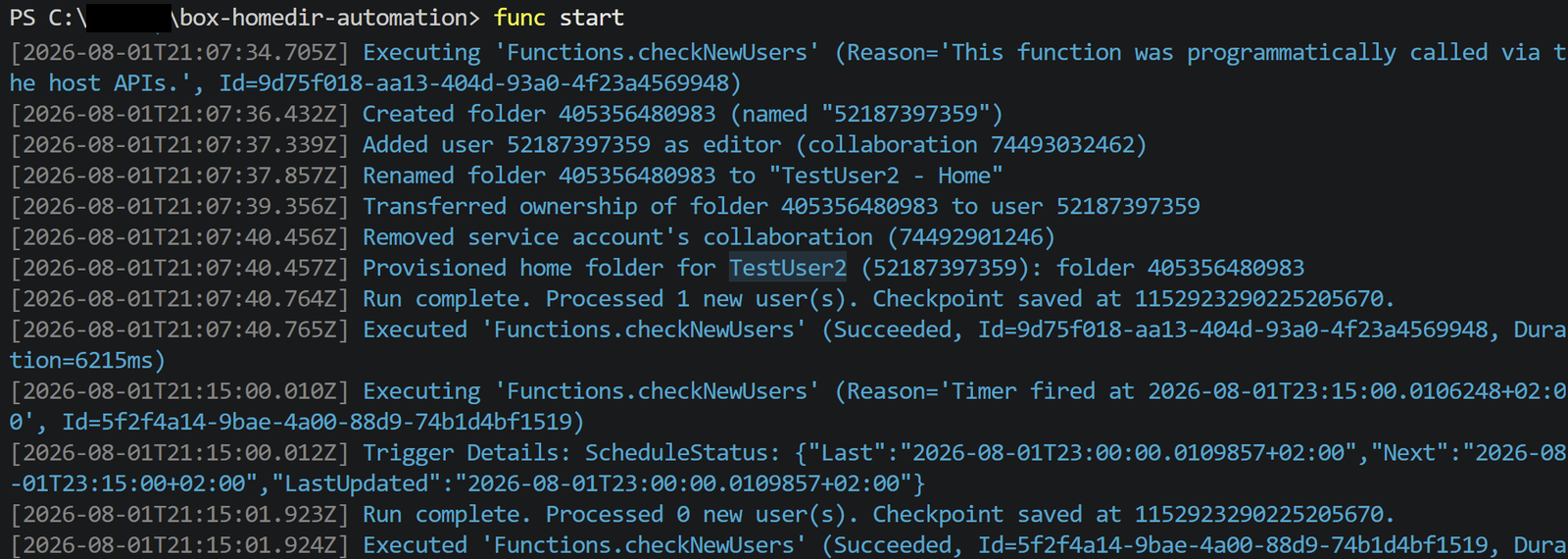
- Run the same empty command again. Wait 2-3 minutes, as there is a delay in Box publishing the event (the first few tries may do nothing). Watch the log. It should spot that a new account was created in Box, create a folder based on its ID and transfer ownership.
- Delete the test user afterwards. Every managed user counts toward your licensed seats.
Part 5: Create a Key Vault + upload credentials as env variables
To make the Function app work in Azure with credentials, we will need to pass credentials safely using best security practices. The code only reads environment variables, so you can deploy first with plain app settings and switch to Key Vault later without changing any code. Key Vault is recommended because this function runs unattended with write access to Box.
- In Azure, search for "Key Vault" → Create
- Subscription: same one as
BoxHomeDir(your Function app) - Resource group: the same one as the Function app
- Vault name: something like
<your-vault-name> - Region: same as the Function App
- Everything else: defaults are fine
- You need the right to create resources in that subscription (for example the Contributor role).
- Subscription: same one as
- Add the three secrets (as saved in your password manager):
BOX-CLIENT-IDBOX-CLIENT-SECRETBOX-ENTERPRISE-ID- Note: Key Vault secret names can't contain underscores (hyphens are allowed). These variables will be mapped later on.
- Let the Function App identify itself to the vault: in the Function App (BoxHomeDir), go to Settings → Identity → System assigned → On → Save. This gives the Function App its own identity in Entra, so it can authenticate to Key Vault without a stored credential.
- Grant that identity permission to read secrets: back in the Key Vault, go to Access control (IAM) → Add role assignment → role: Key Vault Secrets User → assign to: Managed identity → select Function App → pick BoxHomeDir → Save.
- Point the app settings at the vault instead of plaintext: In the Function App, go to Settings → Environment variables (same place you found
AzureWebJobsStorageearlier). EditBOX_CLIENT_ID,BOX_CLIENT_SECRET,BOX_ENTERPRISE_ID- replace each plaintext value with:
# Swap the secret name in the URI for each of the three & hit save.
@Microsoft.KeyVault(SecretUri=https://<your-vault-name>.vault.azure.net/secrets/BOX-CLIENT-ID/)
The credentials saved in the local.settings.json file never get uploaded. That file is explicitly local-only. We will need to create them directly: in the BoxHomeDir app, go to Settings → Environment variables → add each one manually (same names as in the local file):
BOX_CLIENT_IDBOX_CLIENT_SECRETBOX_ENTERPRISE_IDBOX_HOME_FOLDER_PARENT_ID(0puts the folders in the enterprise root)
💡 Note
If you use Key Vault, do not save the actual values here, rather use references to the Key Vault, such as
@Microsoft.KeyVault(SecretUri=...). The setting then holds a pointer to the secret, not a second copy of it. If you have to start with plain values because the vault does not exist yet, swap them for references later: at no point should both exist at the same time.Click Apply/Save on the Environment variables page. Unsaved values look fine in the portal but the function then fails with
invalid_client.
Note: AzureWebJobsStorage should already be set, that one Azure provisioned automatically.

Part 6: From local to cloud
For now, the code was executed on our station locally. Now it's the time to take it into the runtime created in the Function app in Azure. Just to clarify again, this is independent from what IdP is used, it can be used with Entra as well as with Ping or another.
- In your project root within your preferred IDE (such as Visual Studio Code), use the Azure CLI to push the app to the Function app:
# Install the Azure CLI tools (winget if on Windows) - follow [<u>these steps</u>](https://learn.microsoft.com/en-us/cli/azure/install-azure-cli-macos?view=azure-cli-latest) on MacOS.
winget install Microsoft.AzureCLI

# Log into the Azure account - choose the preferred subscription
az login
- Push the code to the Azure Function app
func azure functionapp publish BoxHomeDir- Look at the publish output: it may say
remotebuild = false. That means thenode_modulesfolder from your machine was uploaded as it is, instead of being built again in Azure. That is fine here because every dependency is plain JavaScript. If you later add a package with native code, a copy built on Windows may not run on Linux, so build remotely in that case (see the--buildoption in the Azure Functions Core Tools documentation). - If you keep other scripts in the same project that must not run in Azure, list them in a
.funcignorefile, which the publish command respects.
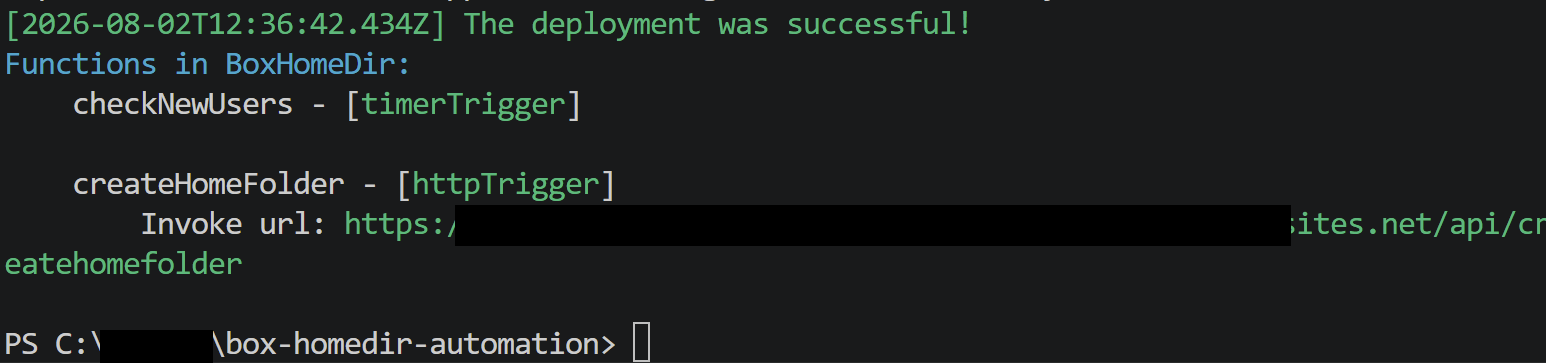
Let's give it a test using an existing user in Box to confirm that it can create a HomeDir and change the ownership. The timer runs on its own every 15 minutes, so afterwards we still need to test it with a brand-new user.
- In the Azure Portal, find the
BoxHomeDirand go to Functions →createHomeFolder→ Get Function URL (this gives you the full URL with?code=...already appended, no need to hunt for the key separately). The button is greyed out forcheckNewUsers, because timer functions have no URL. Choose the default (Function) key, not_masteror the host key, which are much more powerful. Then:
Invoke-RestMethod -Uri "https://<your-function-app>.<region>.azurewebsites.net/api/createHomeFolder?code=<your-function-key>" -Method Post -ContentType "application/json" -Body '{"userId": "<box-user-id>", "userName": "TestUserDeployed"}'- The full URL with
?code=...is a secret. Anyone who has it can call the function. Do not paste it into screenshots, tickets or posts, and renew the key in the Portal (Functions → App keys) if it ever leaks. - If you get a 500 with
invalid_client, the Box settings were probably not saved on the Function app (see the note in Part 5). - The expected output is this:

- To watch the timer, use Functions → checkNewUsers → Invocations. The Log stream needs Application Insights, which may not be set up.
Verification
- After test-user provisioning, confirm the Box account exists and is owned by the user (check via Admin Console → Users → [test user] → Content).
- Confirm the folder has no unexpected collaborators: it should be just the user as owner, not carrying over any admin or the service account.
- A quick ownership test: put a file in the folder as the user and delete it. It should show up in the user's own trash. When someone is only an editor, deleted items go to the owner's trash instead.
- Confirm no legacy shared structure got attached automatically (for example, if your Box has a default content template pointing at an admin-owned folder, new users would inherit it).
Things to know
- New users only. The function acts on accounts created after it is first run. It does not create accounts and does not touch existing folders.
- Delay. Allow up to 15 minutes plus a few minutes of event delay.
- No duplicate check. Running it twice for the same user creates a second folder.
- Storage limits. A user's own storage limit (set per user in the Admin Console) counts what they own. A new home folder is empty, so it is fine at first, but users with small limits will hit
storage_limit_exceededas they fill it. - Existing folders owned by an admin account are a separate task: only the current owner can hand ownership over, and folder access inherited from a parent folder behaves differently from access set on the folder itself.
Enjoying this tutorial?
This site is a non-profit project. If it saved you some time, you can support it by getting Jan some coffee.
☕ Buy me a coffee
Comments